
A slow laptop doesn’t usually need replacing. Storage issues, startup bloat, and overheating cause most performance problems and fix for free or cheap. Here are 10 fixes that work for both Windows and Mac.
1. Disable Startup Programs
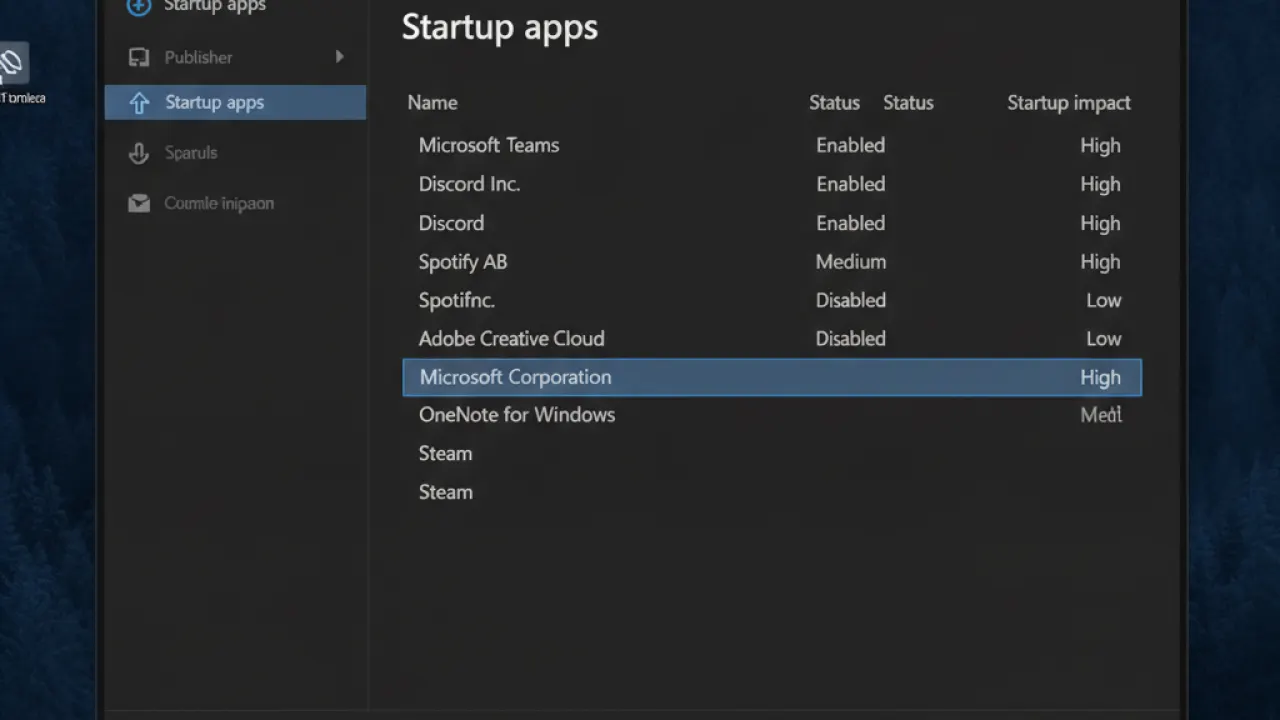
On Windows: Task Manager (Ctrl+Shift+Esc) then Startup apps tab. Disable everything you don’t need the moment your laptop turns on. Social media apps, Adobe updaters, Spotify, and game launchers are common culprits. Fewer startup programs means faster boot and less background resource use throughout the day.
On Mac: System Settings then General then Login Items. Remove apps from “Open at Login” that don’t need to start automatically.
2. Free Up Storage Space

Laptops slow down dramatically when storage drops below 15-20% free space. Windows runs much faster with room to work. Delete files you don’t need, move photos to external storage or the cloud, and uninstall programs you haven’t used in months. On Windows: Settings then System then Storage shows what’s consuming the most space.
3. Clean Dust From the Laptop
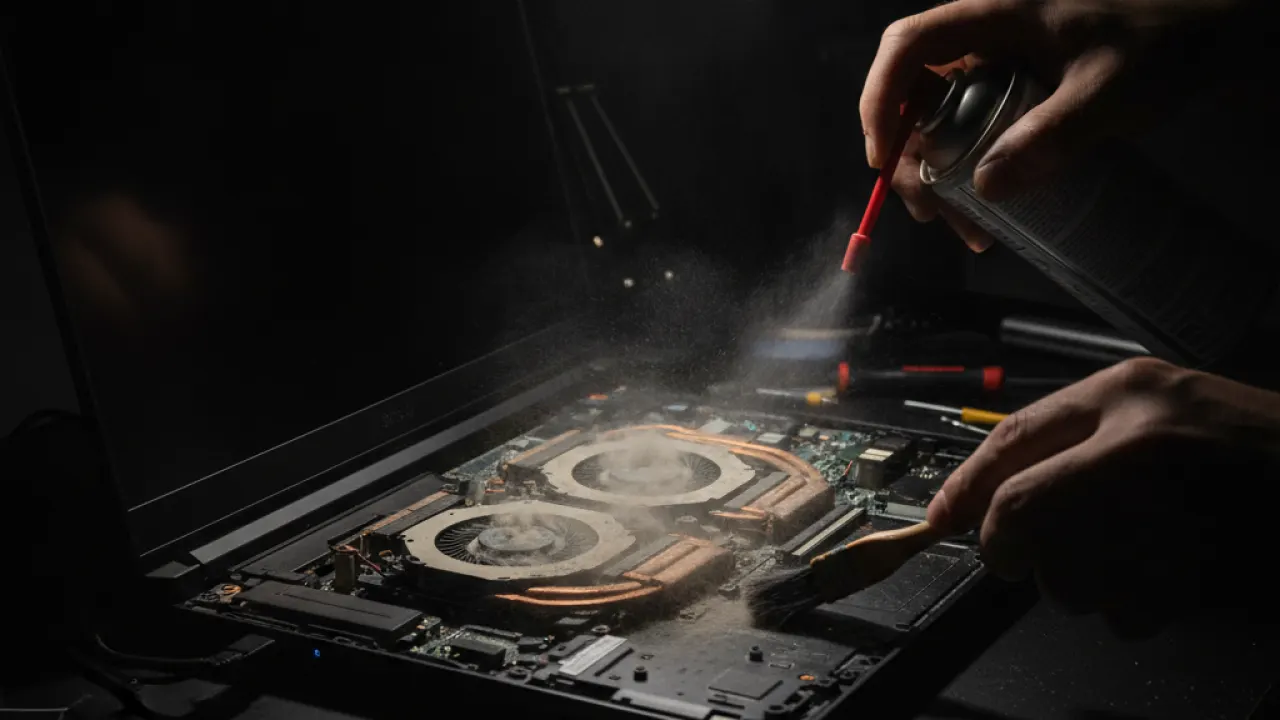
Blocked vents cause overheating, and overheating causes CPUs to throttle performance automatically — sometimes to 50% of normal speed. Use compressed air to blow dust out of the vents. On older laptops, reapplying thermal paste between the CPU and heatsink restores heat transfer. A laptop that runs hot under light load is almost certainly throttling.
4. Upgrade from HDD to SSD
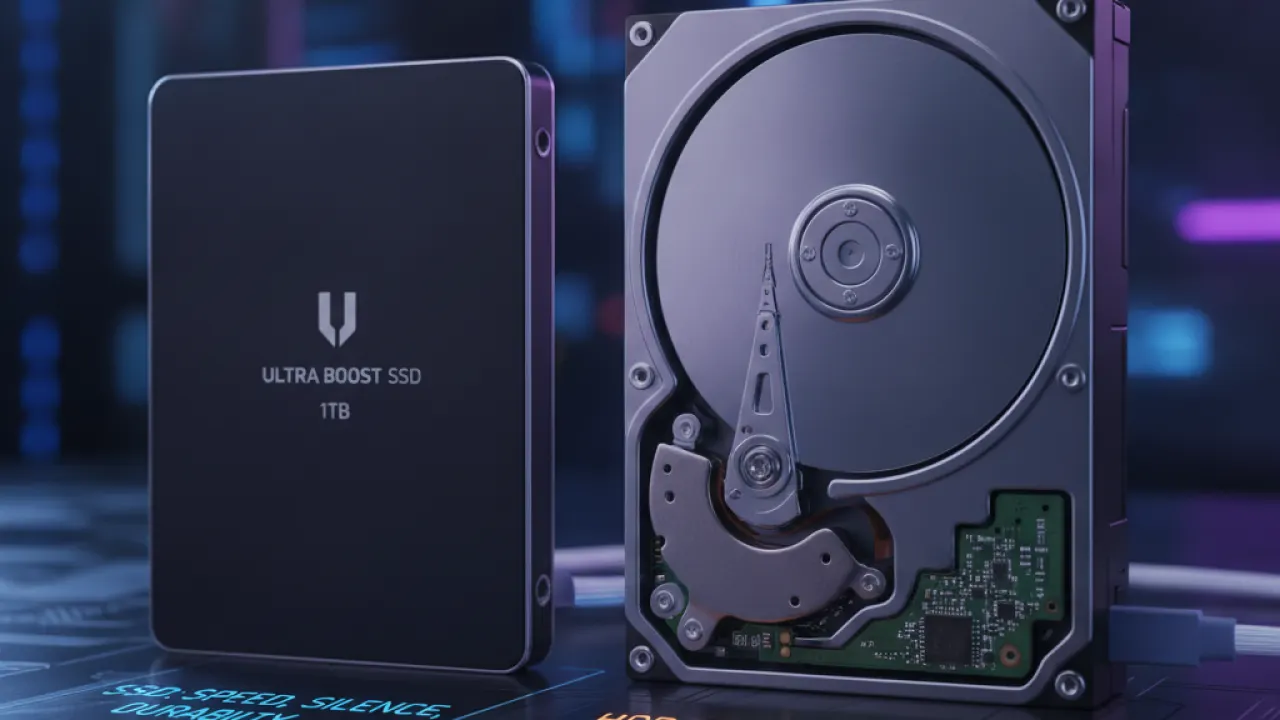
If your laptop has a traditional spinning hard drive (HDD), replacing it with an SSD is the most impactful hardware upgrade possible. Boot time drops from minutes to seconds. Applications open instantly. File transfers become dramatically faster. SSDs cost £40-70 for a 500GB SATA SSD. Compatible with most laptops made after 2010. This one change can make a 5-year-old laptop feel fast again.
5. Adjust Performance Settings
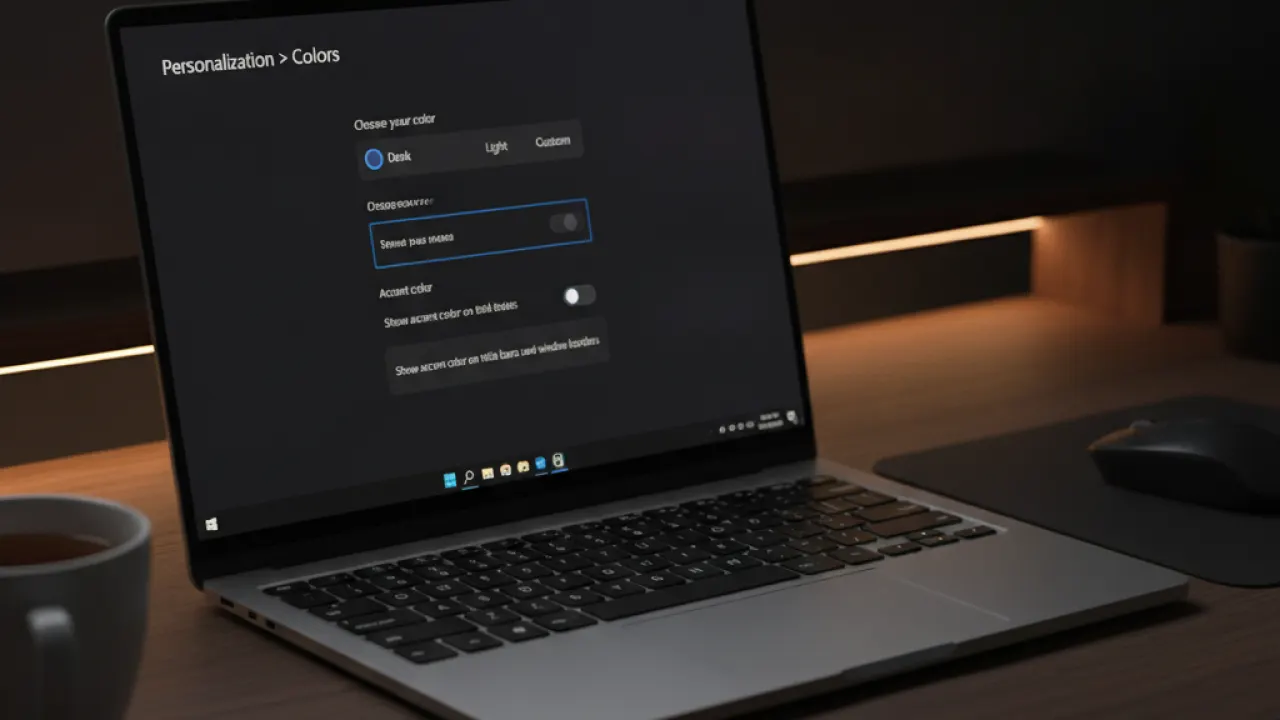
On Windows: Settings then System then Power then Power mode — set to Best Performance when plugged in. Search for “Adjust the appearance and performance of Windows” and select “Adjust for best performance” to disable visual effects that slow older hardware. On Mac: check Activity Monitor for processes consuming CPU continuously — some background processes run unexpectedly and can be force-quit.
6. Update Drivers
Outdated graphics, network, and chipset drivers cause performance issues. Device Manager on Windows shows drivers with warnings. Manufacturer websites have latest versions. On Mac, system software updates include driver updates.
7. Scan for Malware
Malware running in the background is a common cause of unexplained slowdowns. Windows Defender full scan plus a Malwarebytes Free scan covers most infections. If your laptop got slow suddenly without any hardware or software changes, malware is worth checking first.
8. Add More RAM (If Upgradeable)
8GB of RAM is the minimum for comfortable Windows 11 use in 2026. If your laptop has 4GB and allows upgrade (check manufacturer specs — many modern ultrabooks have soldered RAM), adding to 8GB or 16GB is impactful. Check crucial.com or your laptop manufacturer’s site for compatible RAM and maximum supported capacity.
9. Reinstall the Operating System
A fresh install eliminates accumulated software bloat, corrupted system files, and malware. On Windows: Settings then System then Recovery then Reset this PC. Back up everything first. After reinstall, only install software you actually use. Most old laptops run significantly faster after a clean install.
10. Check the Battery Health
A degraded battery causes Windows to throttle CPU performance to prevent unexpected shutdowns. Run powercfg /batteryreport in Command Prompt as Administrator and check the battery health percentage. Below 80% suggests replacement may restore performance, especially on laptops where the battery senses low capacity and limits maximum power draw.
Our guide to speed up Windows 11 covers similar troubleshooting for desktop Windows performance. And our best budget laptops guide covers the best budget replacements when a laptop is genuinely past its useful life.
Which fix made the biggest difference for your laptop? Leave a comment with the model and what worked — laptop-specific tips from owners of the same model are the most practical information.

