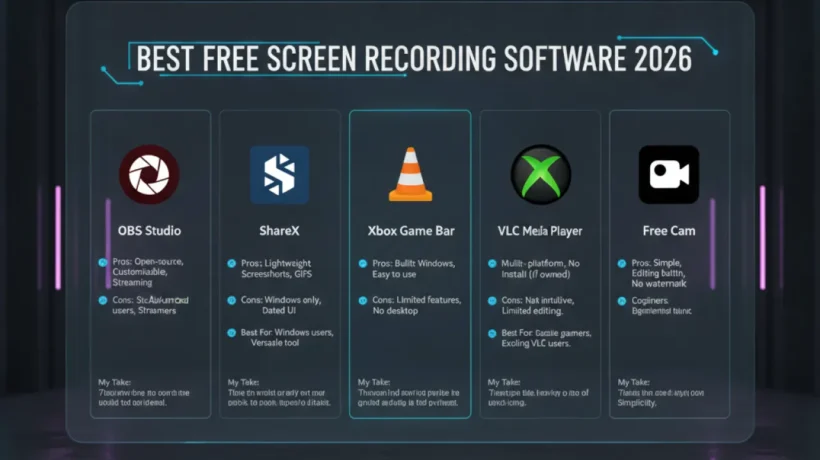

The best free screen recording software in 2026 records your screen without watermarks, with decent audio quality, and enough editing tools to use the recording without a separate editor. Here’s what’s best for each use case.
OBS Studio — Best Free for Full Control
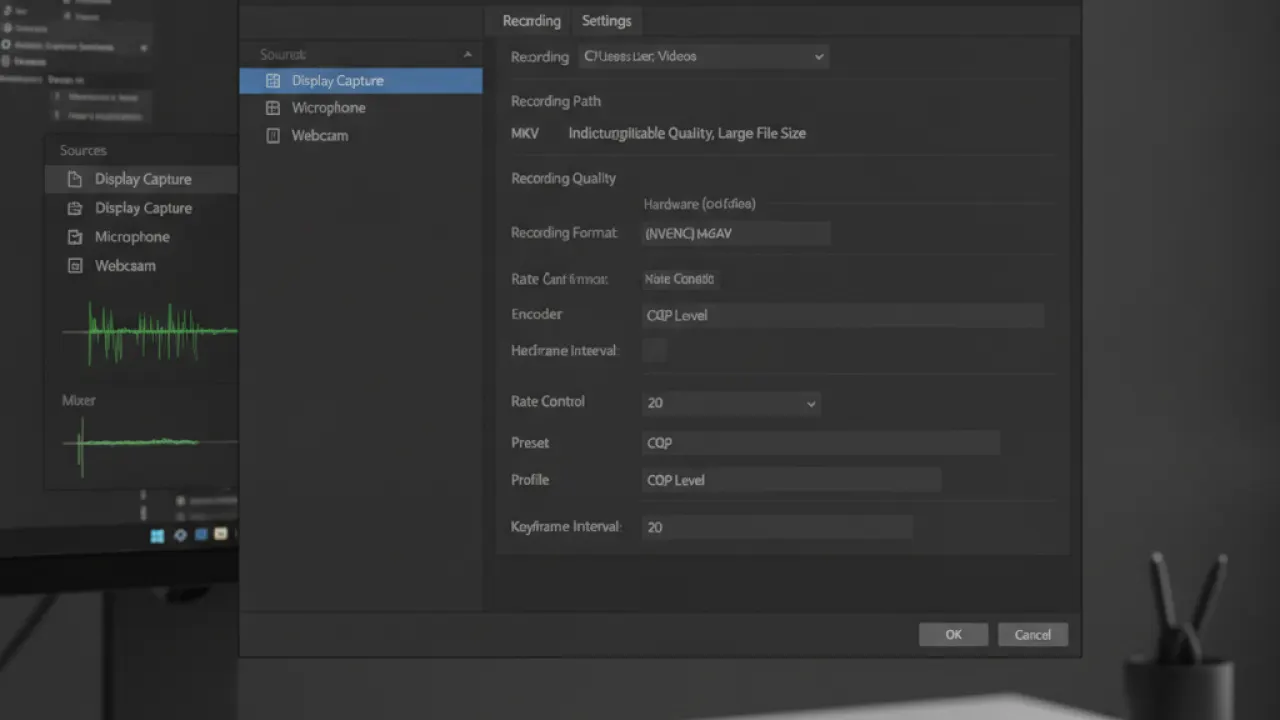
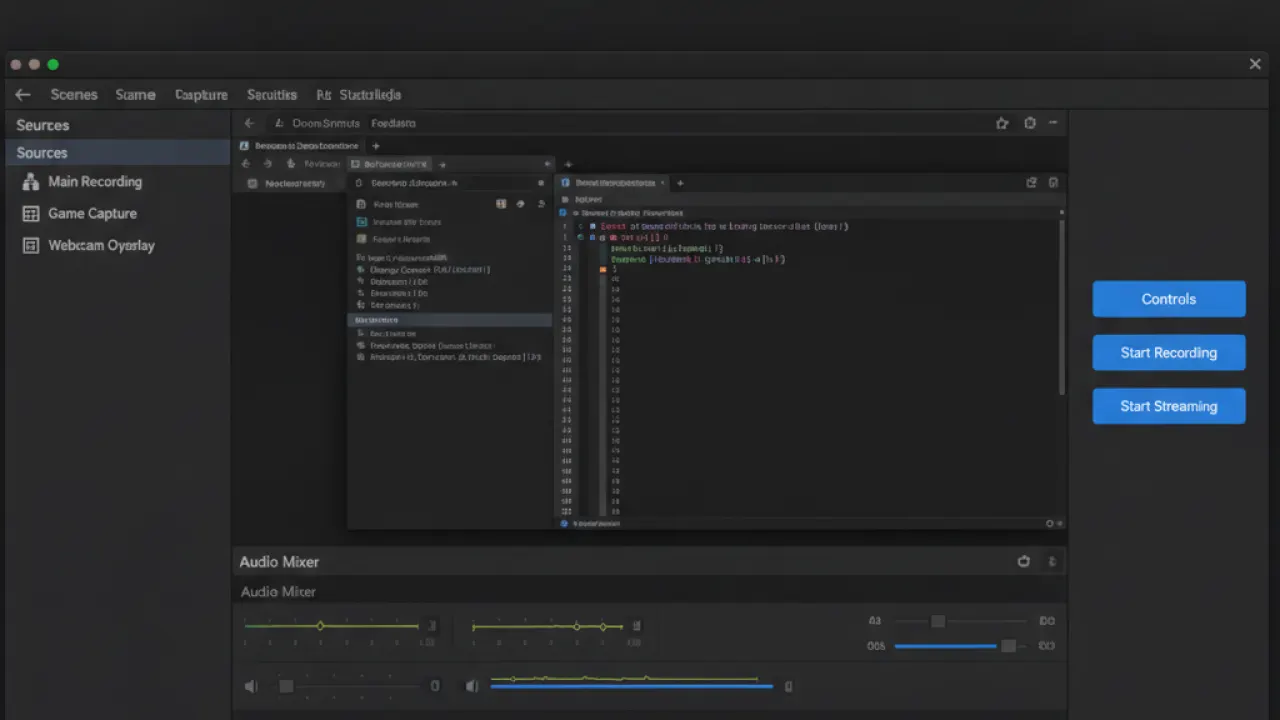
OBS Studio is free, open source, and runs on Windows, macOS, and Linux. It has no recording limits, no watermarks, no time restrictions, and no feature paywalls. Used by professional streamers and YouTube content creators.
Setup takes more time than simpler tools — you configure scenes, sources, and output settings before recording. Once configured, recording is one button. Output quality is excellent and fully customizable. Best for: tutorials, gameplay recording, multi-source recordings, and anyone who needs professional quality output regularly.
Windows 11 Built-In Xbox Game Bar (Windows Only)
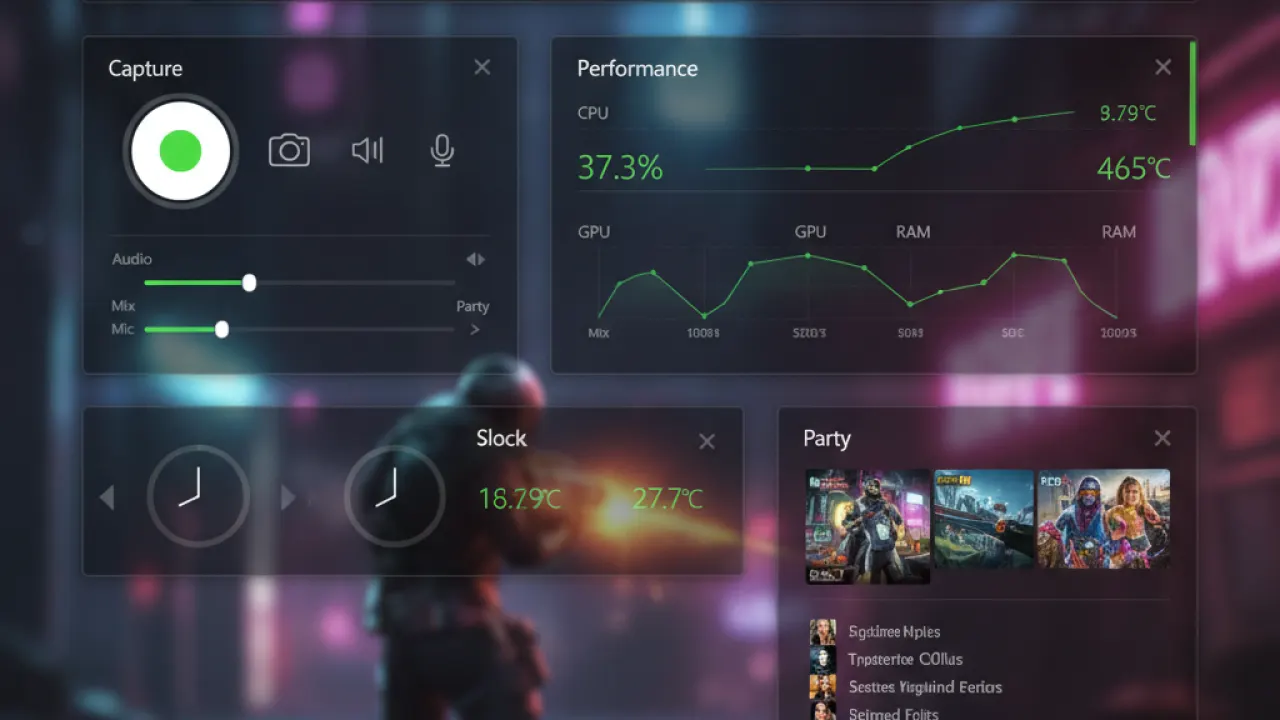
Press Win+G to open the Xbox Game Bar, then click the capture button to start recording. No installation needed. Records the active application window only (not the full screen or multiple windows). Records up to 4K at 60fps. Saves to Videos then Captures folder. Best for: quick recordings of a specific application window when you don’t need full-screen capture.
ShareX — Best Free Advanced Tool for Windows
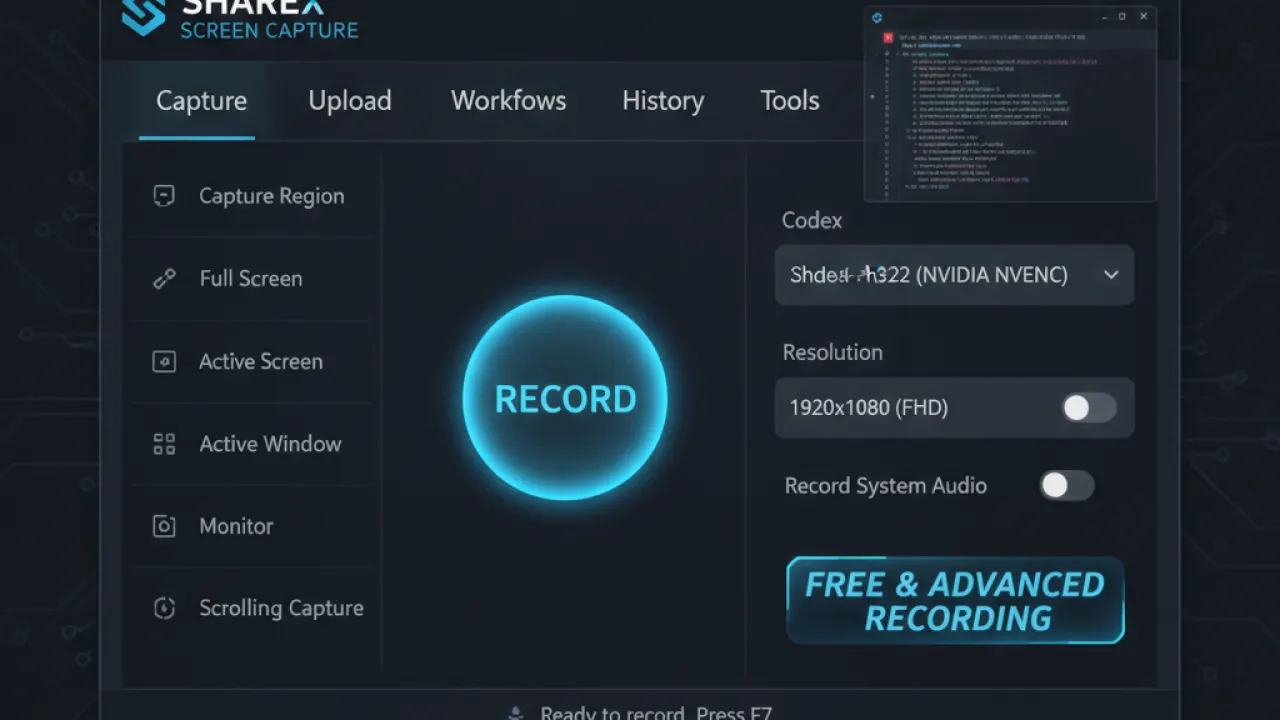
ShareX is free, open source, and works on Windows only. It goes beyond screen recording: scrolling capture (captures entire web pages), annotated screenshots with arrows and text, built-in video editor for trim and annotation, and multiple output destinations. More features than most users need but all available without payment. Best for: users who need annotation tools and editing built in.
QuickTime Player — Best for Mac
Mac users have QuickTime Player pre-installed. File then New Screen Recording records the full screen or a selected portion. Audio from microphone or internal audio (with additional software). Saves as .mov files compatible with all Mac software. Simple and reliable for basic recording needs. For more advanced features on Mac, Cleanshot X ($29 one-time) is worth the price.
Loom Free Tier — Best for Quick Sharing
Loom records screen and webcam simultaneously and immediately creates a shareable link. Free tier allows 25 videos with a 5-minute limit each. Best for: quick screen sharing in team communication where you want to send a link rather than a file. The instant shareable link without upload time is Loom’s key advantage over other tools.
What About Annotation and Editing?
Most free tools record but don’t edit. For basic trimming and annotation, DaVinci Resolve (free desktop video editor) handles anything you record. For quick annotation in the recording, ShareX and Loom include basic tools. For tutorials where annotation matters, a paid tool like Camtasia ($299) includes professional annotation that most free alternatives can’t match.
For the full range of free productivity tools, our best AI tools guide covers AI tools that speed up content creation alongside recording. What are you recording screen content for? Leave a comment with your use case — the best tool varies significantly between tutorials, gameplay, and team communication.

