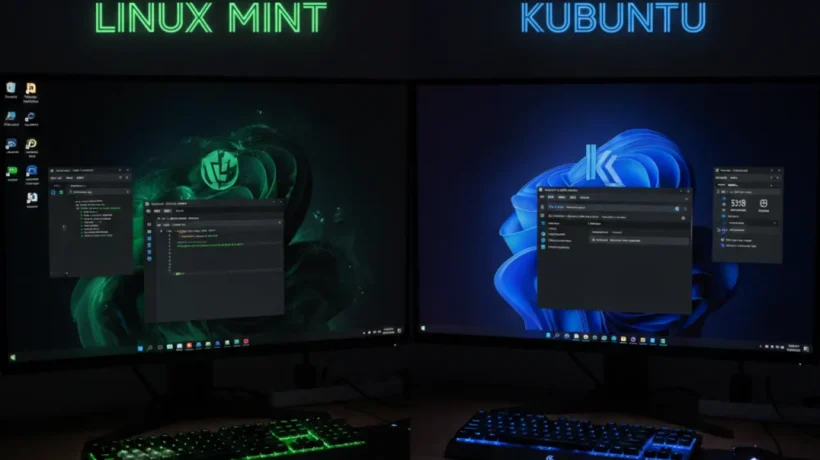

Linux Mint and Kubuntu are both Ubuntu-based Linux distributions that appeal to similar types of users: people who want a polished, traditional desktop experience that doesn’t require constant tinkering. The core difference is the desktop environment. Mint uses Cinnamon. Kubuntu uses KDE Plasma. That choice shapes almost everything about the day-to-day experience.
Linux Mint with Cinnamon: Familiar and Stable
Linux Mint’s Cinnamon desktop is designed to feel immediately familiar to anyone moving from Windows. There’s a taskbar at the bottom with a start-menu-style application launcher, system tray icons in the corner, and a traditional desktop where you can place files and shortcuts.
The customization in Cinnamon is surface-level compared to KDE. You can change themes, icon packs, and wallpapers easily. You can add panel applets and adjust their positions. But the fundamental layout is fixed: taskbar at the bottom, application menu in the corner. If you want a radically different setup, Cinnamon is not the tool for it.
What Cinnamon delivers is stability and reliability. It doesn’t crash. It doesn’t have configuration files that get corrupted in surprising ways. It doesn’t have settings that interact unexpectedly when you change both at once. For users who want a Linux desktop that simply works every day without surprises, Cinnamon is the best choice.
Linux Mint adds its own software manager, update manager, and system tools on top of Cinnamon. These tools are among the most polished first-party tools in the Linux ecosystem. The software manager in particular is notably easier to use than any Ubuntu alternative.
Kubuntu with KDE Plasma: Powerful and Customizable
KDE Plasma is the most customizable mainstream desktop environment in Linux. You can move the taskbar to any edge. You can add multiple panels with different contents. You can configure mouse gestures, keyboard shortcuts, window behavior, and animation speeds. You can make KDE look like Windows, macOS, GNOME, or something entirely its own.
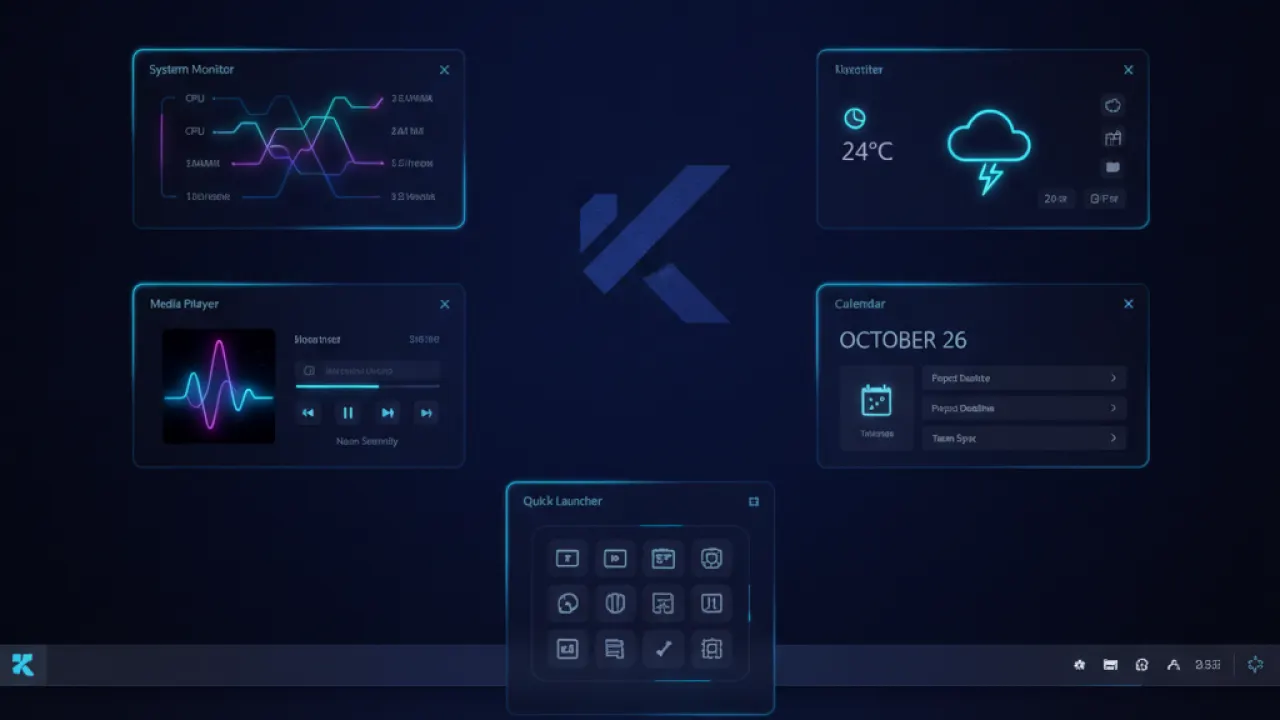
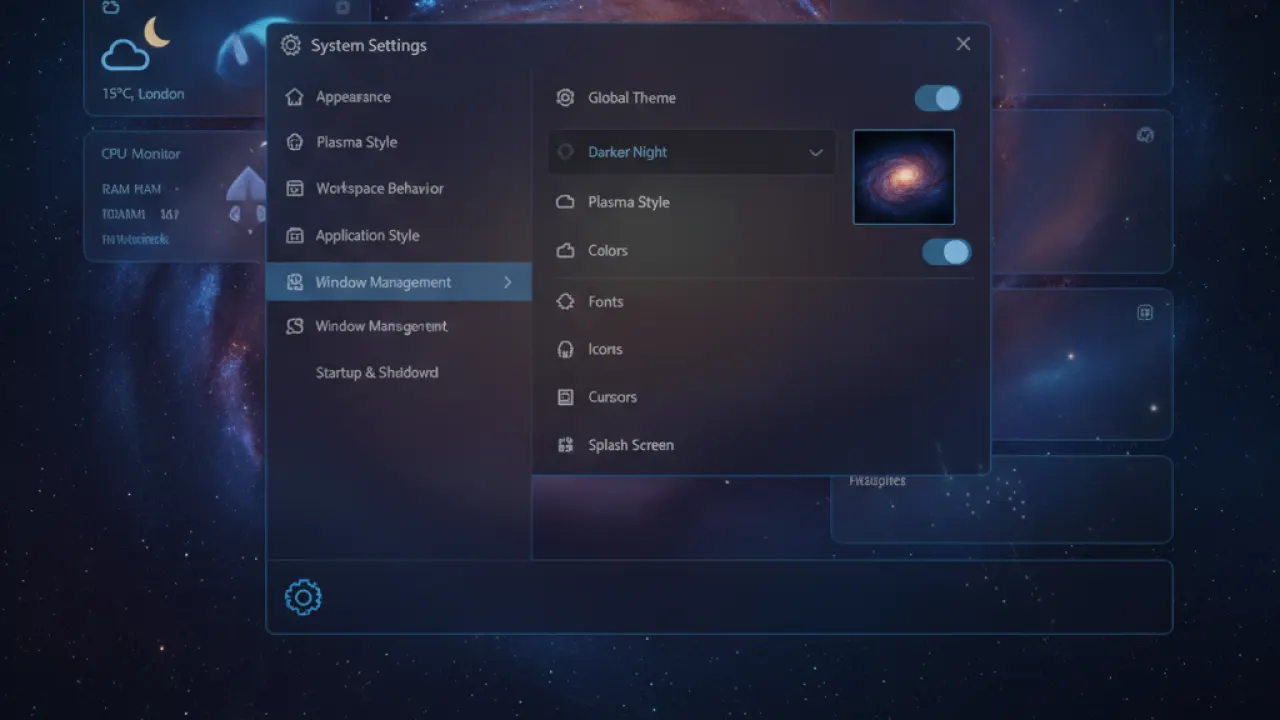
This depth of customization is KDE’s biggest strength and its learning curve. There are settings pages nested inside settings pages. First-time Linux users often spend an entire evening exploring KDE’s configuration options rather than actually using the computer. If you enjoy that process, KDE is endlessly rewarding. If you want to set up your desktop once and forget it, Cinnamon is more appropriate.
Plasma’s built-in apps are excellent. Dolphin (file manager) is widely regarded as the best file manager on Linux. Konsole (terminal) has tabs, profiles, and split-pane viewing built in. Kate (text editor) is a full-featured developer editor without IDE overhead. If you work in the terminal regularly, the KDE toolset is strong.
Performance Comparison
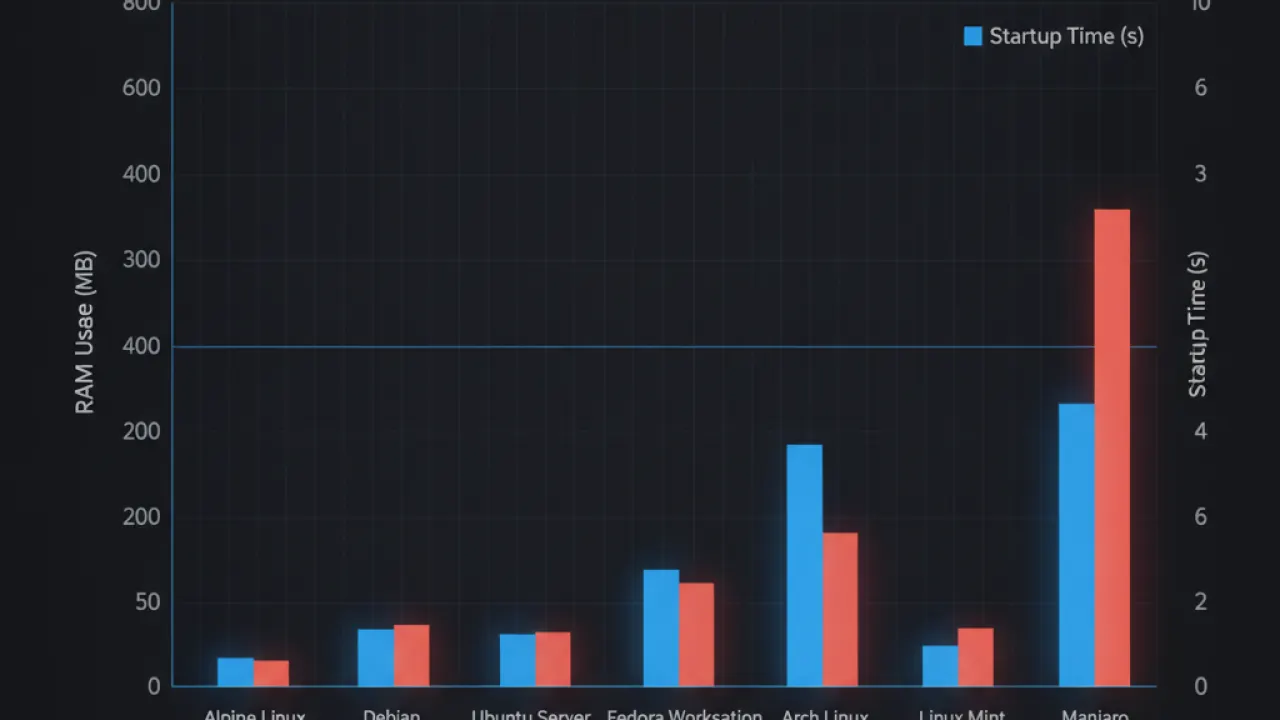
Both Mint and Kubuntu are similar in resource use on modern hardware. At idle:
- Linux Mint with Cinnamon: approximately 600-800MB RAM
- Kubuntu with KDE Plasma: approximately 700-900MB RAM
The difference is small enough not to matter on any machine with 4GB or more of RAM. On very old hardware (2GB RAM), Mint’s Xfce or MATE editions are better choices than either Cinnamon or Plasma.
Application launch times and general responsiveness are comparable. KDE’s visual effects add some GPU overhead, but modern integrated graphics handles it without noticeable slowdown.
Software and Package Management
Both distributions use the Ubuntu package repositories, so the available software is identical. Where they differ is in the default apps and the tools for managing them.
Linux Mint’s software manager is easier for non-technical users. Kubuntu uses the Discover software center, which has improved significantly in recent KDE releases but is still less intuitive than Mint’s manager for first-time users.
Both support Flatpak natively. Kubuntu also supports Snap (the Ubuntu default). Linux Mint ships with Snap disabled by default, preferring traditional .deb packages and Flatpak. Many users prefer Mint’s approach for faster application startup.
Which One Should You Install?
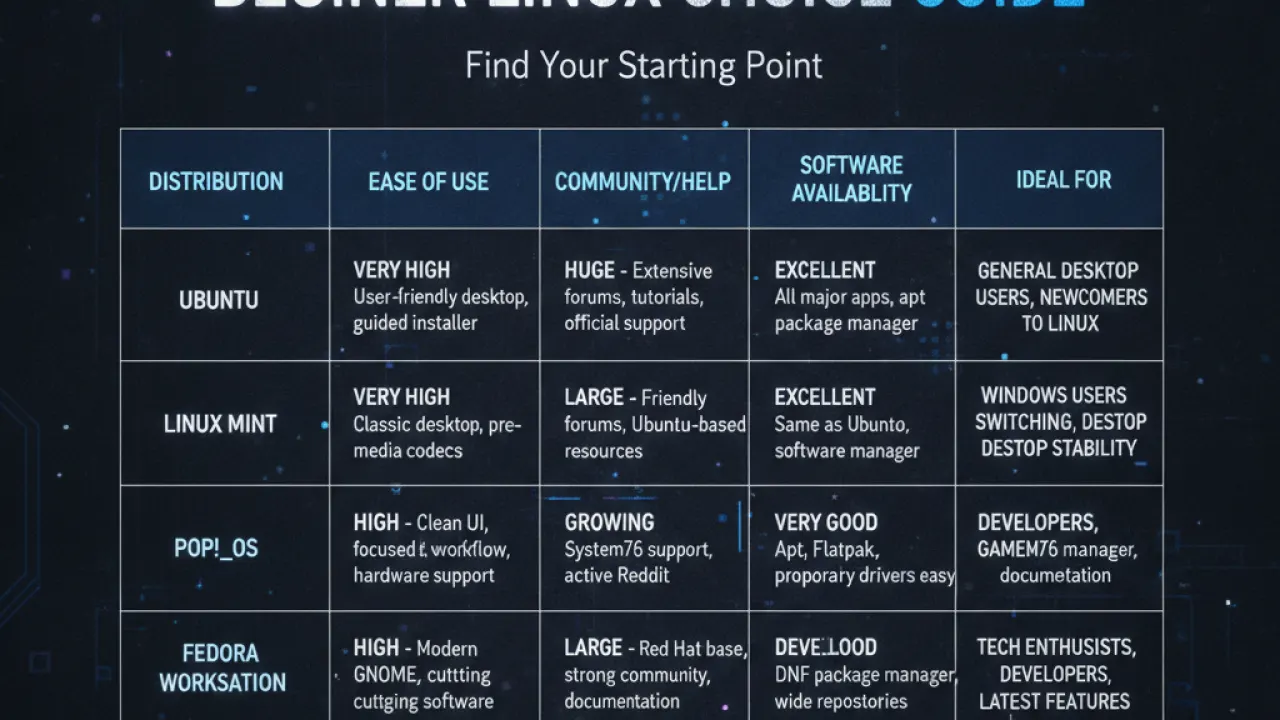
Install Linux Mint if you want:
- The closest thing to a Windows-like experience on Linux.
- A desktop that’s set up and ready without configuration time.
- The best first-party tools for software management and system updates.
- A distribution prioritizing stability over the latest features.
Install Kubuntu if you want:
- Deep visual and functional customization without limits.
- The best Linux file manager (Dolphin) and terminal (Konsole).
- A desktop you can configure to look like anything.
- The KDE application ecosystem including Kdenlive (video editing) and KDevelop.
For a broader comparison that includes Ubuntu and its GNOME desktop, our full Ubuntu vs Linux Mint comparison covers that angle. Both Mint and Kubuntu are solid choices. The best approach is to boot each one from a USB drive and spend 30 minutes with each before installing. The one that feels right to use is the one you should keep.
Are you on Mint, Kubuntu, or something else? What made you choose your current desktop environment? Leave a comment with your setup and what convinced you.

