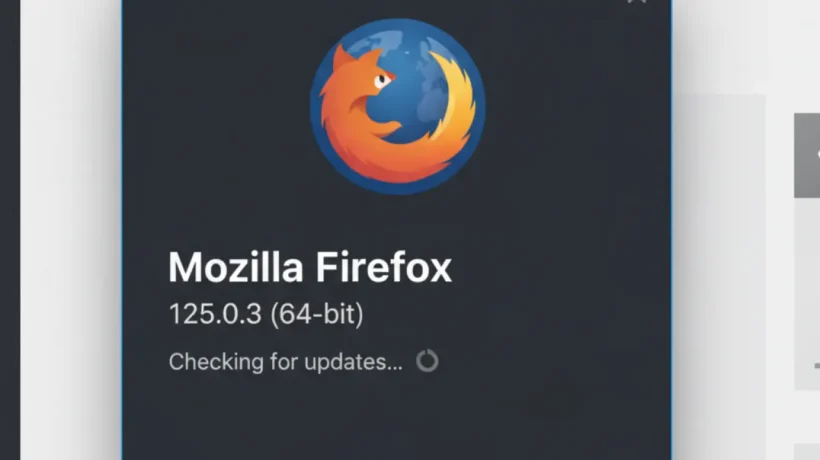

Updating Firefox takes less than a minute and keeps you protected against security vulnerabilities that attackers exploit in older versions. Here’s every way to update Firefox on Windows, Mac, and Linux, and how to make sure it stays current automatically.
The Fastest Way: About Firefox
The quickest path to updating Firefox is through the About menu:
- Open Firefox.
- Click the three horizontal lines (hamburger menu) in the top right corner.
- Click Help.
- Click About Firefox.
- Firefox immediately checks for updates and shows your current version.
- If an update is available, it downloads automatically. Click Restart to Update Firefox when prompted.
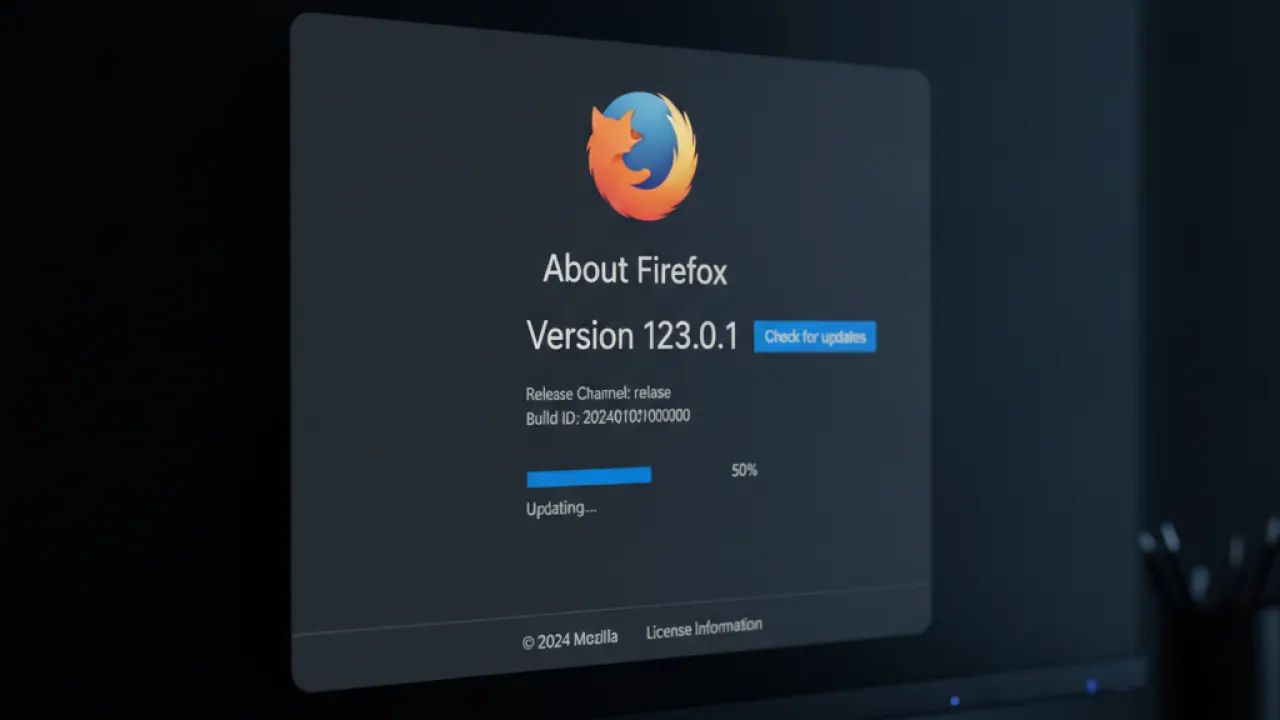
The About Firefox page also shows your exact version number. If someone asks which version of Firefox you’re running, this is where to find it.
How to Enable Automatic Updates
Firefox updates automatically by default, but if automatic updates were turned off at some point, here’s how to re-enable them:
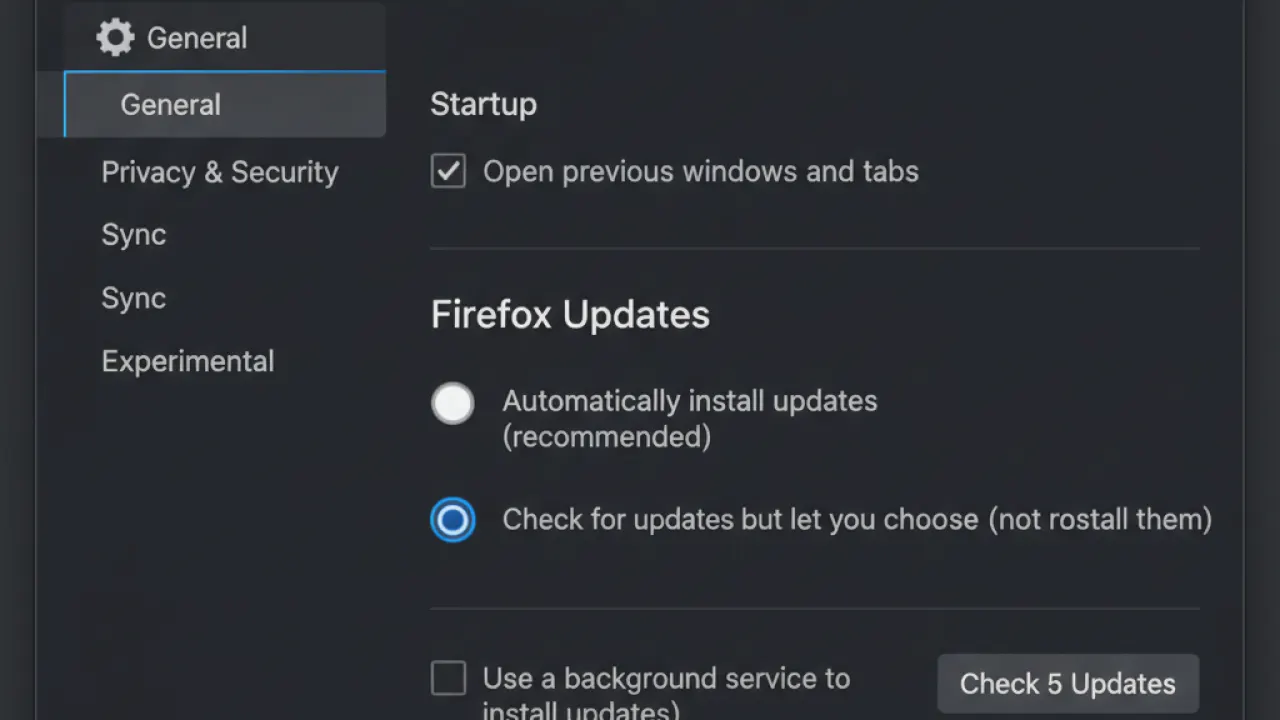
- Open the hamburger menu (three lines top right).
- Click Settings.
- Scroll down to the Firefox Updates section.
- Select Automatically install updates (recommended).
- Optionally check “Use a background service to install updates” — this allows updates even when Firefox is closed.
With automatic updates enabled, Firefox downloads updates in the background while you’re using it and applies them the next time you restart. You won’t need to manually check for updates.
Updating Firefox on Windows
On Windows, you can also update Firefox through:
Firefox’s built-in updater (above) — the preferred method.
Winget (Windows Package Manager):
winget upgrade Mozilla.FirefoxChocolatey (if installed):
choco upgrade firefoxThese package manager methods are useful if you manage multiple Windows systems and want to update Firefox alongside other software in one command.
Updating Firefox on macOS
On macOS, the About Firefox method works the same way. Firefox can also be updated through Homebrew if you installed it that way:
brew upgrade --cask firefoxIf Firefox was downloaded directly from Mozilla and installed by dragging to Applications, use the About Firefox method for updates.
Updating Firefox on Linux
Firefox updates on Linux depend on how it was installed:
Installed through the system package manager (Ubuntu/Debian):
sudo apt update && sudo apt upgrade firefoxInstalled as a Snap (Ubuntu default since 2023):
sudo snap refresh firefoxInstalled as a Flatpak:
flatpak update org.mozilla.firefoxDownloaded directly from Mozilla: Use the About Firefox method or re-download the latest version from mozilla.org and extract it over your existing installation.

Why Keeping Firefox Updated Matters
Browser security vulnerabilities are discovered regularly. Mozilla releases Firefox updates approximately every four weeks with security patches. Running an outdated version means running with known vulnerabilities that attackers are actively exploiting.
In 2026, web-based attacks that exploit browser vulnerabilities are among the most common vectors for malware. A browser that’s one version behind might be safe. A browser that’s five or ten versions behind is a meaningful security risk, especially if it’s used for banking, email, or sensitive document access.
Keeping Firefox current is one of the easiest security practices available. It requires no technical knowledge and takes under a minute.
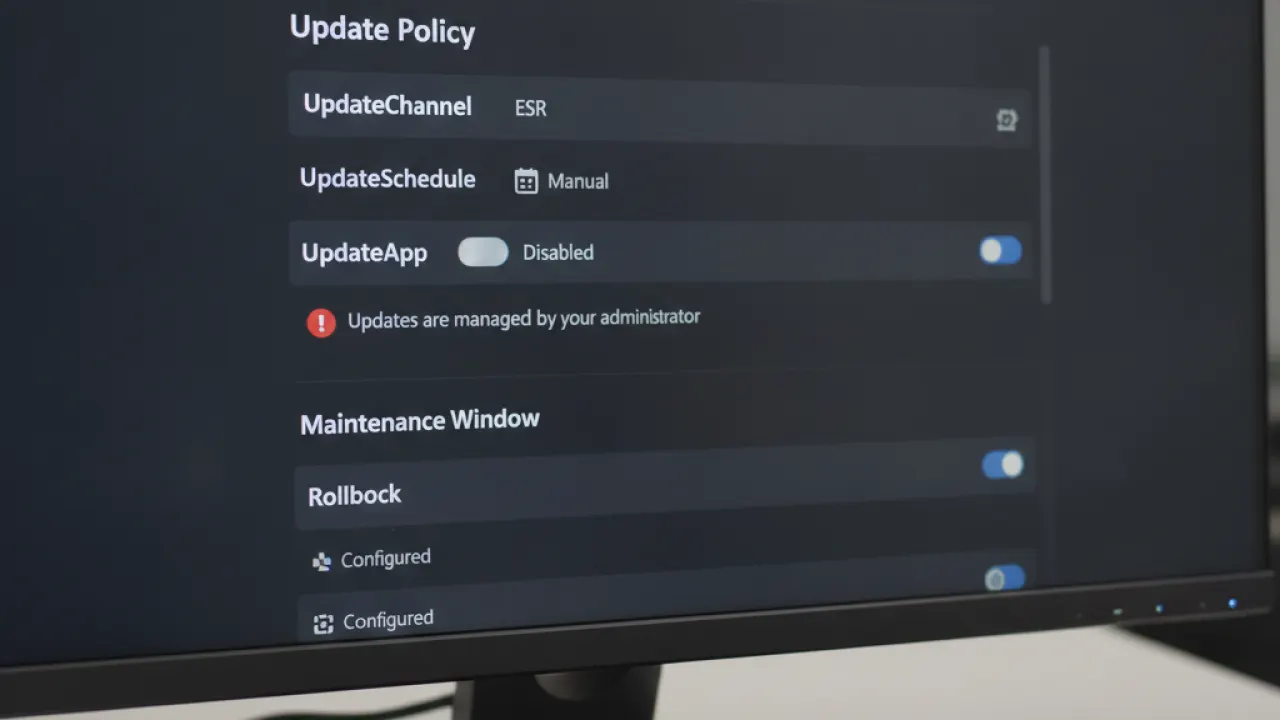
Firefox ESR: For Organizations With Slower Update Cycles
Firefox Extended Support Release (ESR) is a version of Firefox updated less frequently, designed for organizations (schools, companies, government) that need time to test new versions before deploying them.
ESR receives security updates throughout its support cycle but doesn’t get the feature updates that the regular release gets. If you’re on ESR intentionally (usually set up by an IT department), the update process is the same but runs on a different schedule.
For home users, the regular Firefox release is always the right choice. ESR is not for personal use.
What to Do If Firefox Won’t Update
If the About Firefox update fails or shows an error:
- Check that you have a working internet connection.
- Try disabling your antivirus temporarily (some AV programs block Firefox’s update process).
- Check that Firefox has write permissions to its installation folder.
- Download the latest Firefox installer directly from mozilla.org and run it. This installs the update over the existing version.
On Windows, running Firefox with administrator privileges sometimes resolves permission-related update failures. Right-click the Firefox icon and choose “Run as administrator” before trying About Firefox again.
For complete browser privacy beyond updates, our guide to basic cybersecurity tips covers how to configure Firefox’s privacy settings alongside keeping it current. And for ad blocking specifically, the comparison between Pi-hole vs AdGuard Home and browser extensions covers the different layers of protection available.
Summary: How to Update Firefox
- Fastest method: Menu (three lines) → Help → About Firefox → Restart to Update.
- Enable auto-updates: Settings → Firefox Updates → Automatically install updates.
- Windows command:
winget upgrade Mozilla.Firefox - Ubuntu APT:
sudo apt update && sudo apt upgrade firefox - macOS Homebrew:
brew upgrade --cask firefox
Do you let Firefox update automatically or do you update manually on a schedule? Leave a comment with your approach and whether you’ve had any issues with Firefox updates in the past.

