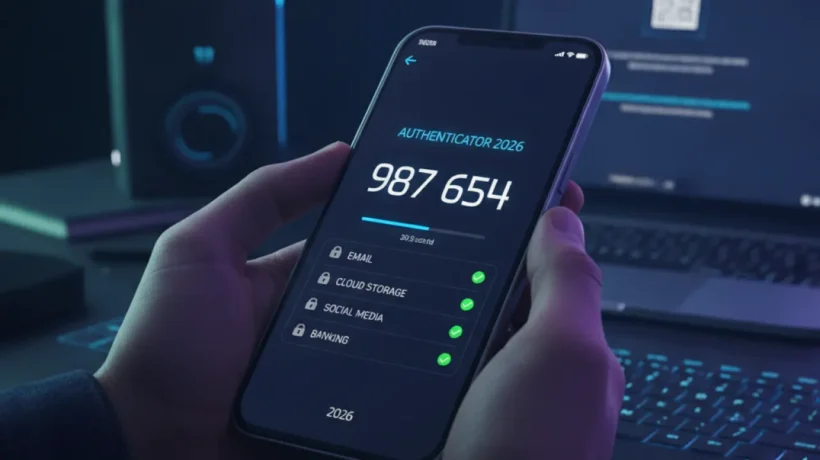

Two-factor authentication (2FA) means that logging in requires both your password AND a second factor — typically a code from an app on your phone. Even if an attacker has your password, they can’t log in without that second factor. Setting it up takes 2-5 minutes per account and is the single most effective security improvement most people can make.
SMS Codes vs Authenticator Apps: Use the App
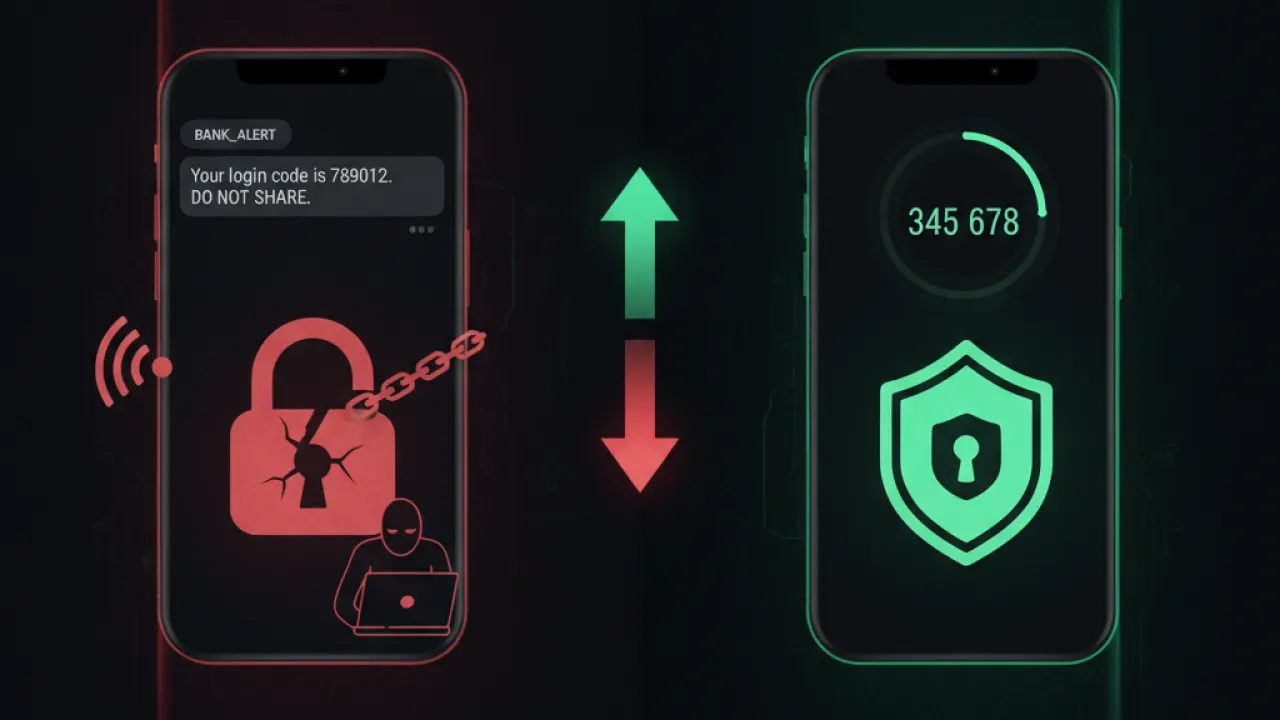
When offered a choice between SMS codes (text message) and an authenticator app, always choose the app. SMS codes are vulnerable to SIM-swapping attacks, where an attacker convinces your phone carrier to transfer your number to their SIM. Once they have your number, they receive your SMS codes. SIM-swapping is increasingly common and specifically targets people with valuable accounts.
Authenticator apps (Google Authenticator, Authy, Microsoft Authenticator) generate codes on your physical device using a key that’s never transmitted. Even if someone intercepts your network traffic or attacks your phone carrier, they can’t get the codes. Use an authenticator app for any account that matters: email, banking, investments, social media, and your password manager.
How to Set Up an Authenticator App
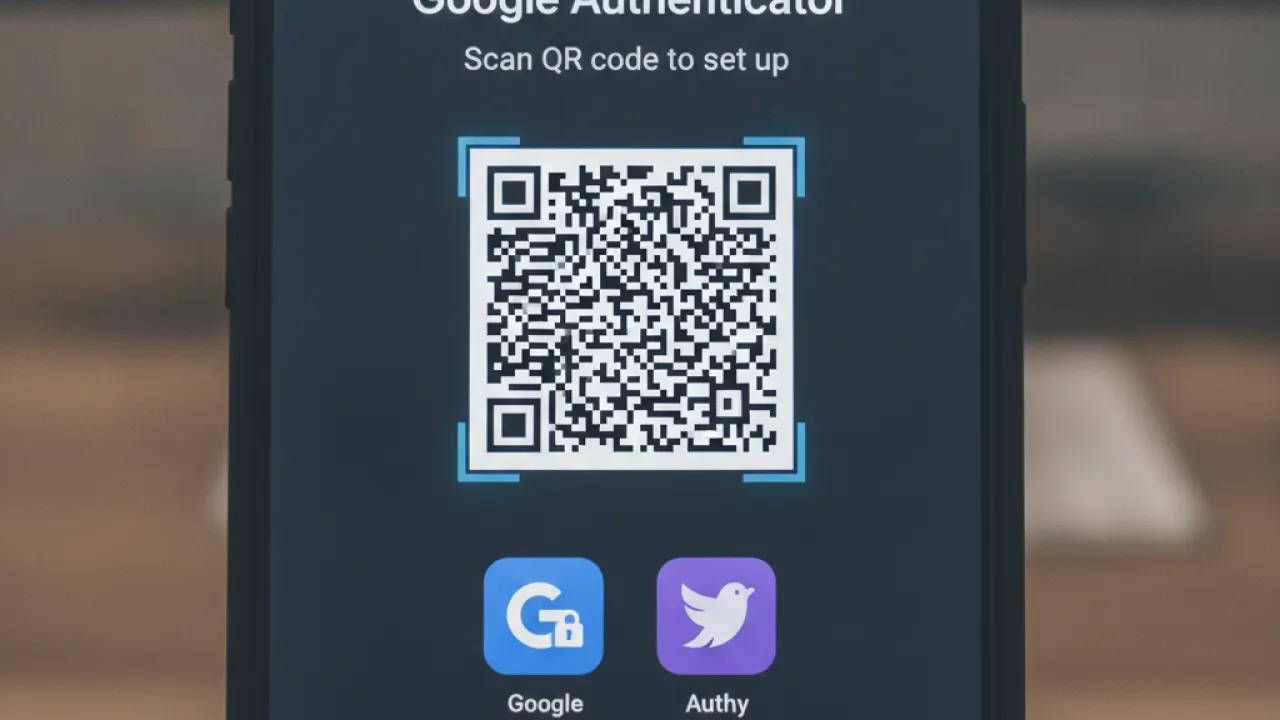
Step 1: Install an authenticator app. Authy (allows backup and multi-device access), Google Authenticator, or Microsoft Authenticator are all good options. Authy’s backup feature is particularly useful — if you lose your phone, you can restore your authenticator codes to a new device.
Step 2: Go to security settings in the account you want to protect. Look for “Two-step verification,” “Two-factor authentication,” or “Security.” Step 3: Select “Authenticator app” as your 2FA method. The account shows a QR code. Step 4: In your authenticator app, tap the + button and scan the QR code. The account appears in your app generating 6-digit codes that change every 30 seconds. Step 5: Enter a current code from the app to confirm setup. Done.
Which Accounts to Prioritize
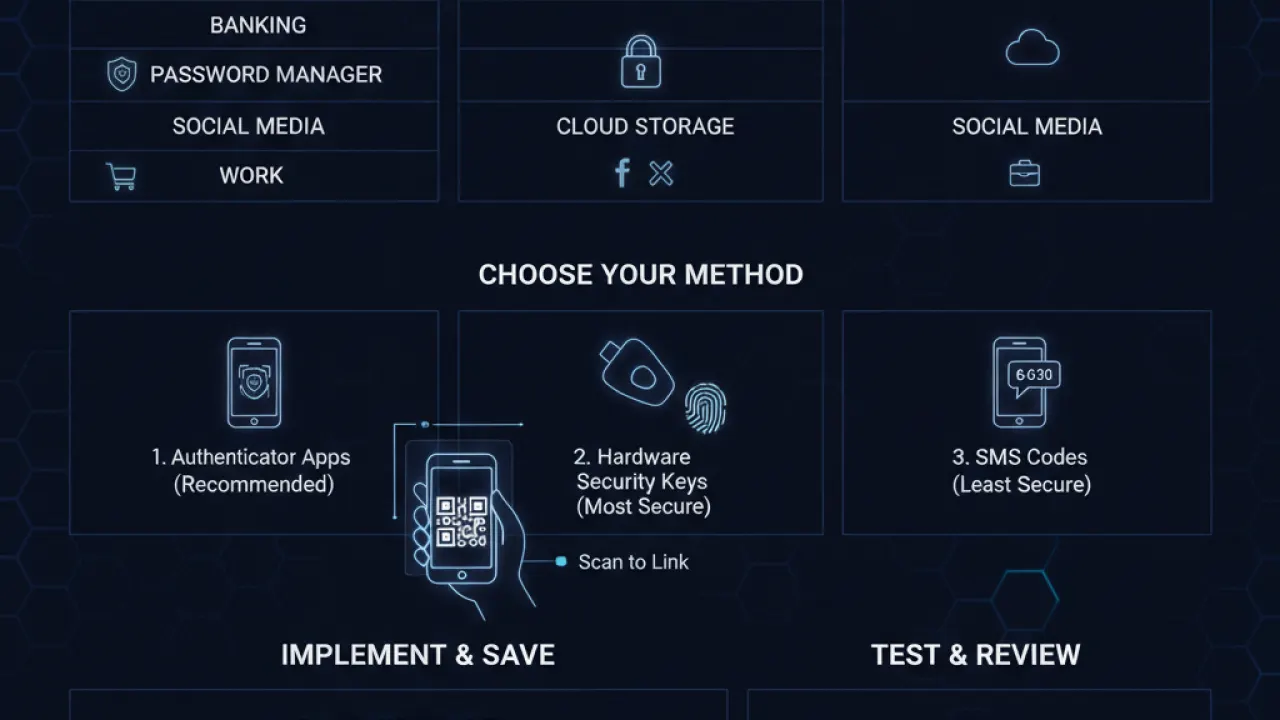
Set up 2FA in this order: 1) Email (your Gmail, Outlook, or other primary email — it’s the master key for password resets). 2) Password manager (Bitwarden, 1Password, etc. — protects all other passwords). 3) Banking and financial accounts. 4) Investment accounts and cryptocurrency. 5) Work accounts (if your employer hasn’t already required it). 6) Social media accounts with large followings or that you’d hate to lose.
Once the high-priority accounts are done, add 2FA to everything else when you next log in to those services.
Save Backup Codes — This Is Critical

When you set up 2FA, most services provide backup codes — a list of one-time codes you can use if you lose access to your authenticator. Save these somewhere safe and physical. A printed copy in a secure location, saved in a password manager, or in an encrypted file are all reasonable options. Never save them only in the device that holds your authenticator app.
Losing your phone without backup codes means losing access to accounts with 2FA enabled. The account recovery process is possible but slow, and some services make it very difficult to recover without backup codes.
Passkeys: The Next Step Beyond 2FA
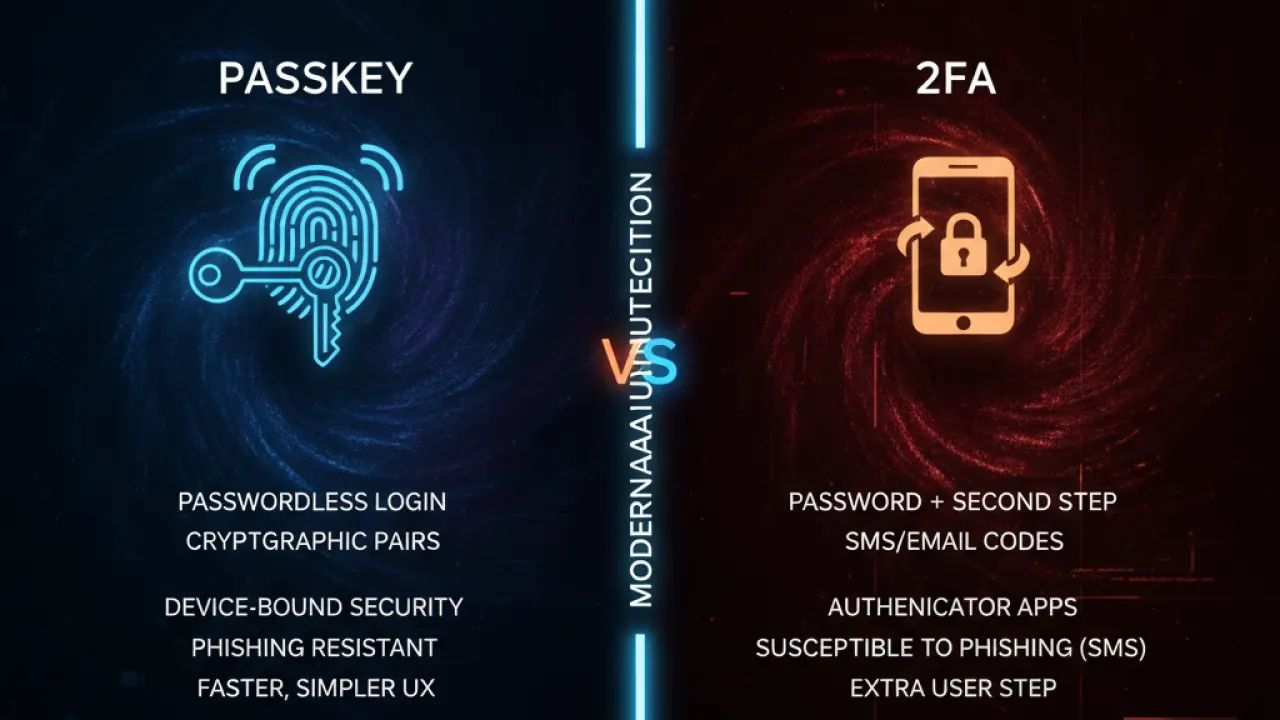
Passkeys are a newer authentication method that replaces both your password and 2FA with a single device-based key. You log in by approving a prompt on your phone or using your fingerprint/face ID on your computer. Passkeys are more secure than 2FA because they’re phishing-resistant — they only work on the legitimate website, not on fake login pages.
Where passkeys are available (Google, Apple, Microsoft, and growing numbers of other services), they’re worth enabling as a replacement for password + 2FA. Our guide on Gmail security covers how to set up Google passkeys specifically.
For the complete security setup that 2FA supports, our guide to the best free password manager explains why unique passwords for every account matter even with 2FA enabled. And our full basic cybersecurity tips guide covers 2FA as part of a complete security approach.
Which accounts have you enabled 2FA on, and which are you still avoiding? Leave a comment with the account type you find most inconvenient to use 2FA with — friction in security adoption is worth discussing honestly.

