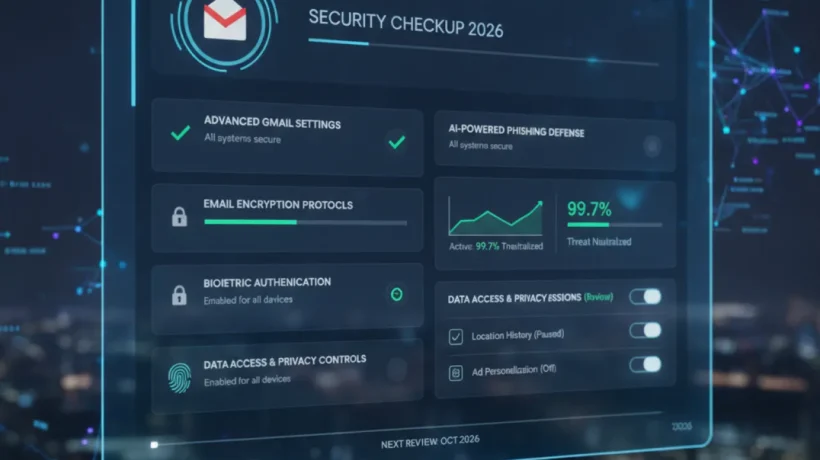

Your Gmail account is the master key to your digital life. It connects to every other account that uses your email for password reset. Securing it is the single most important security action you can take. Here’s the complete security checklist for 2026.
Enable Google Passkeys (Best Protection)
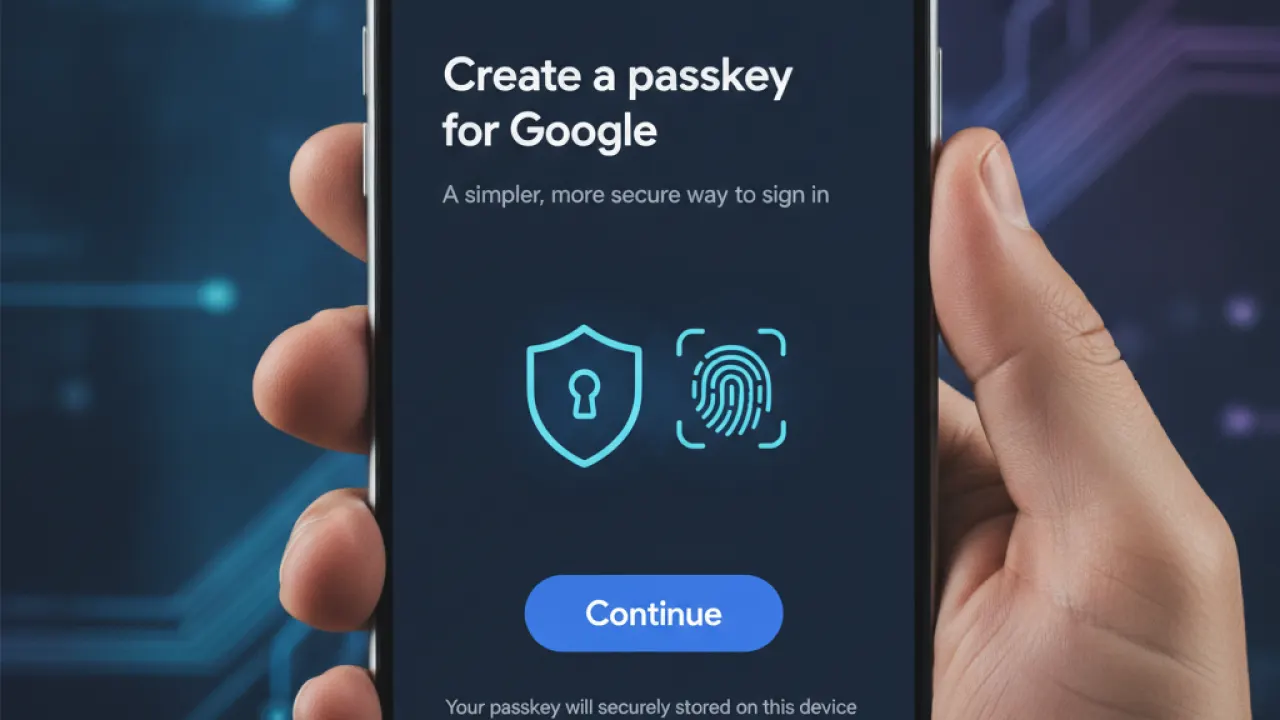
Passkeys are the newest and most secure login method. Instead of a password, your device (phone, laptop, or tablet) acts as the authentication factor. Even if an attacker has your password, they can’t log in without your physical device. Passkeys are also phishing-resistant — they won’t work on fake Google login pages.
To set up a passkey: Google Account settings (myaccount.google.com), then Security, then Passkeys. Follow the prompts to add your device. You can use a fingerprint, face ID, or PIN to authorize the passkey. After setting up, you can log in to Google without typing a password.
Enable Two-Factor Authentication
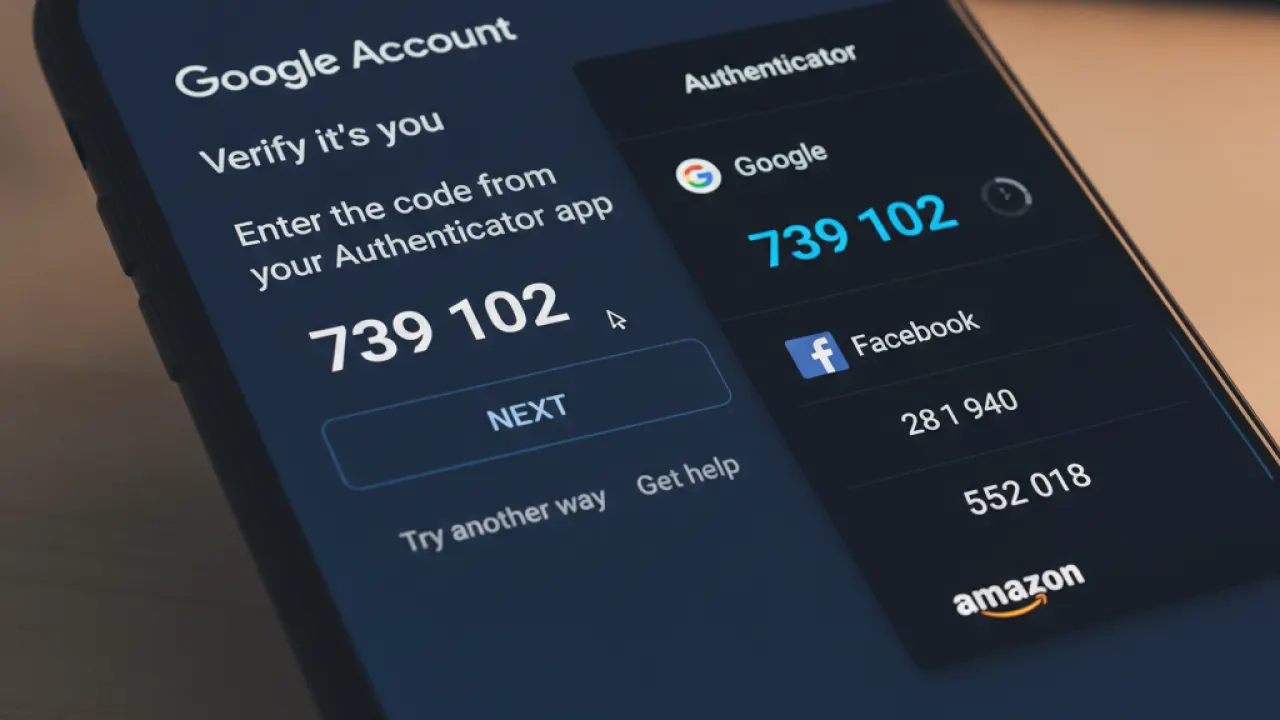
If you’re not using passkeys yet, two-factor authentication (2FA) is essential. Google Authenticator, Authy, or any TOTP app generates a time-limited code you enter alongside your password. Even if someone has your password, they can’t log in without this second factor.
Setup: myaccount.google.com, then Security, then 2-Step Verification. The most secure option after passkeys is an authenticator app. The least secure is SMS codes (phone numbers can be hijacked through SIM-swapping attacks). Avoid SMS 2FA for your primary Google account if possible.
Review Account Activity
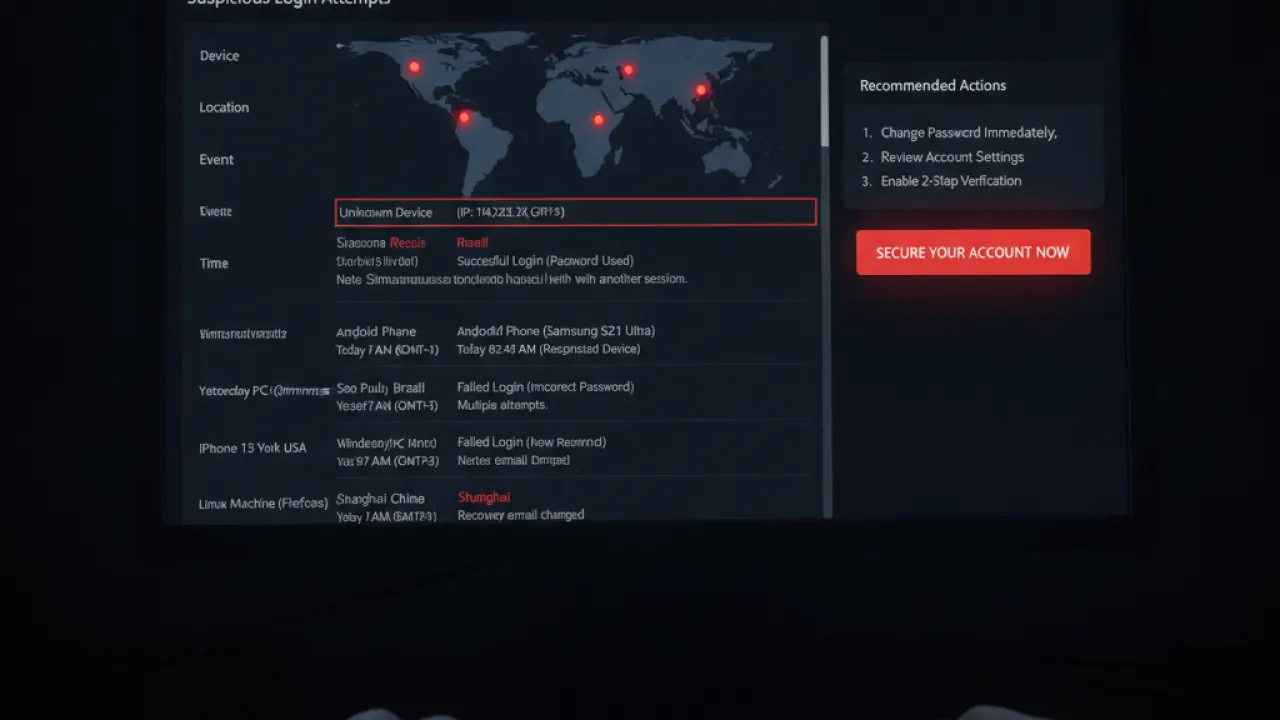
Scroll to the bottom of your Gmail inbox and click “Last account activity” in the small text at the bottom right. This shows every recent sign-in location, time, and device. Review for any logins from locations you don’t recognize. If you see an unknown country or device, someone else has access — change your password immediately and revoke all other sessions.
Review Third-Party App Access
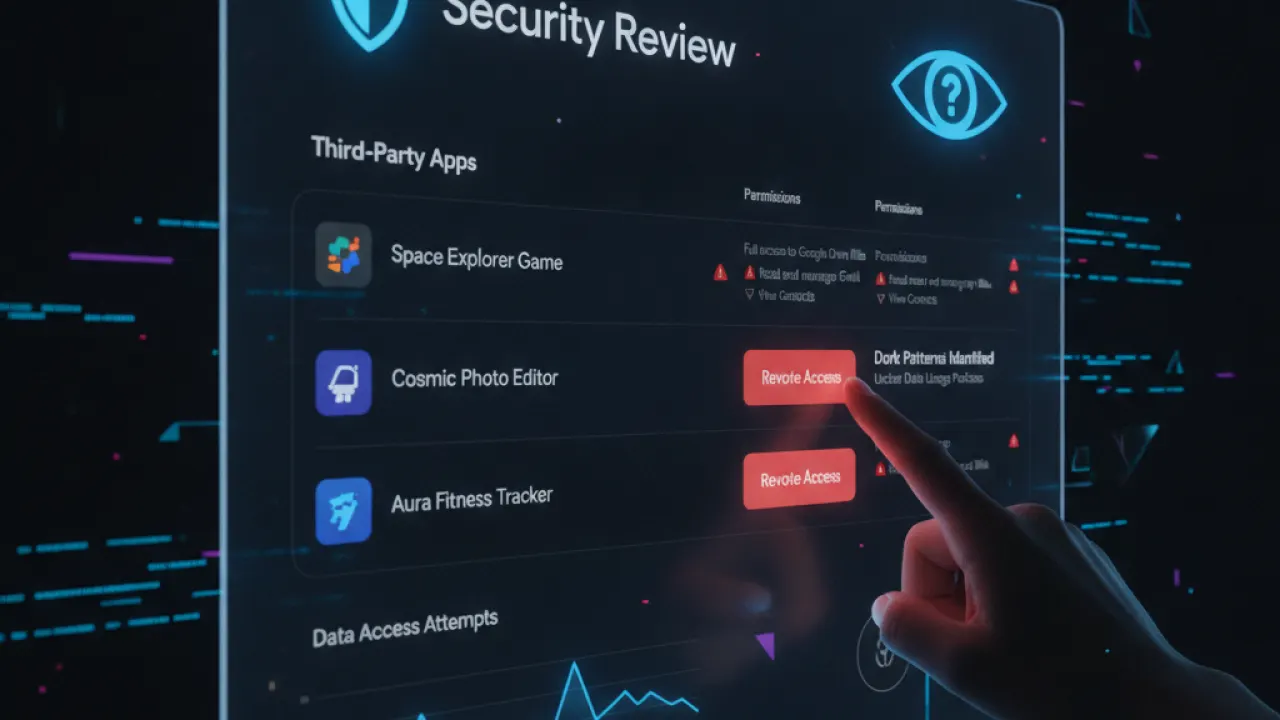
Every app or service you’ve connected to Google (using “Sign in with Google”) has some level of access to your account. Review these at myaccount.google.com, then Data and privacy, then Third-party apps with Google account access. Remove any apps you no longer use or don’t recognize. Each connected app is a potential attack vector if that service is compromised.
Set Strong Recovery Options
If you lose access to your account, recovery options are how you get back in. Go to myaccount.google.com, then Security, then Ways we can verify it’s you. Set up a recovery phone number and a recovery email that you control. Make sure these are current — an old phone number or abandoned email address can’t help you recover access.
Check Your Gmail Filters and Forwarding
Attackers who gain temporary access to a Gmail account sometimes set up email forwarding to capture future emails even after you regain access. Check: Gmail Settings, then Filters and Blocked Addresses (review for any filters you didn’t create). Gmail Settings, then Forwarding and POP/IMAP (check that no forwarding addresses are set).
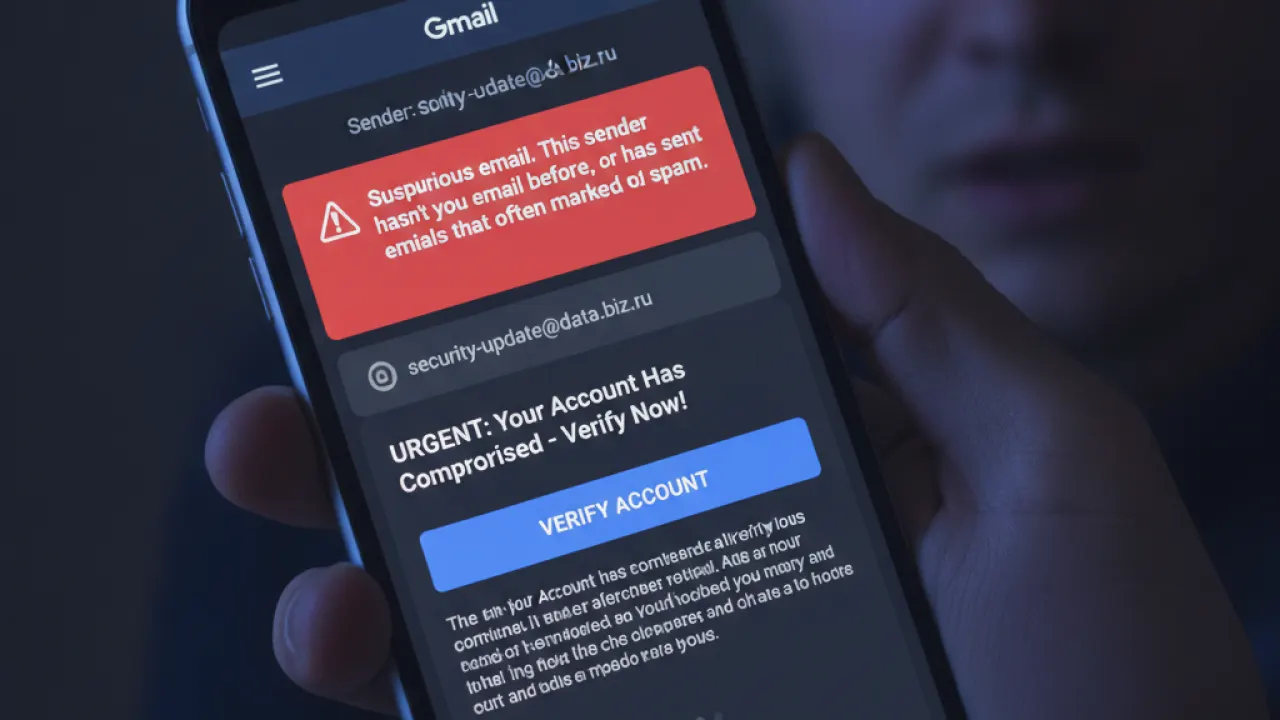
Use Gmail’s Built-in Security Features
Gmail scans all incoming email for phishing and malware. Enable Enhanced Safe Browsing in Chrome (Settings then Privacy and Security then Security) for additional protection on links clicked within Gmail. Report suspicious emails that make it through Gmail’s filters to help train the filter system.
Good email security works with a broader approach. Our guide to basic cybersecurity tips covers the full set of security practices, and our best free password manager guide explains why unique passwords across accounts matter even when your Gmail is secured.
What Gmail security feature do you think most people skip but shouldn’t? Leave a comment with the setting you recommend most. Security awareness from real users who’ve experienced account compromise is the most compelling information.

