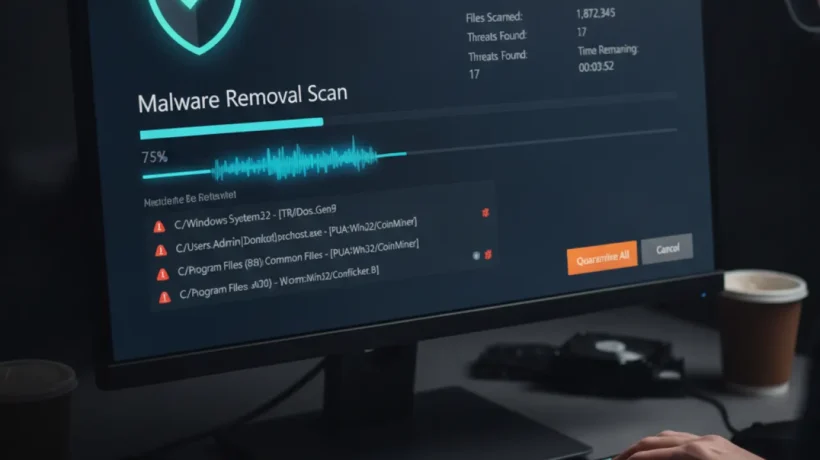

Removing malware from Windows 11 doesn’t require paid software. Windows Defender, Malwarebytes Free, and the built-in offline scanner handle most infections. Here’s the complete removal process, from quick scans to last-resort reinstall.
Signs Your Windows 11 PC Has Malware
Before scanning, confirm something is actually wrong. Common signs: PC runs significantly slower than normal for no clear reason, browser redirects to unexpected sites, unfamiliar programs appear in your taskbar or startup, antivirus warnings appear frequently, data usage is higher than expected, or the PC won’t complete a proper shutdown.
Step 1: Run Windows Defender Full Scan
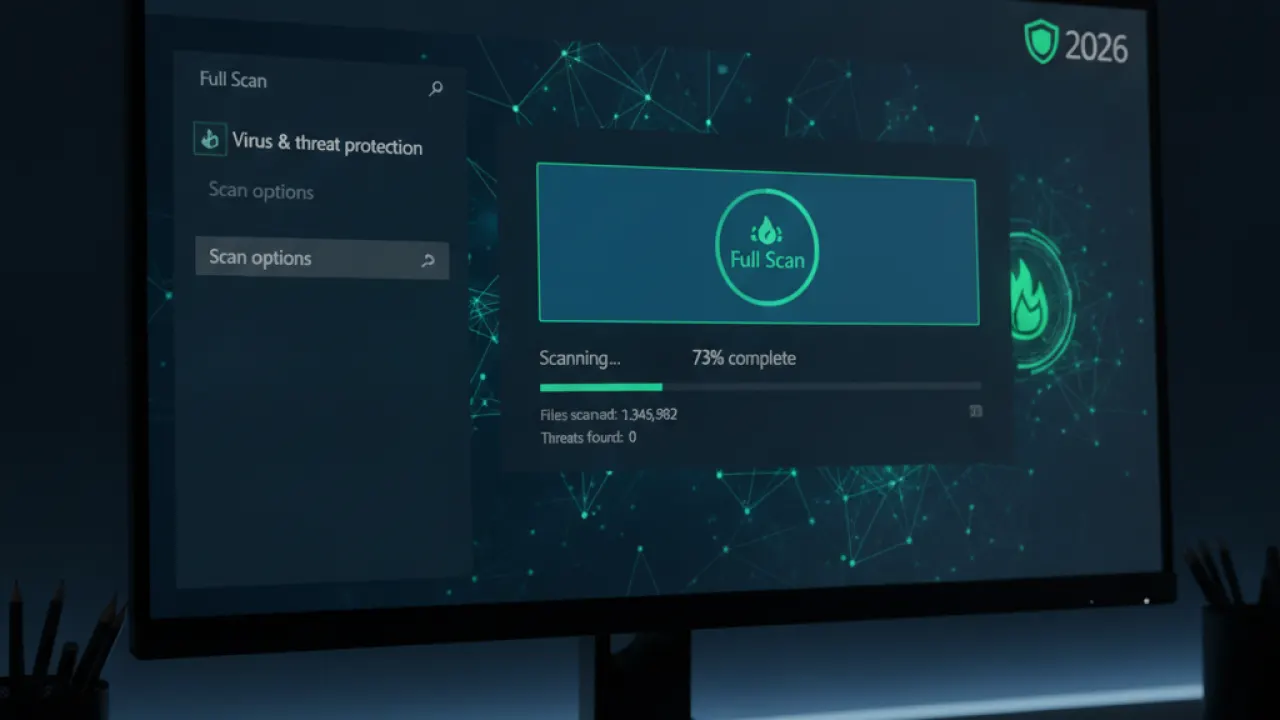
Windows Security (Windows Defender) is built into Windows 11 and handles most common malware. Open it: Start menu, search “Windows Security,” then Virus and threat protection, then Scan options, then Full scan. Click Scan now. A full scan checks every file on your drive and takes 30-60 minutes. If it finds anything, follow the prompts to quarantine or remove it. Restart your PC after the scan completes.
Step 2: Run Malwarebytes Free
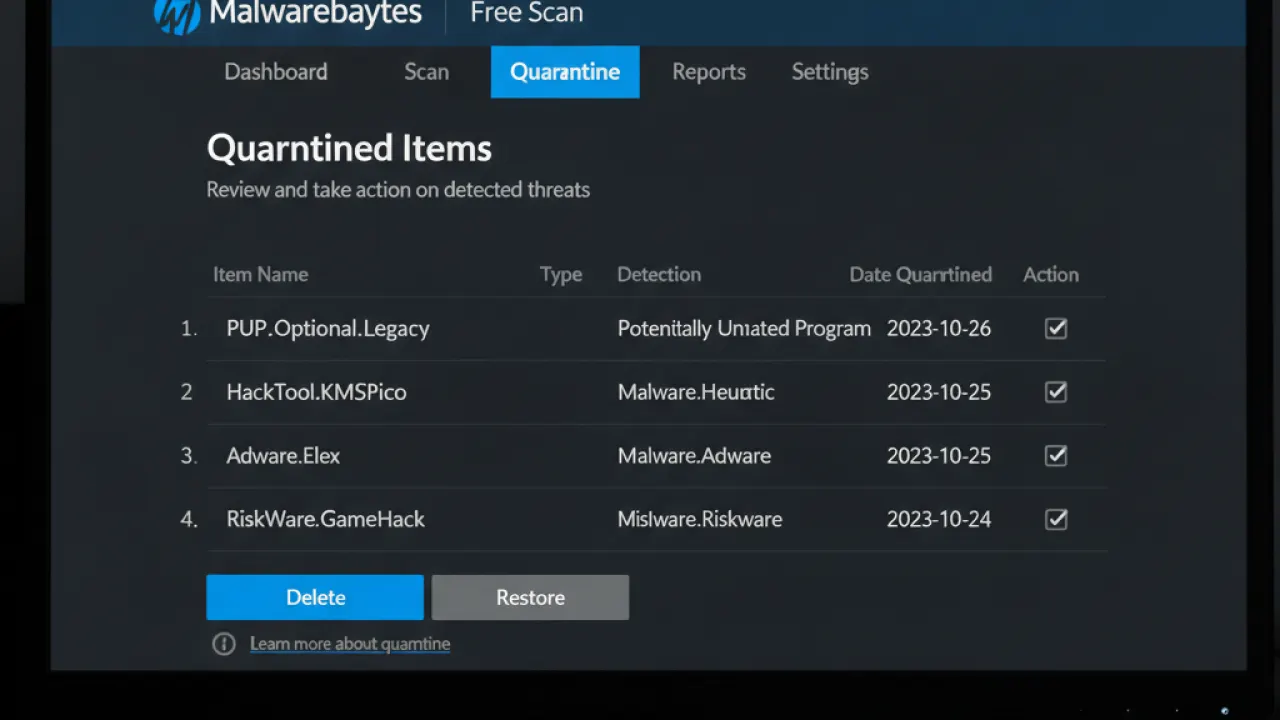
Malwarebytes catches threats that Windows Defender misses, particularly adware, potentially unwanted programs (PUPs), and browser hijackers. Download Malwarebytes from malwarebytes.com, install it, and run a Threat Scan. The free version detects and removes malware manually — the paid version adds real-time protection. After scanning, quarantine everything it finds and restart. Malwarebytes works alongside Windows Defender without conflicts.
Step 3: Scan in Safe Mode for Persistent Infections
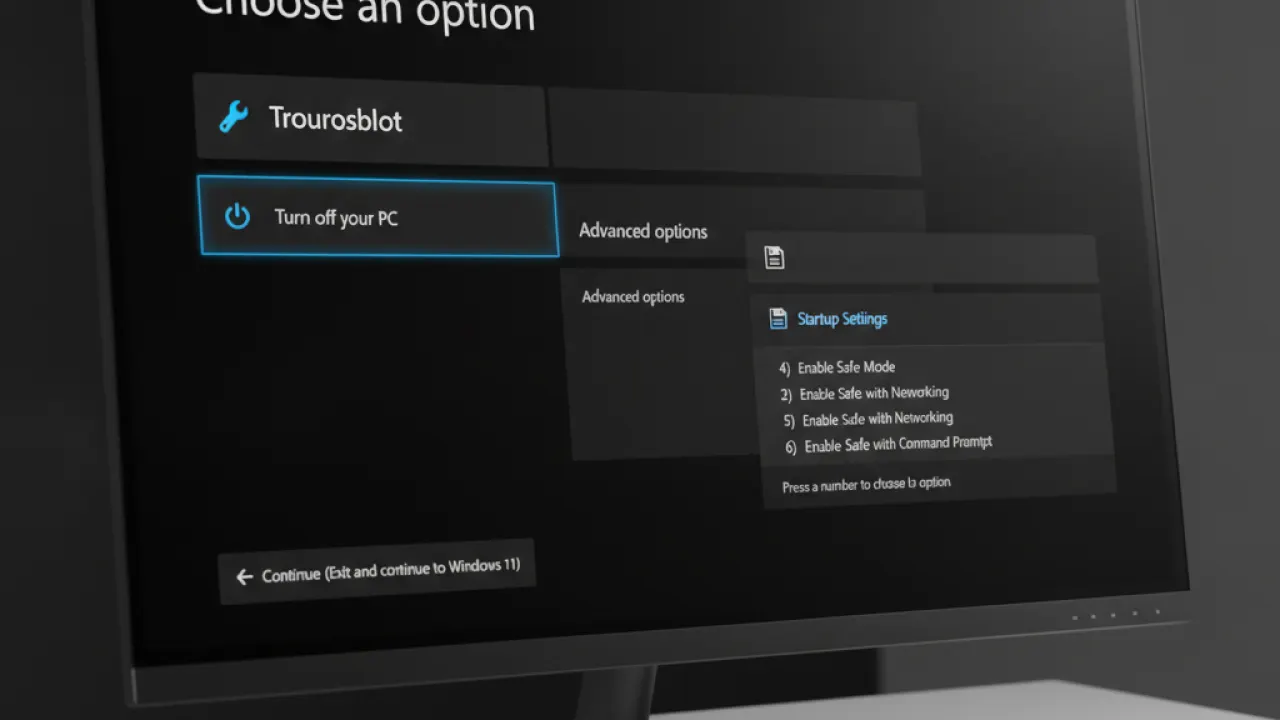
Some malware prevents scanners from working by loading before antivirus software. Boot into Safe Mode to prevent this: Settings then System then Recovery then Advanced startup then Restart now. In the options, choose Troubleshoot then Advanced options then Startup Settings then Restart. Press F4 for Safe Mode. Once in Safe Mode, run both Windows Defender and Malwarebytes again. Without the malware running, the scanners can remove it.
Step 4: Windows Defender Offline Scan
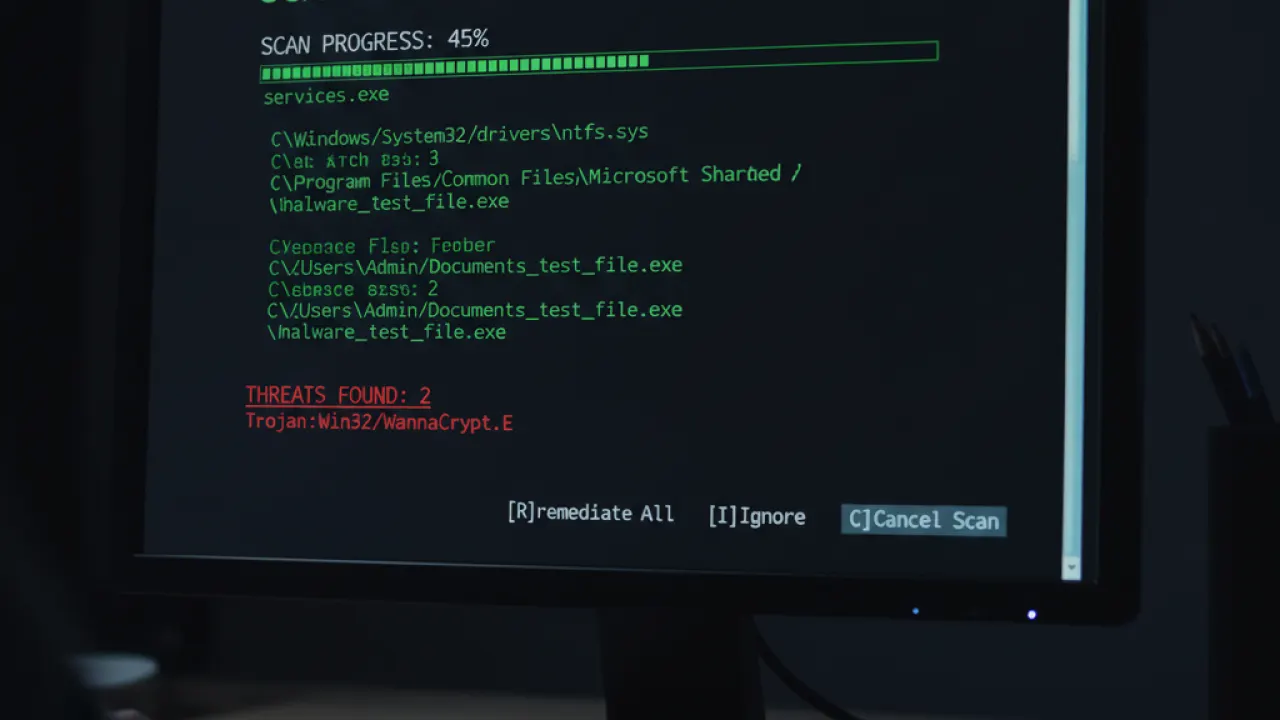
For rootkits and deeply embedded malware that persists even after regular scanning: Windows Security, then Virus and threat protection, then Scan options, then Microsoft Defender Antivirus (offline scan). This restarts Windows and scans before the operating system loads, catching malware that hides during normal operation.
Step 5: Check Browser Extensions and Reset
Browser hijackers often install as extensions. Check: Chrome Settings then Extensions, Firefox Add-ons, Edge Extensions. Remove anything you don’t recognize. If your browser homepage or search engine has changed, reset it in browser settings. If a browser reset is needed: Chrome Settings then Reset settings then Restore settings to their original defaults.
Step 6: Check Startup Programs
Malware often adds itself to Windows startup. Open Task Manager (Ctrl+Shift+Esc), click the Startup tab, and review everything listed. Right-click any unfamiliar entry and choose Disable. Don’t disable legitimate Windows processes or software you recognize.
When to Do a Clean Reinstall
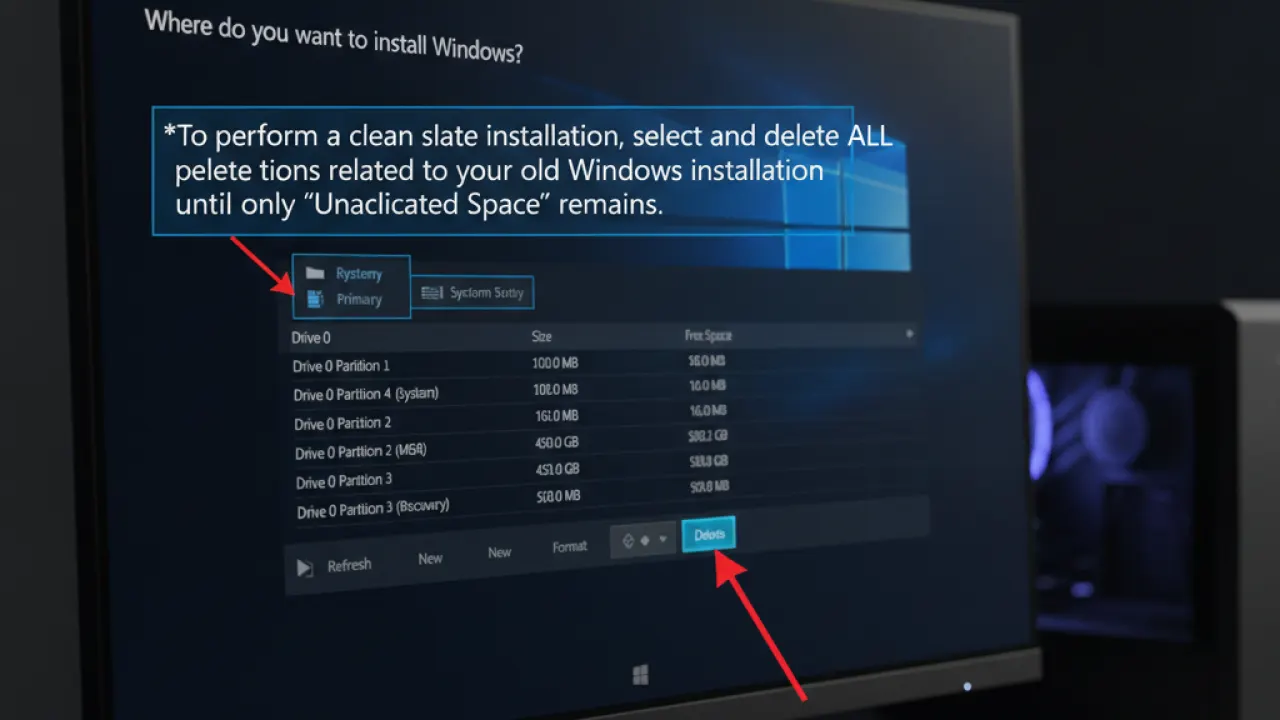
If multiple scans fail to fully clean the infection, or if the malware appears to reinstall itself after removal, a Windows 11 clean reinstall is the most reliable solution. Go to Settings then System then Recovery then Reset this PC. Choose Remove everything for a clean install. This erases all files, so back up important data first. After reinstall, restore only files (not applications) from backup to avoid reintroducing the malware.
Prevention matters as much as removal. Our guide to basic cybersecurity tips covers the habits that make initial infections less likely. And our review of the best free password manager is the most important post-infection step — change passwords for all accounts accessed from the infected machine.
Which method successfully removed malware from your Windows 11 PC? Leave a comment with the infection type and the tool that finally cleared it — specific examples help other readers identify whether their situation matches yours.

