
4K monitors under $400 in 2026 deliver sharp images at 27 inches that make text, photos, and detailed work noticeably clearer than 1080p or 1440p. Here’s what to look for and the best options at this price point.
Why 4K at 27 Inches?
4K (3840×2160) at 27 inches gives you 163 pixels per inch — noticeably sharper than 1440p (109 PPI) or 1080p (82 PPI) at the same size. For reading text, working on detailed images, and spotting fine details in video or code, the extra sharpness is worthwhile and visible without squinting. The sweet spot is 27 inches — smaller makes text too small without scaling, larger requires more expensive panels to maintain brightness.
What to Check in Specs
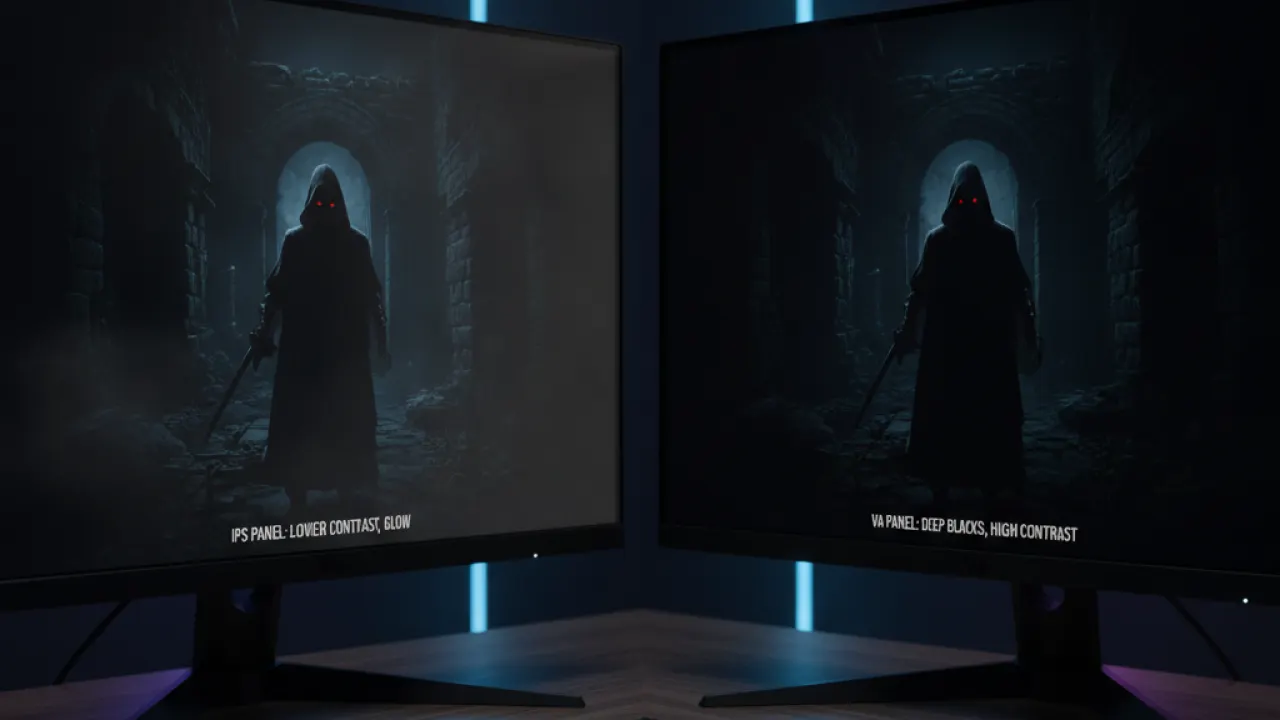
Panel type: IPS gives accurate colors and wide viewing angles. VA gives higher contrast (better for dark scenes in gaming). TN is fast but has poor viewing angles and color. At this price, IPS or VA are both reasonable choices. TN in 4K is rarely worthwhile.
Response time: For gaming, look for 5ms or lower (1ms GTG for fast-paced games). For productivity, response time matters much less.
Refresh rate: Most budget 4K monitors are 60Hz. Some have 144Hz for gaming. 60Hz is fine for productivity. For competitive gaming, 144Hz matters more than 4K resolution.
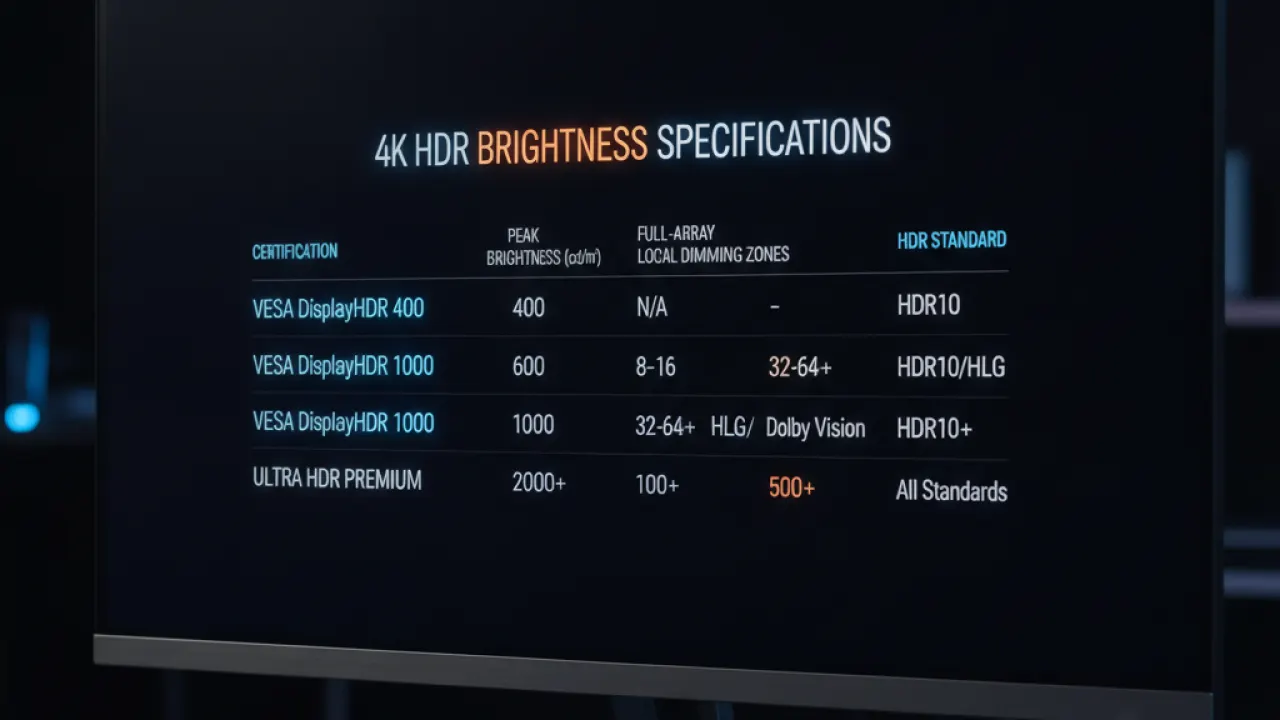
HDR: Most sub-$400 monitors claim “HDR400” or “HDR600.” True HDR requires at minimum HDR600 with local dimming zones. HDR400 is mostly a marketing label that produces a marginally brighter image without meaningful HDR experience. Don’t buy a monitor at this price for HDR specifically.
Best 4K Monitors Under $400 in 2026
LG 27UP850N-W ($320-380) — Best Overall
LG’s 27-inch 4K IPS with USB-C (96W charging) is the top recommendation for most buyers. The IPS panel has accurate colors, 350 nits brightness, and wide viewing angles. The USB-C port delivers 96W of power delivery, charging a MacBook Pro or Dell XPS at full speed with a single cable. This eliminates the need for a separate laptop charger on your desk. Connectivity includes HDMI 2.0, DisplayPort 1.4, and USB-A hub ports.
Samsung Smart Monitor M8 ($380-400) — Best Feature Set
Samsung’s M8 is a smart monitor with built-in smart TV features (Netflix, Prime Video, etc.) accessible without a connected computer, a USB-C port with 65W charging, and a surprisingly good built-in speaker compared to most monitors. The panel is IPS with better-than-average color accuracy. The wireless connectivity (Wi-Fi and Bluetooth) supports use as a standalone device for meetings and streaming.
Dell UltraSharp U2723DE ($350-400) — Best for Professional Work
Dell’s UltraSharp monitors are designed for color-accurate professional work. The U2723DE has a factory-calibrated IPS panel rated at 99% sRGB and 99.5% DCI-P3 coverage. A built-in USB-C hub adds USB-A, DisplayPort out, and Ethernet alongside the 90W USB-C charging. If color accuracy matters for photo editing, design, or video work, Dell’s UltraSharp is worth the price.
USB-C: The Feature Worth Paying For
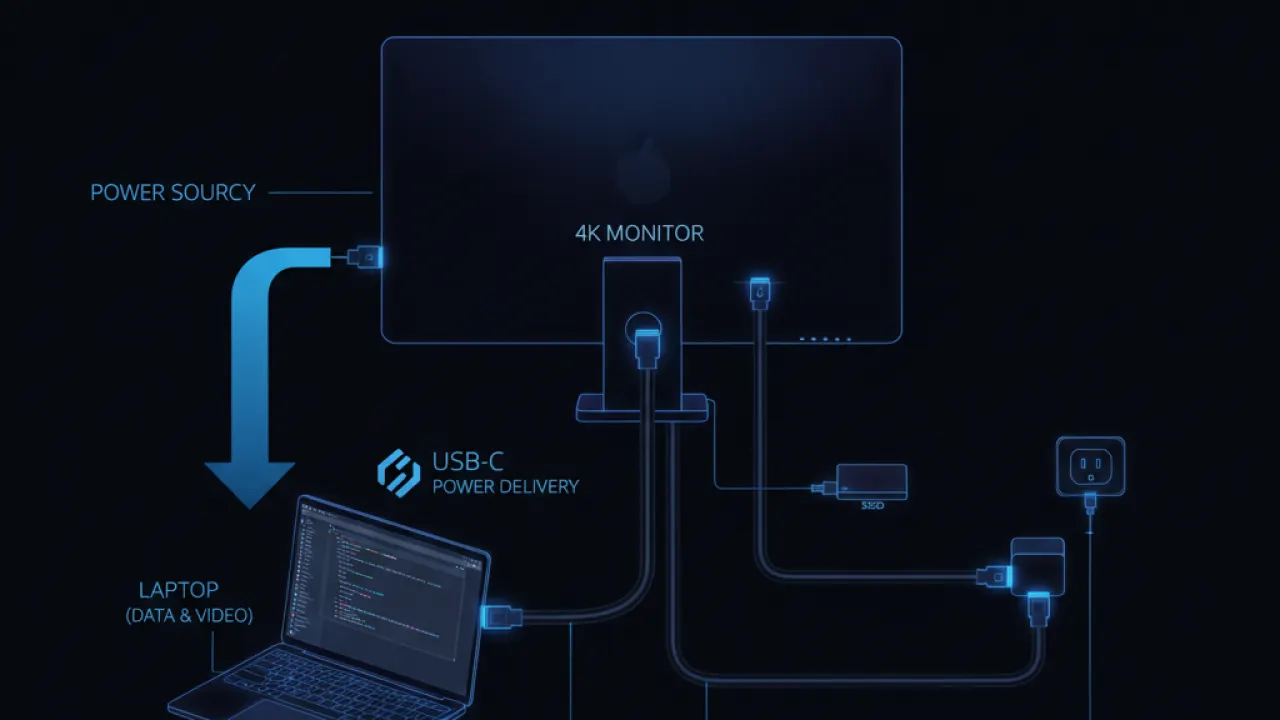
A monitor with USB-C Power Delivery reduces your desk cable count from three (monitor cable, laptop charger, USB hub) to one. One USB-C cable from monitor to laptop carries video, charges the laptop, and connects USB devices through the monitor’s hub. If your laptop has USB-C, prioritize this feature — it meaningfully simplifies a desk setup.
For a complete work setup, our best budget laptops guide covers the laptops that benefit most from external 4K displays. And our guide to the best USB-C hubs (including docks with built-in displays) covers options for users who need even more ports than a monitor hub provides.
Which 4K monitor are you using and what do you primarily use it for? Leave a comment with your setup — work-from-home monitor setups from readers with specific use cases are the most useful comparisons for other buyers.

