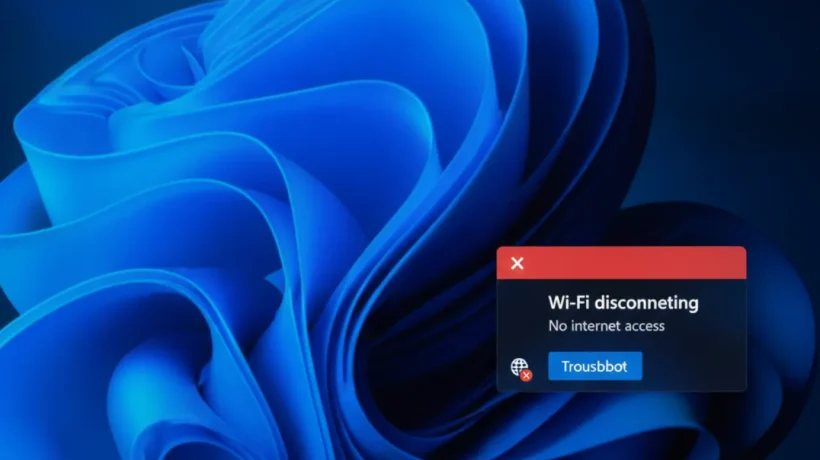

Wi-Fi keeps disconnecting on Windows 11 for a small number of reasons, most of which you can fix in under 10 minutes. The most common causes are a misbehaving driver, a power management setting that turns off your adapter, or a compatibility issue between Windows and your router. This guide covers all 9 fixes in the order most likely to solve your problem.
1. Run the Windows Network Troubleshooter
Start here. The built-in troubleshooter finds and fixes the most common problems automatically.
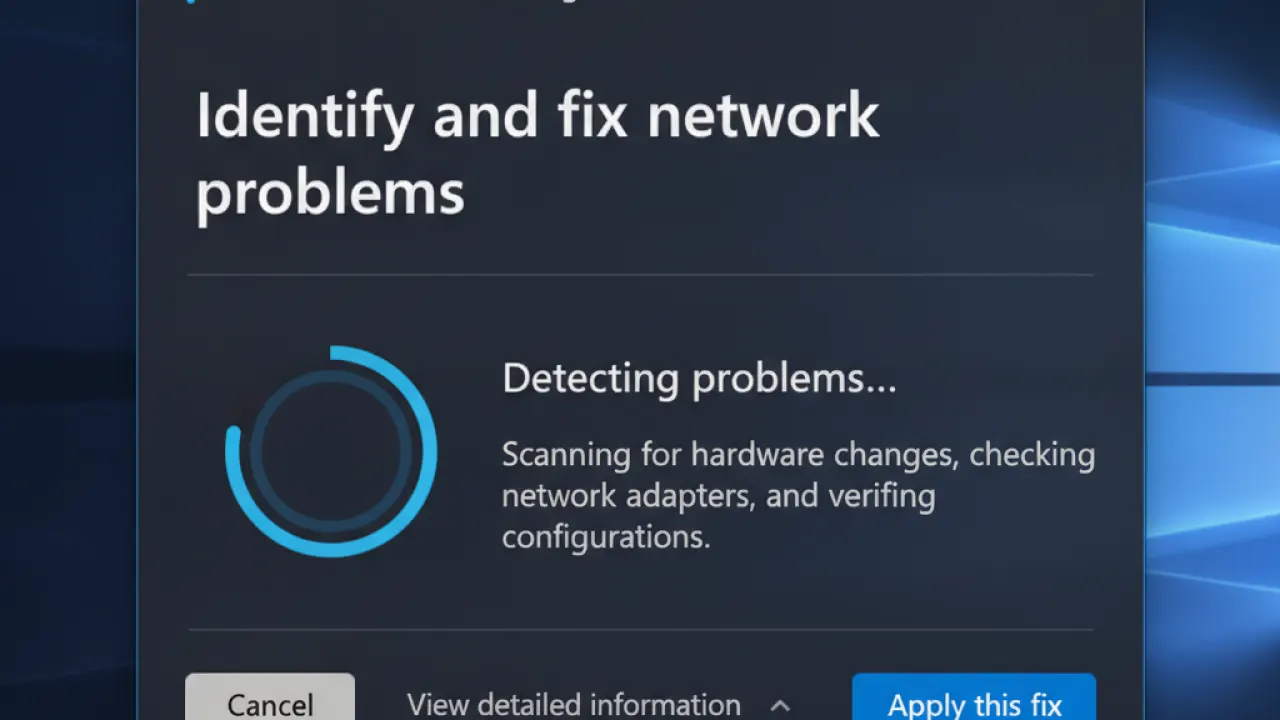
- Press Windows + I to open Settings.
- Go to System then Troubleshoot, then Other troubleshooters.
- Click Run next to Internet Connections.
- Follow the steps and apply any fixes it suggests.
Even if it says “no problems found,” the process resets some network components in the background that can resolve intermittent drops.
2. Disable Wi-Fi Power Saving
This is the most common cause of Wi-Fi disconnections on laptops. Windows 11 turns off the Wi-Fi adapter to save battery, and the reconnection process sometimes fails.
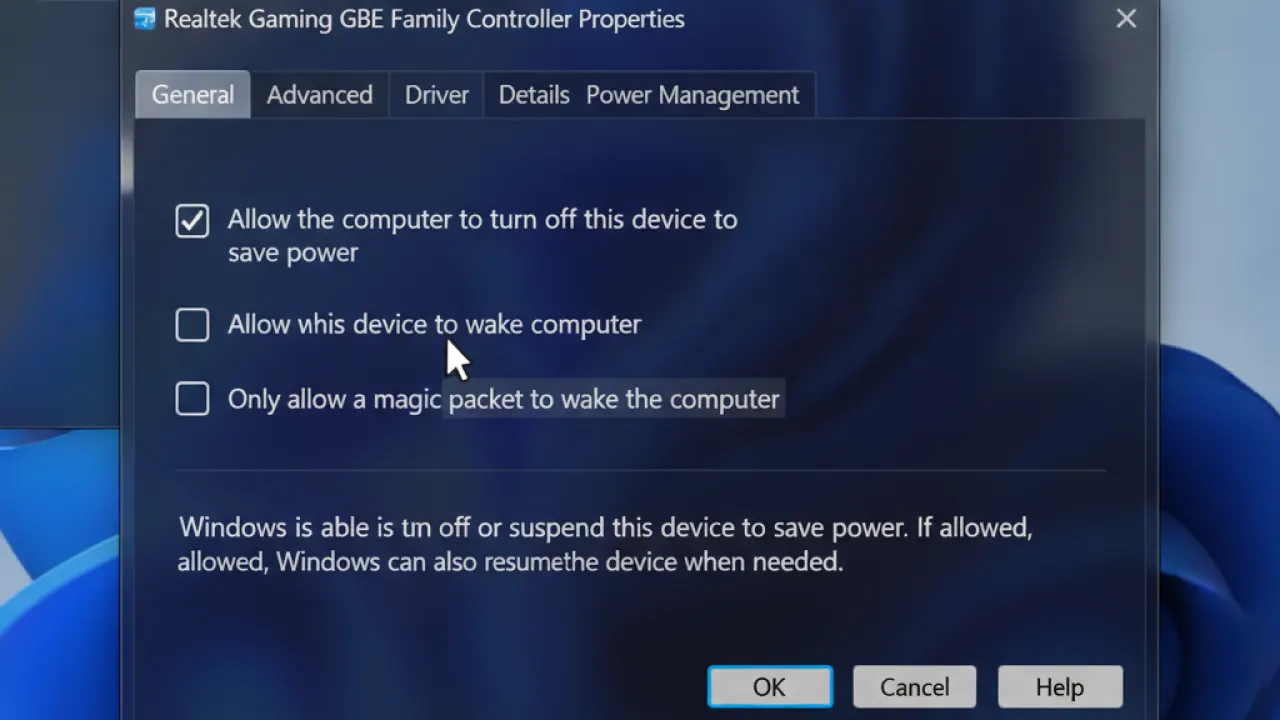
- Right-click the Start button and choose Device Manager.
- Expand Network Adapters.
- Right-click your Wi-Fi adapter and choose Properties.
- Click the Power Management tab.
- Uncheck “Allow the computer to turn off this device to save power.”
- Click OK and test your connection.
3. Update Your Wi-Fi Driver
Outdated drivers are the second most common cause. Windows Update doesn’t always install the newest network driver automatically.
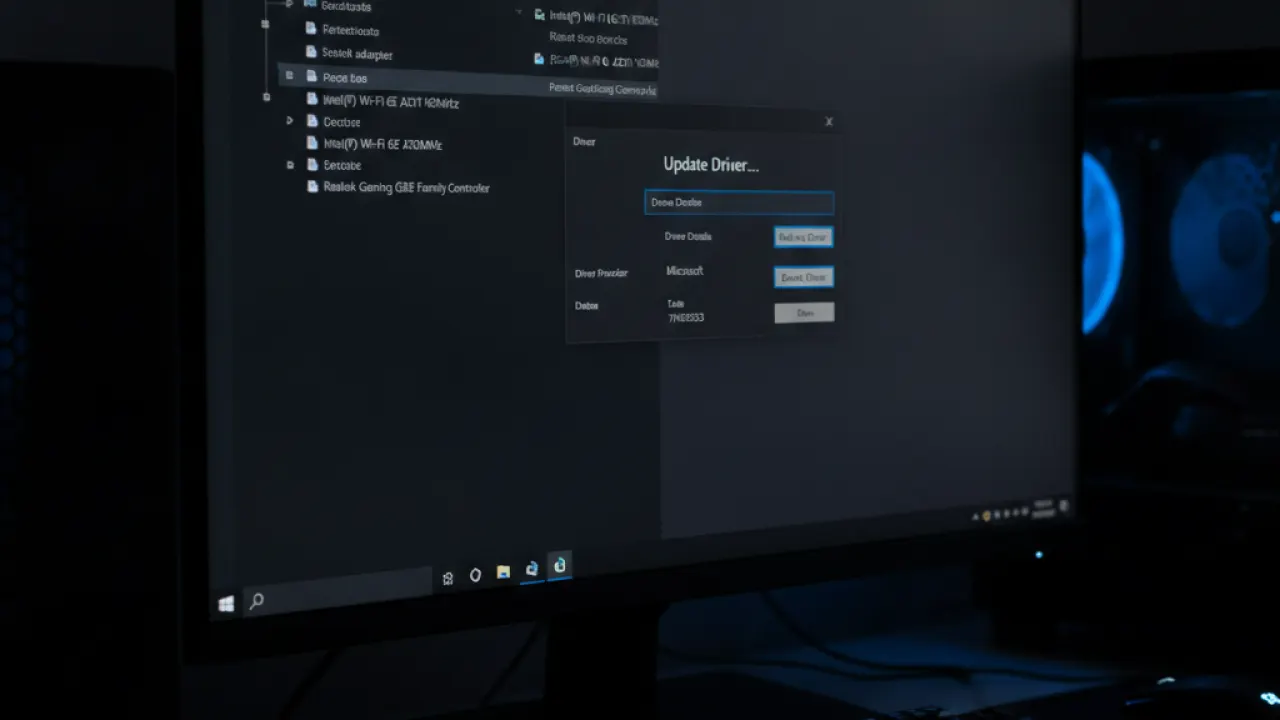
- Right-click Start and open Device Manager.
- Expand Network Adapters.
- Right-click your Wi-Fi adapter and choose Update driver.
- Click Search automatically for drivers.
If Windows can’t find a newer driver, go to your PC or laptop manufacturer’s website and search for the Wi-Fi driver for your exact model. Install the downloaded driver manually.
4. Change Your Wi-Fi Adapter’s Channel Width
Some Windows 11 adapters have trouble with 80MHz or 160MHz channel width on 5GHz networks. Forcing a narrower width improves stability.
- Right-click your Wi-Fi adapter in Device Manager and choose Properties.
- Click the Advanced tab.
- Find 802.11n Channel Width for 5GHz in the list.
- Change the value from Auto to 20MHz Only.
- Click OK and test.
5. Forget and Reconnect to Your Network
A corrupted network profile can cause drops. Removing the stored connection and re-entering the password creates a fresh profile.
- Click the Wi-Fi icon in the taskbar and click the arrow next to your network name.
- Choose Forget.
- Reconnect to your network and enter the password when prompted.
6. Change Your Router’s Wi-Fi Channel
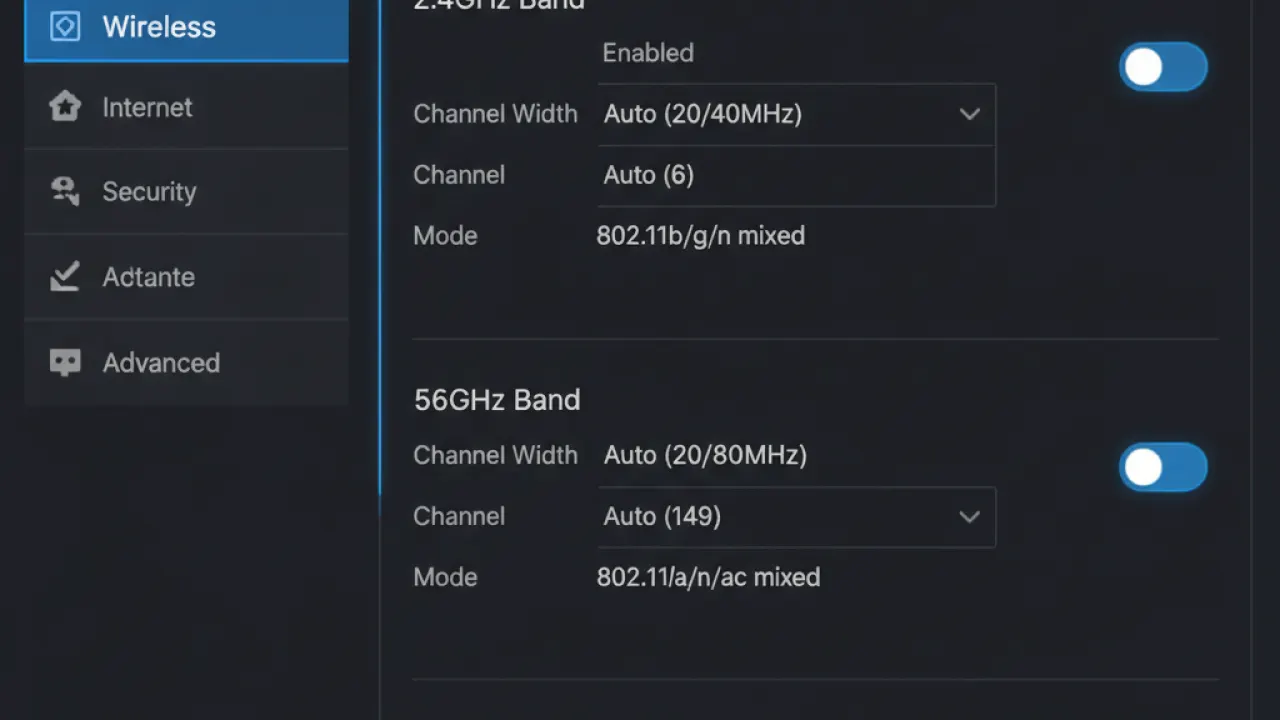
If many nearby networks use the same Wi-Fi channel, interference causes disconnections. Log into your router’s admin interface (usually 192.168.1.1 or 192.168.0.1) and change the wireless channel from Auto to a fixed channel. On 2.4GHz, channels 1, 6, and 11 don’t overlap. On 5GHz, most channels are fine.
7. Reset TCP/IP and Winsock
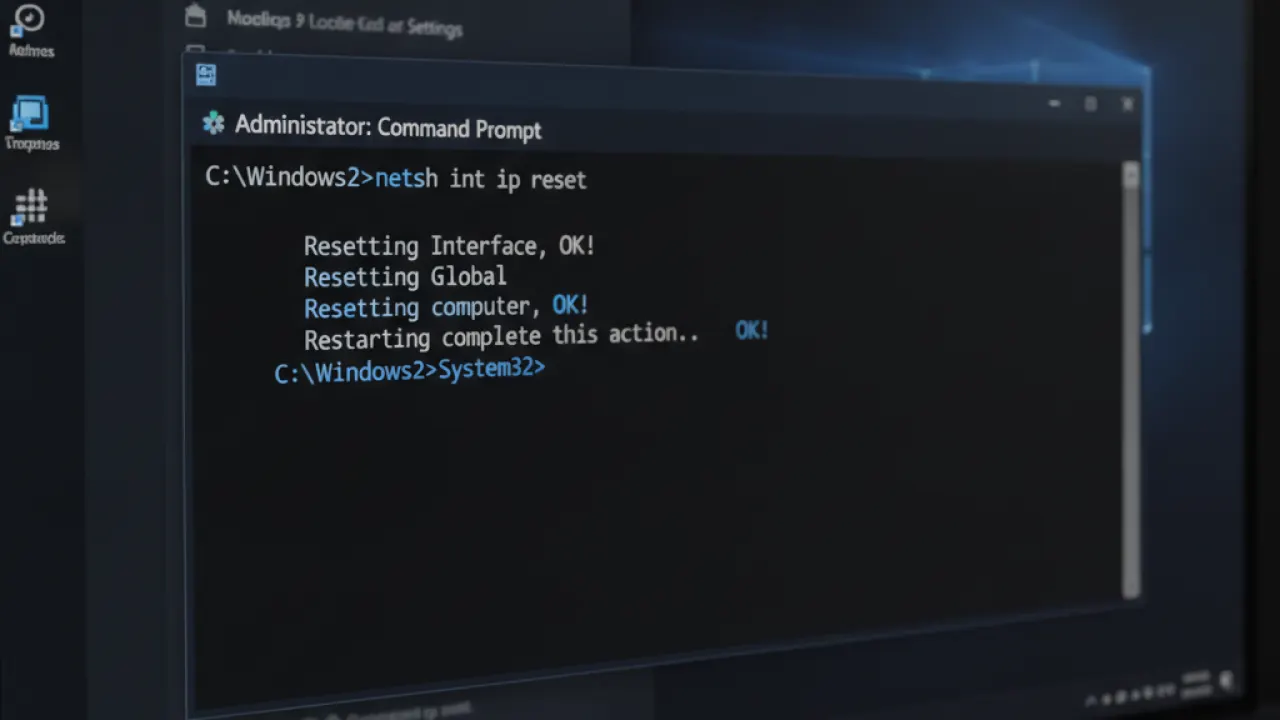
A corrupt network stack causes persistent disconnections that no other fix solves. Open Command Prompt as Administrator and run these four commands one at a time:
netsh int ip reset
netsh winsock reset
ipconfig /release
ipconfig /renew
Restart your PC after running all four.
8. Disable IPv6
Some routers have poor IPv6 implementation that causes Windows 11 to drop and reconnect repeatedly.
- Right-click the Start button and choose Network Connections.
- Right-click your Wi-Fi adapter and choose Properties.
- Uncheck Internet Protocol Version 6 (TCP/IPv6).
- Click OK.
9. Roll Back or Reinstall the Wi-Fi Driver
If disconnections started after a Windows Update or driver update, rolling back the driver may fix it.
- Open Device Manager and find your Wi-Fi adapter.
- Right-click and choose Properties.
- Click the Driver tab.
- If Roll Back Driver is available (not greyed out), click it.
- If roll back isn’t available, try Uninstall Device, then restart. Windows will reinstall the driver on boot.
While you’re fixing network issues, it’s also worth checking our guide to fix Bluetooth on Windows 11 if you’re having other wireless connectivity problems. The driver and power management fixes often apply to Bluetooth too. And for general Windows stability, the tips in speed up Windows 11 cover many of the same underlying system issues.
Summary: 9 Fixes for Wi-Fi Disconnecting on Windows 11
- Run the built-in Network Troubleshooter.
- Disable Wi-Fi power saving in Device Manager.
- Update your Wi-Fi driver from the manufacturer’s website.
- Change channel width to 20MHz in adapter advanced settings.
- Forget the network and reconnect.
- Change your router’s Wi-Fi channel to a fixed value.
- Reset TCP/IP and Winsock via Command Prompt.
- Disable IPv6 on the adapter.
- Roll back or reinstall the driver.
Which of these fixes solved your disconnection problem? Leave a comment with your Wi-Fi adapter model and which step worked. That helps other readers with the same hardware skip straight to the fix that works for them.

