
Disabling Chrome’s built-in password manager takes two minutes and lets you switch to a proper password manager like Bitwarden or Proton Pass. Here’s exactly how to turn it off, export your existing passwords, and move everything to a better tool.
Why Turn Off Chrome’s Password Manager?
Chrome’s password manager is convenient, but it has real limitations compared to dedicated tools:
- Passwords are tied to your Google account. If your Google account is compromised, all your passwords are exposed together.
- Chrome passwords don’t work well in other browsers. If you use Safari, Firefox, or Edge on some devices, your passwords aren’t available there.
- There’s no breach monitoring in the free tier. You won’t be automatically notified if a site you use gets breached unless you manually check.
- No password sharing, no emergency access, and no secure note storage.
Dedicated managers like Bitwarden, Proton Pass, and 1Password solve all these problems and are free or cheap to use.
Step 1: Export Your Existing Chrome Passwords
Before disabling Chrome’s manager, export your passwords so you don’t lose them.
- Open Chrome and click the three dots menu in the top right.
- Go to Google Password Manager or type
chrome://password-manager/passwordsin the address bar. - Click the settings gear icon on the left sidebar.
- Click Export passwords.
- Enter your computer password when prompted.
- Save the CSV file somewhere you’ll remember.
This CSV file contains all your usernames and passwords in plain text. Keep it secure and delete it after importing into your new manager.
Step 2: Import Passwords Into Your New Manager
Import the CSV file into whichever password manager you’re switching to. All major managers accept Chrome’s CSV format:
- Bitwarden: Go to bitwarden.com, log in, click Tools, then Import Data, and select “Chrome (csv)”.
- Proton Pass: In the Proton Pass app, go to Settings, then Import, and select the Chrome CSV format.
- 1Password: In 1Password, select File, then Import, then Chrome.
After importing, check a few entries to confirm the passwords transferred correctly before moving on.
Step 3: Install the Password Manager Extension
Install your chosen password manager’s Chrome extension from the Chrome Web Store. Log in to the extension with your account. Test that it autofills on a few sites to confirm it’s working correctly before you disable Chrome’s manager.
Step 4: Disable Chrome’s Password Manager
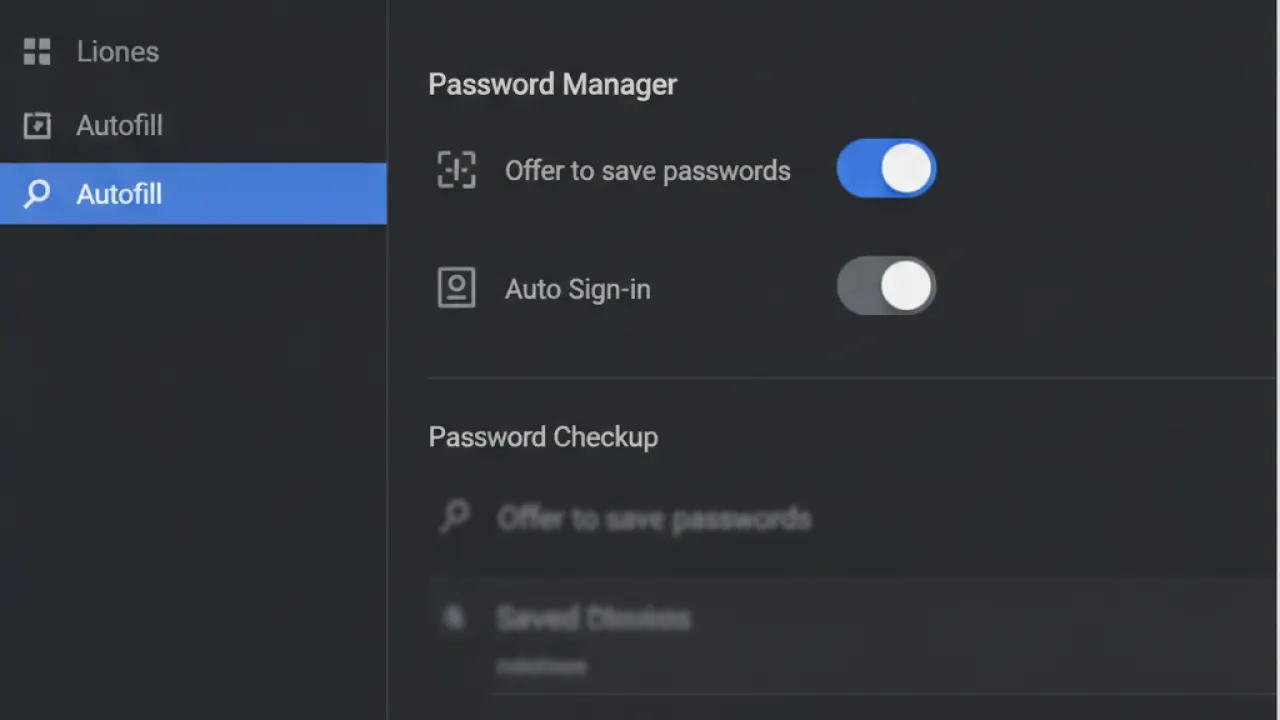
- Open Chrome settings: click the three dots, then Settings.
- In the left sidebar, click Autofill and passwords.
- Click Google Password Manager.
- Click the settings gear (or go to the Settings tab within Password Manager).
- Toggle off “Offer to save passwords”.
- Toggle off “Sign in automatically”.
Chrome will no longer prompt you to save passwords or automatically fill them in. Your new password manager’s extension handles both of these instead.
Step 5: Disable Password Sync With Google (Optional)
If you’re signed into Chrome with a Google account, your passwords sync across all Chrome installations on all your devices. To stop this:
- Go to Chrome Settings.
- Click your profile at the top, then Sync and Google services.
- Click Manage what you sync.
- Toggle off Passwords.
This stops Chrome from syncing passwords through your Google account. Your new password manager handles cross-device sync instead.
Delete Existing Chrome Passwords
Once you’ve confirmed your new manager is working correctly, delete the passwords stored in Chrome:
- Go to
chrome://password-manager/passwords. - Select all passwords and delete them, or use Settings then Delete browsing data and check the Passwords box.
Also delete the CSV export file you created earlier. It contains all your passwords in plain text and should not be stored anywhere after the import is complete.
Which Password Manager Should You Switch To?
Our guide to the best free password manager covers the full comparison. The short version:
- Bitwarden Free: Best for most people. Unlimited passwords on unlimited devices, fully open source, web vault access from any browser.
- Proton Pass Free: Best if you use ProtonMail. Includes email aliases to protect your real address when signing up for new sites.
- KeePassXC: Best for maximum privacy. Stores everything locally with no cloud sync, fully open source.
Good basic cybersecurity tips starts with unique passwords for every site. Chrome’s manager makes this possible but a dedicated manager makes it easier, safer, and more flexible across all your browsers and devices.
Have you already switched from Chrome’s password manager, and what was the biggest difference you noticed? Leave a comment with which manager you chose and whether the import process went smoothly.

