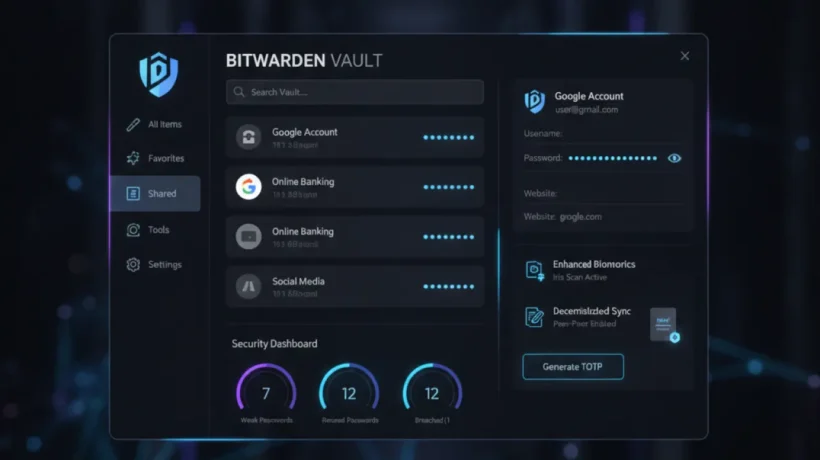

Bitwarden is the most recommended free password manager in 2026. It’s open source, independently audited, available on every platform, and offers unlimited passwords on unlimited devices at no cost. Here’s everything you need to know to get started and make the most of it.
Why Bitwarden Stands Out
Most free password managers have meaningful restrictions on their free tier — limited devices, limited passwords, or limited sync. Bitwarden’s free tier includes unlimited passwords stored on unlimited devices with full cross-device sync. There are no artificial limitations designed to push you toward a paid plan for basic functionality.
Bitwarden is also the most audited password manager in the consumer space. Three separate third-party security audits have confirmed that the encryption implementation is correct and that the company cannot access your vault contents — zero-knowledge architecture verified by outside reviewers, not just claimed by the company. This matters because the security of a password manager depends entirely on trusting its encryption claims.
Getting Started: Installation and Setup
Create a free account at bitwarden.com. The master password you create is the only password Bitwarden never stores — you must remember it. If you forget it, Bitwarden cannot recover your vault. Choose something memorable but strong: a phrase of four or more words is both memorable and secure.
After creating your account, install the browser extension for your browser (Chrome, Firefox, Edge, Safari), and the mobile app for your phone. All apps connect to your vault and sync automatically.
Importing Existing Passwords
If you currently use Chrome’s password manager, LastPass, 1Password, or another tool, Bitwarden imports them: go to bitwarden.com, log in, click Tools, then Import Data, and select your current password manager from the dropdown. Follow the export instructions for your current tool, then import the file into Bitwarden. The whole process takes 10 minutes.
Using Bitwarden Daily
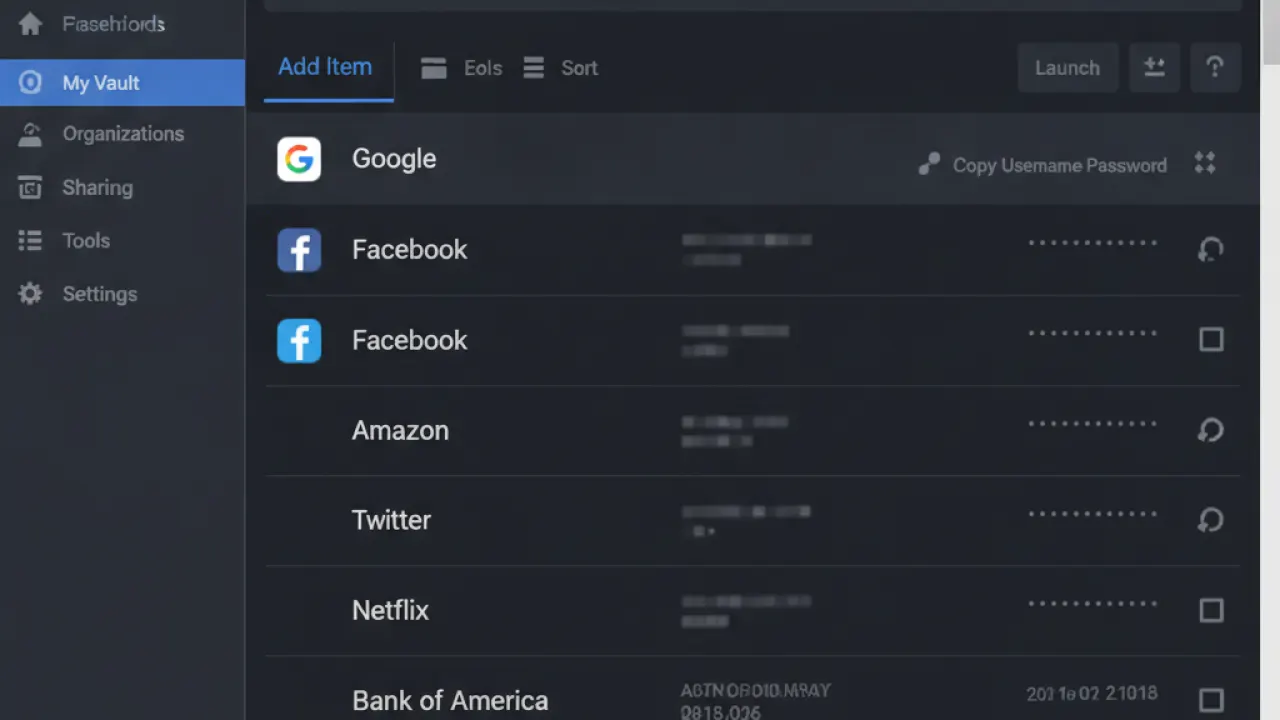
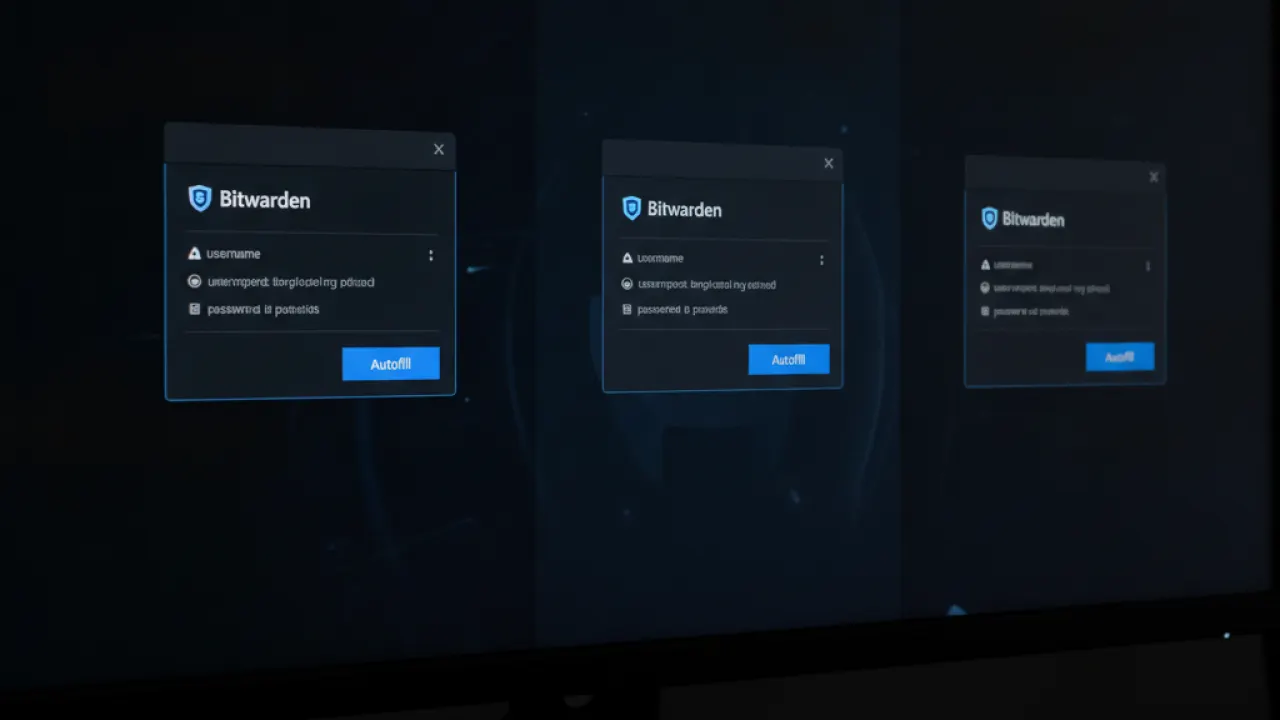
The browser extension shows a badge with the number of matching logins when you visit a site. Click it and select the correct login to autofill. For sites not yet saved, Bitwarden offers to save after you log in. The web vault at bitwarden.com gives you access to all passwords from any browser without installing the extension.
Bitwarden also stores secure notes, credit card details, and identity information (name, address, phone) for quick autofill on forms. The password generator creates random passwords at any length and complexity — use it for every new account you create.
Security Features Worth Enabling
- Two-factor authentication: Settings, then Security, then Two-step Login. Use an authenticator app (Google Authenticator, Authy) — stronger than email 2FA.
- Vault timeout: Set how long before Bitwarden locks. For mobile, 4-15 minutes is reasonable. For desktop, 1 hour is common.
- Emergency access: Premium feature that lets a trusted contact request access to your vault if you’re incapacitated. Worth the $10/year for this feature alone if you have a spouse or family member.
Self-Hosting With Vaultwarden
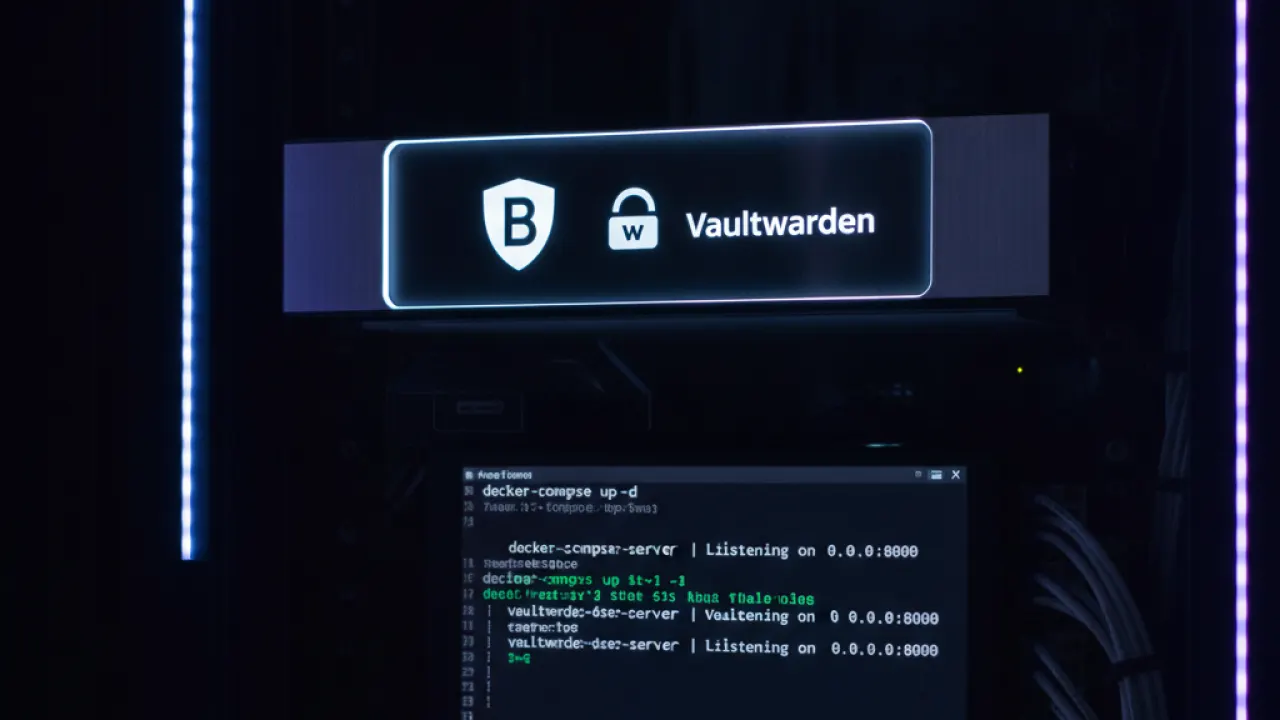
For maximum privacy, Bitwarden can be self-hosted using Vaultwarden — an open-source Bitwarden-compatible server that runs in Docker. Your passwords stay on your own hardware and never go to Bitwarden’s servers. This is the most private possible setup for a password manager. It requires some Docker knowledge and ongoing maintenance, but gives you complete control. Our Tailscale guide covers how to securely access a self-hosted Vaultwarden from anywhere using Tailscale.
Free vs Premium
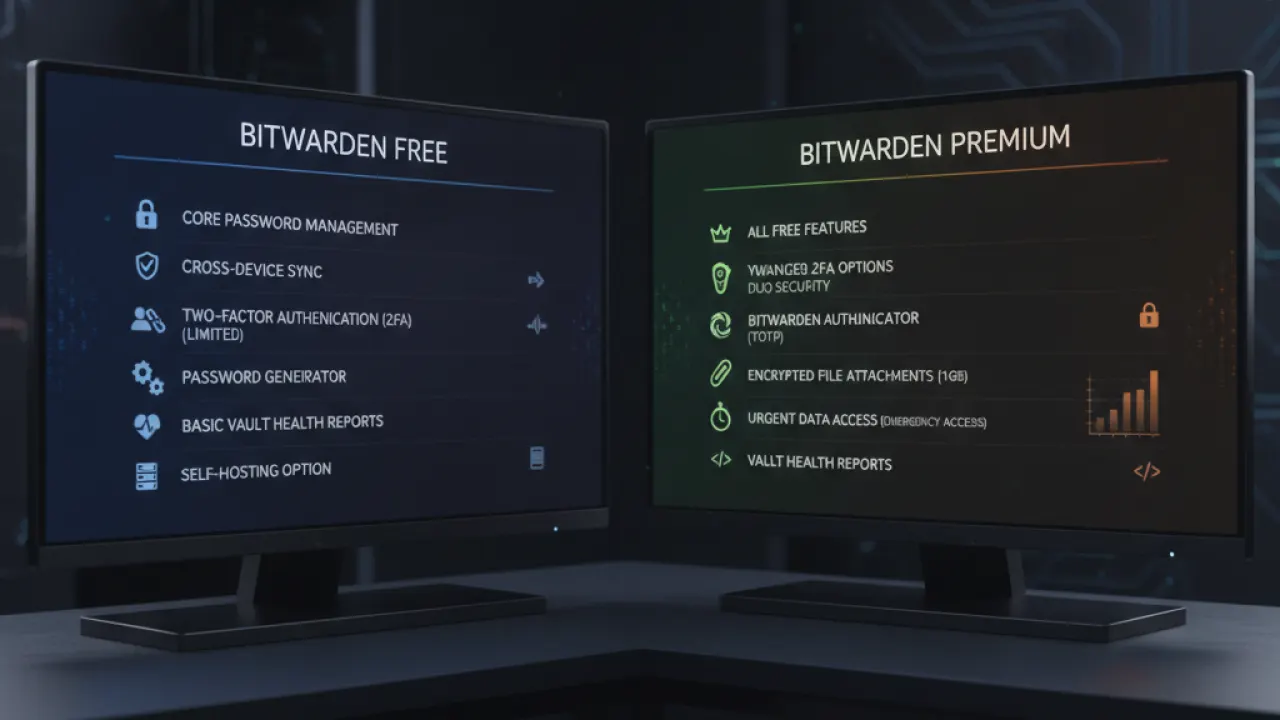
Bitwarden Free includes everything most users need. Bitwarden Premium ($10/year) adds: emergency access (trusted contact recovery), vault health reports (weak/reused/breached passwords), advanced two-factor (hardware security keys), and 1GB encrypted file attachments. $10/year for these features is excellent value if any of them matter to you. For family plans, $3.33/user/month covers 6 users each with the Premium features.
For users who want email aliases alongside password management, see our Proton Pass comparison guide comparing Bitwarden with Proton Pass. Our basic cybersecurity tips guide covers how password management fits into a complete security approach.
Are you already using Bitwarden, or are you considering switching from another password manager? Leave a comment with what made you choose it or what’s making you hesitate — migration concerns from LastPass and 1Password are common and worth discussing.

