
Transferring files from Android to iPhone is easier in 2026 than it used to be. The method you choose depends on how much you’re moving, whether you’re switching phones entirely or just sharing specific files, and how much time you have.
Method 1: Move to iOS App (Complete Phone Switch)
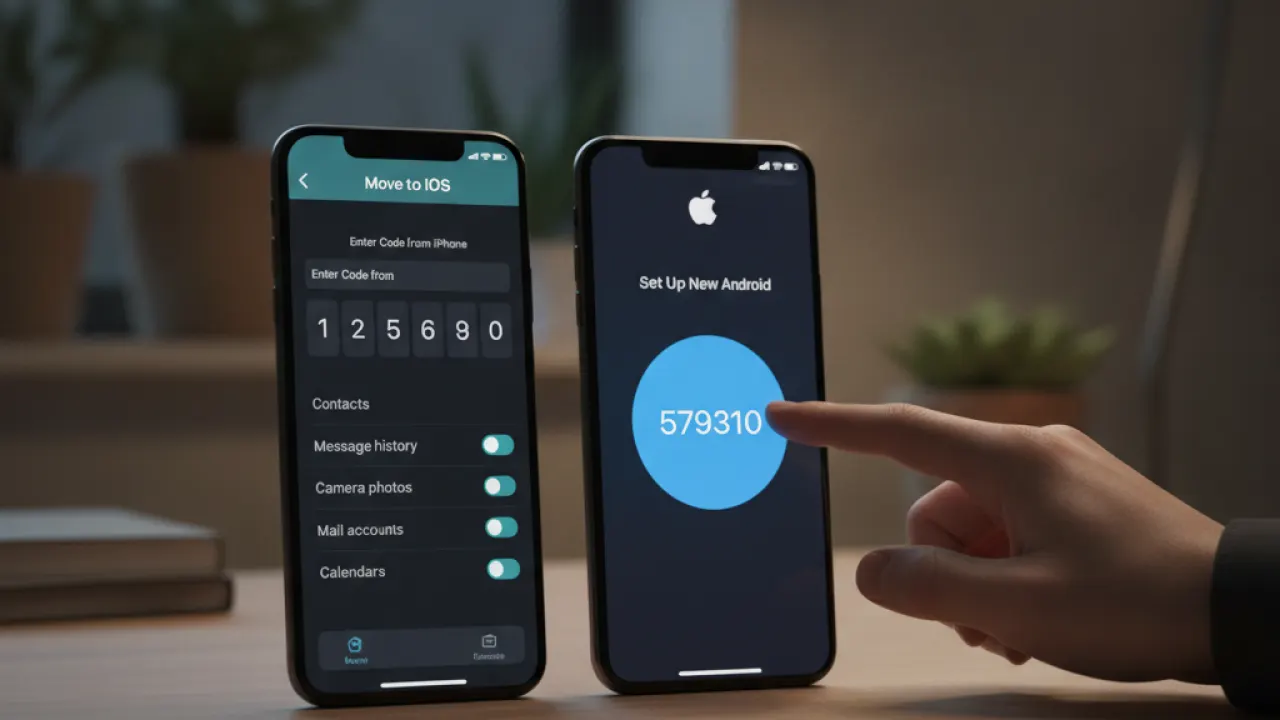
Apple’s Move to iOS app transfers contacts, message history, photos, videos, camera roll, web bookmarks, mail accounts, and some app data when you’re setting up a new iPhone. This is the most comprehensive method for a complete phone switch and must be done during iPhone initial setup.
How: During iPhone setup, choose “Move Data from Android.” Install Move to iOS from Google Play on your Android. Connect both phones to the same Wi-Fi, enter the code shown on iPhone, and let it transfer. Keep both phones connected and charged throughout.
Method 2: Google Account (Best for Ongoing Access)
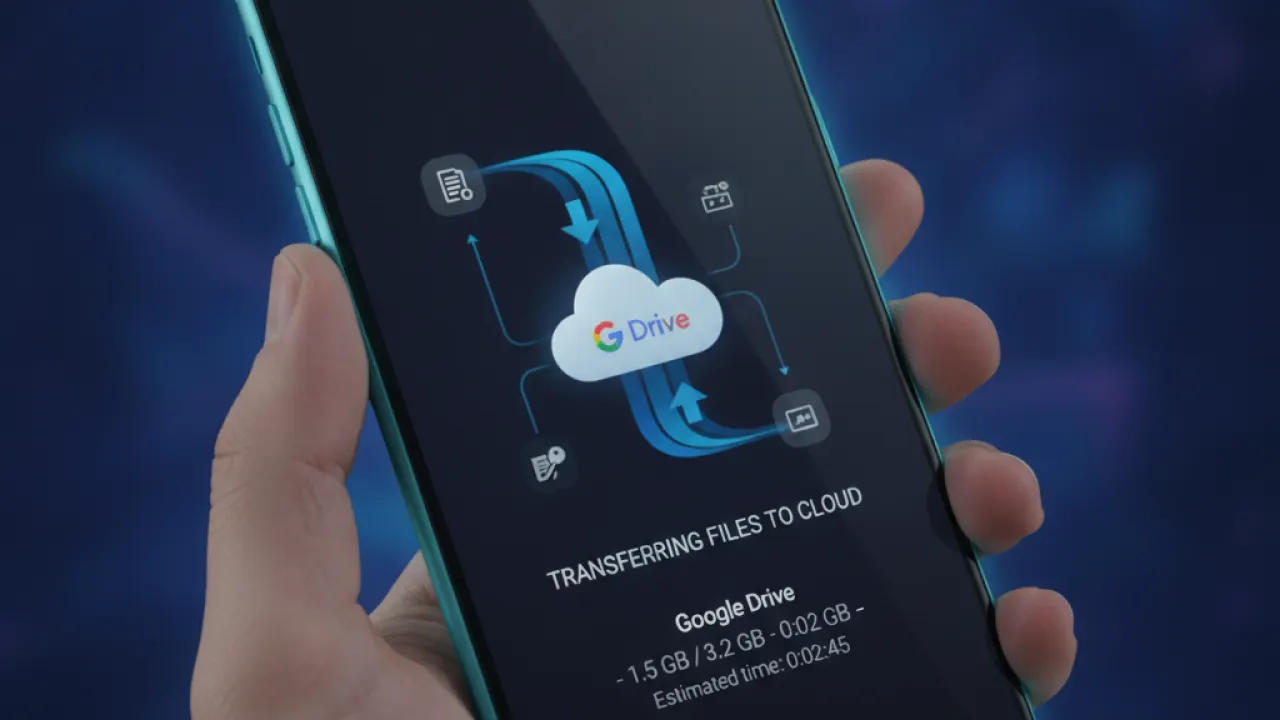
Sign into your Google account on your iPhone (Settings then Mail then Add Account then Google, or install the Gmail and Google Photos apps). Contacts sync to iPhone Contacts through Google. Photos are accessible in Google Photos app. Drive files are accessible in Google Drive app. This gives you iPhone access to everything in your Google account immediately.
Method 3: USB Transfer Through Computer
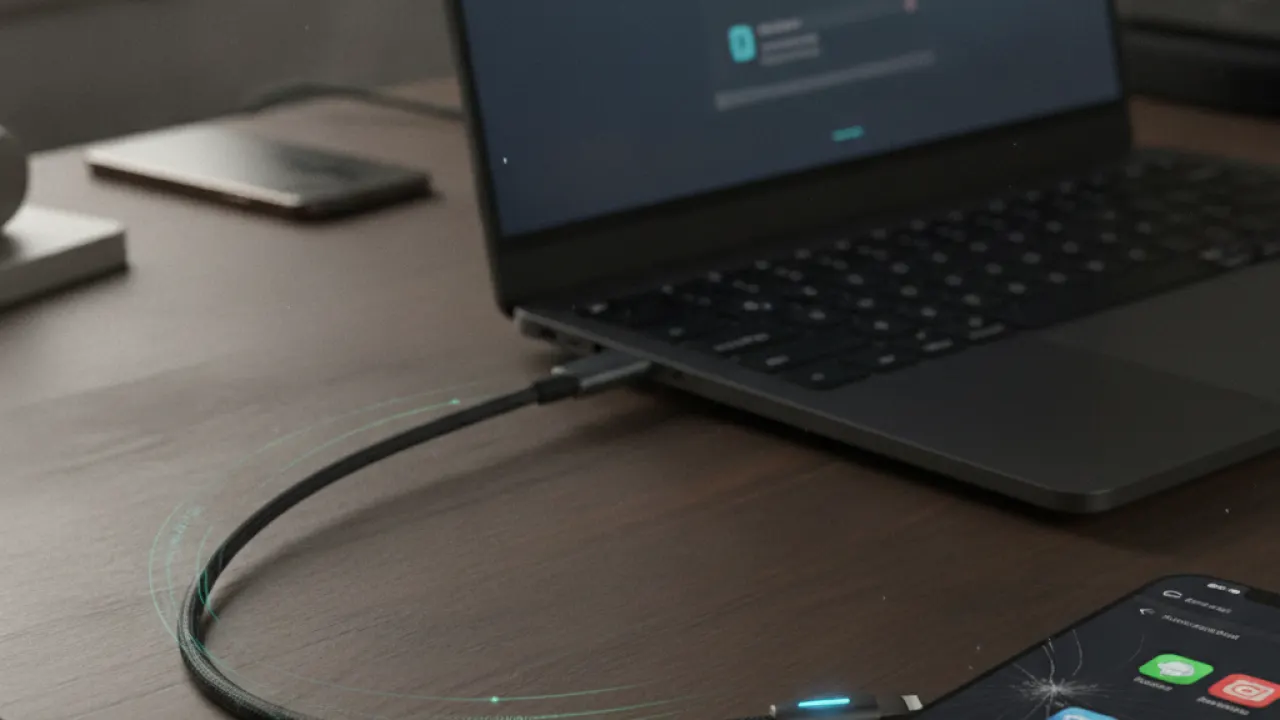
For large amounts of files — a full camera roll, downloaded music, documents — USB transfer through a computer is fastest. Connect Android with USB, copy files to computer. Connect iPhone with Lightning or USB-C, use Finder (Mac) or iTunes (Windows) to transfer to iPhone. For photos specifically, import through the Photos app on Mac or Photos Import on Windows.
Method 4: Cloud Storage or AirDrop-Equivalent
For individual files or small collections: email them to yourself, share through WhatsApp which works on both platforms, or use a shared Google Drive or Dropbox folder accessible from both devices. For nearby transfers without cables, Nearby Share (Android) and AirDrop (iPhone) don’t work cross-platform — use Snapdrop.net as a browser-based alternative that works between any devices on the same Wi-Fi.
Photos Specifically: Google Photos on iPhone
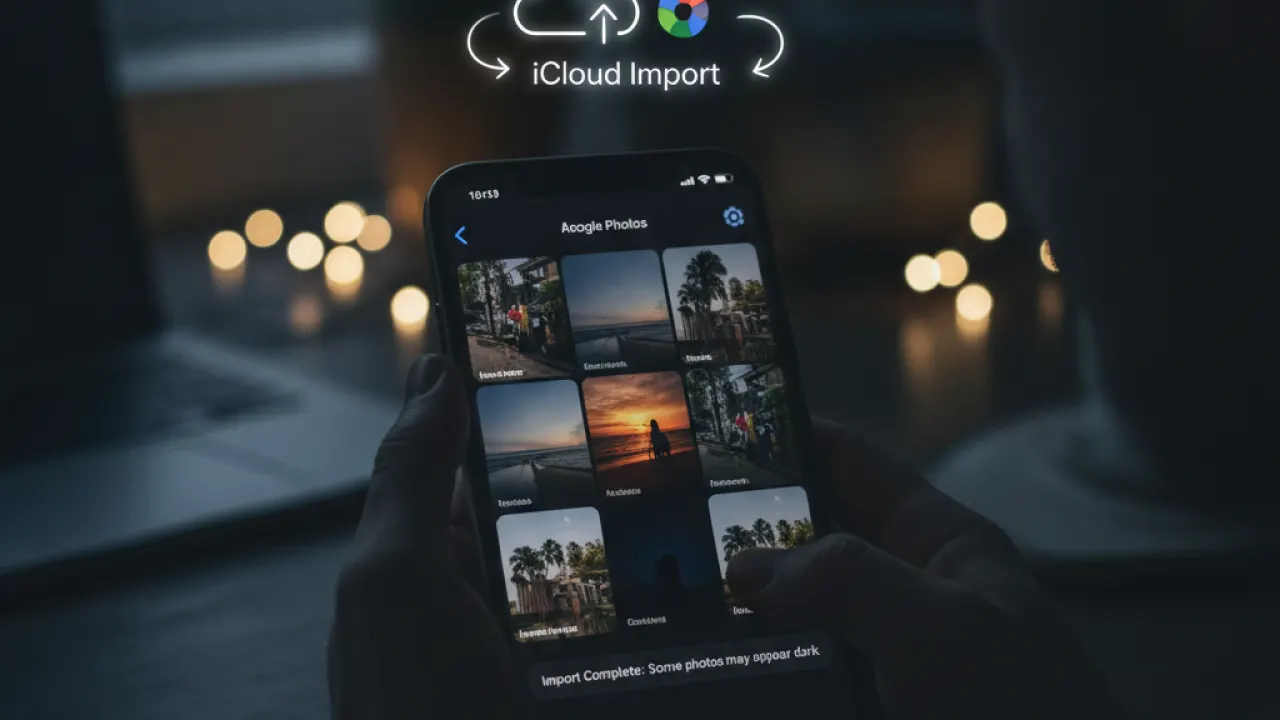
Install Google Photos on your new iPhone and sign in with the same Google account. All photos backed up from your Android appear immediately. This is the fastest way to access your full Android photo history on iPhone. If you want them in iCloud Photos instead, enable “Back up to iCloud” in the iPhone Photos app and they’ll sync over time.
For the complete Android-to-iPhone switching experience including WhatsApp transfer, see our dedicated WhatsApp migration guide. And for choosing between Android and iPhone in the first place, our best smartphones guide covers the hardware comparison.
Did your Android-to-iPhone transfer go smoothly, or did you lose any data in the process? Leave a comment with your experience — specific transfer issues help other readers know what to watch for and back up in advance.

