
Transferring WhatsApp from Android to iPhone requires using WhatsApp’s official migration tool, which works through Apple’s Move to iOS app. The process is straightforward but must be done during the iPhone’s initial setup. Here’s the complete step-by-step guide.
Important: Do This During iPhone Setup Only
WhatsApp transfer from Android to iPhone works during the iPhone’s first setup — when the new iPhone shows “Transfer Your Apps and Data.” If you’ve already finished setting up your iPhone, you’ll need to erase it and start over to use this method. For an already-configured iPhone, you’d need to factory reset it first. Plan accordingly.
What You Need Before Starting
- Your Android phone with WhatsApp installed and active
- Your new iPhone, ready for initial setup (or erased and ready)
- A USB-C to Lightning cable (or USB-C to USB-C for iPhone 15+) connecting both phones
- Both phones fully charged or plugged in — the transfer can take a while
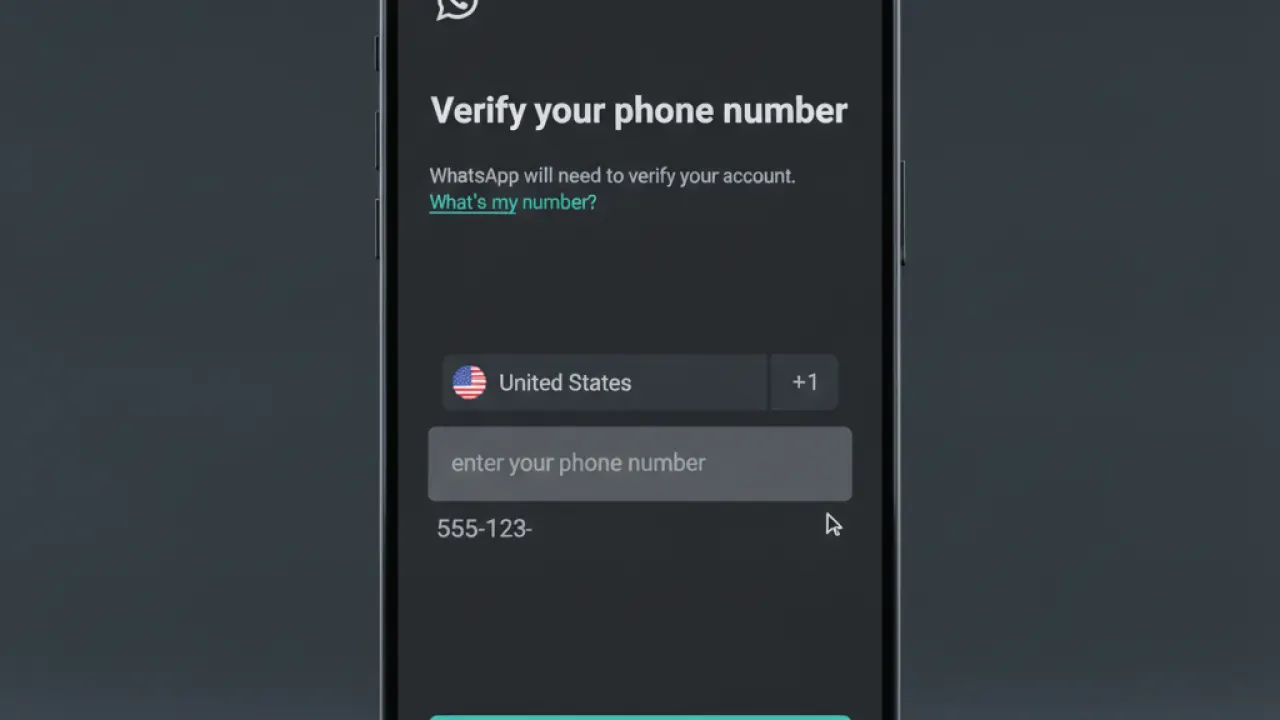
- The same phone number registered in WhatsApp on both phones
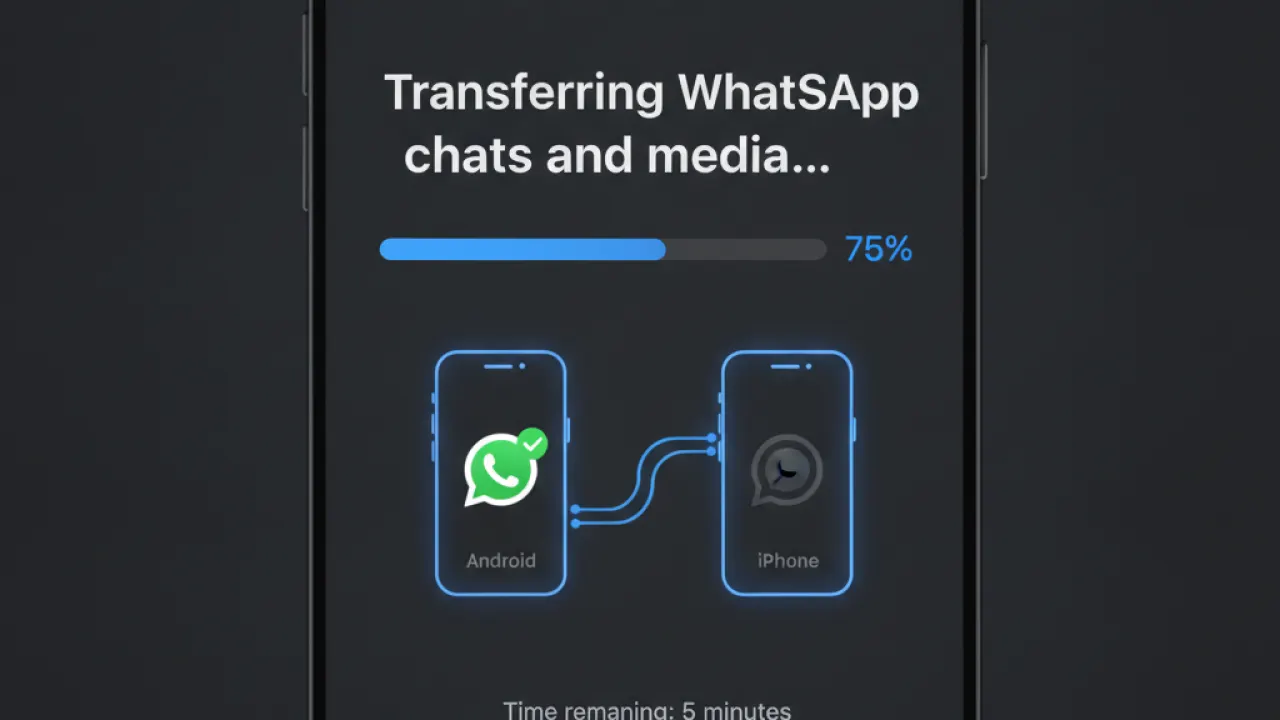
Step 1: Prepare WhatsApp on Android
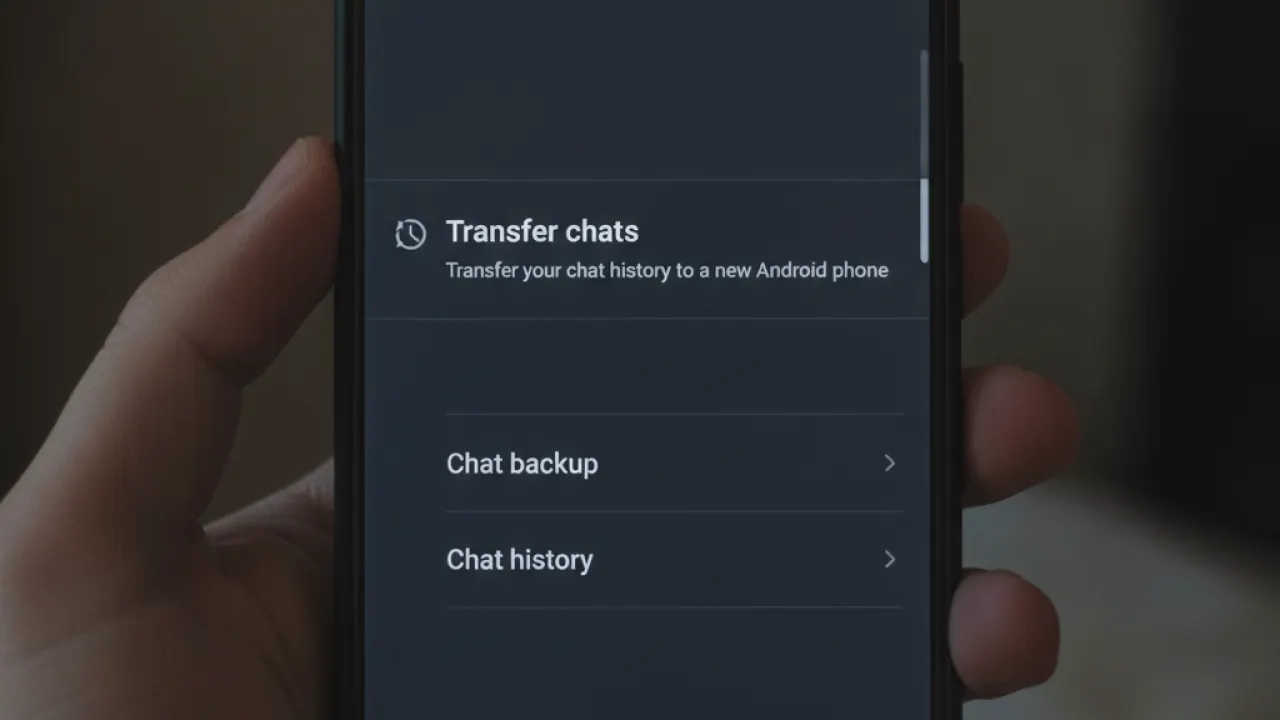
On your Android phone, open WhatsApp. Go to Settings (three dots menu), then Chats, then Move chats to iPhone. Tap Move chats to iPhone. WhatsApp prepares your chat data and shows a code that you’ll use in a moment. Keep this screen open and don’t close WhatsApp.
Step 2: Start iPhone Setup
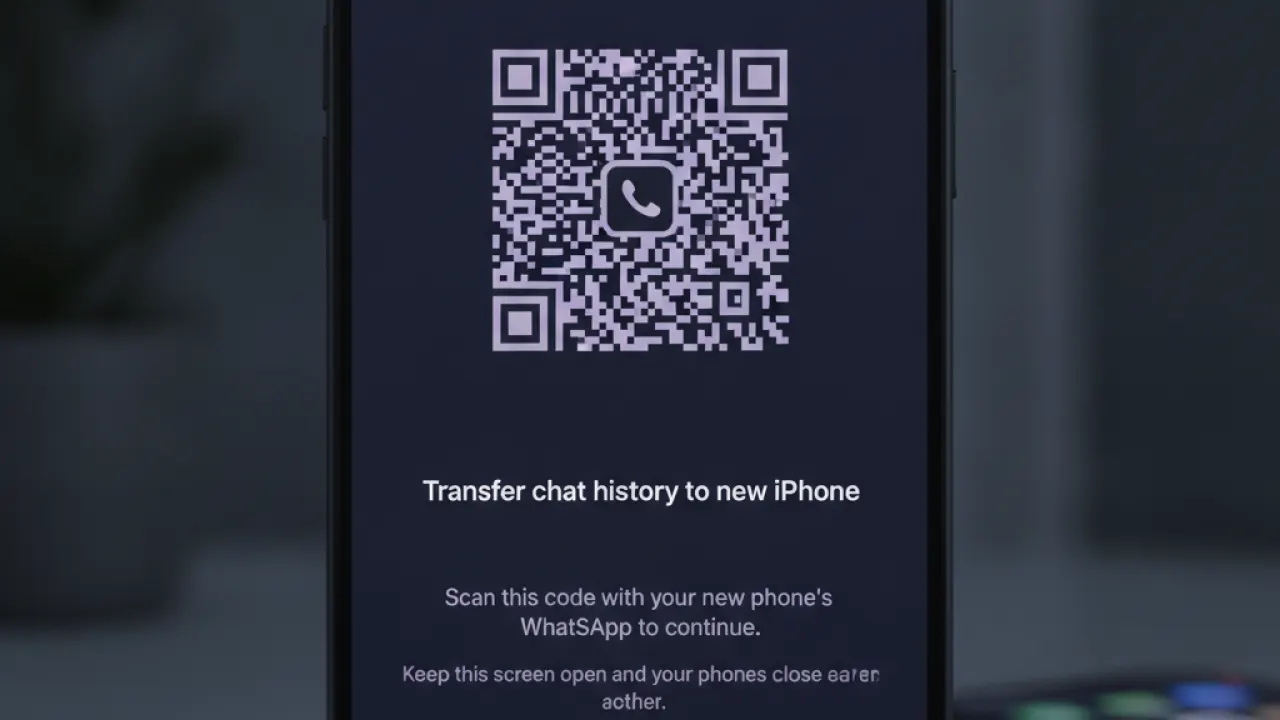
Turn on your new iPhone. Follow the setup screens until you reach “Transfer Your Apps and Data.” Select “From Android” from the options. Your iPhone will instruct you to install Move to iOS on your Android if it isn’t already — download it from the Google Play Store.
Step 3: Run Move to iOS
On your Android phone, open Move to iOS. Follow the prompts and enter the code shown on your iPhone to link the two devices. Connect the phones with a cable when prompted. Move to iOS will transfer most of your data (contacts, messages, photos). When you reach the WhatsApp section, it will ask for the code shown in WhatsApp earlier. Enter it.
Step 4: Wait for the Transfer
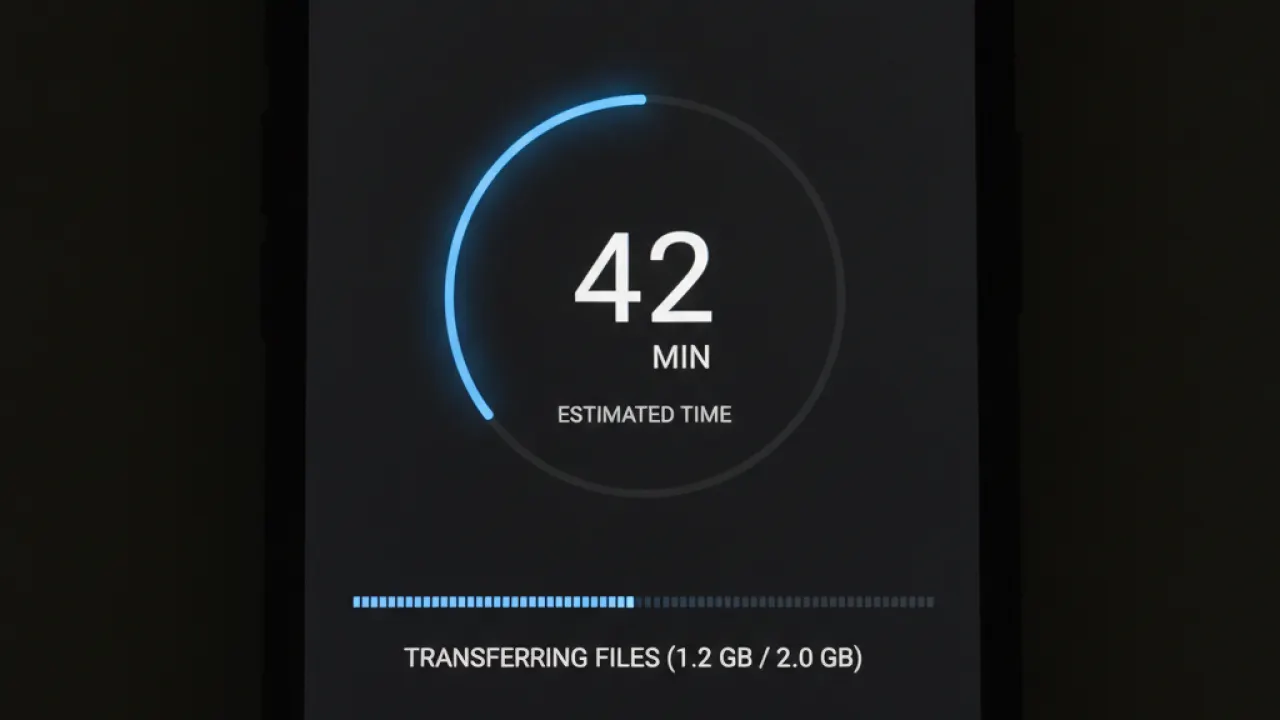
Transfer time depends on the size of your WhatsApp history. Small chat histories transfer in minutes. Large archives with years of photos and videos can take over an hour. Both phones should remain connected and powered throughout. Don’t use WhatsApp on either phone during the transfer.
Step 5: Activate WhatsApp on iPhone
After Move to iOS completes, finish setting up your iPhone. Install WhatsApp from the App Store and log in with the same phone number. You’ll see a prompt to restore your chat history from the transfer. Tap to restore. Your complete WhatsApp history, including all messages and media, should appear.
What the Transfer Includes
- All message history from individual and group chats
- Photos and videos shared in chats (within the device storage limit)
- Voice messages
- Documents shared in chats
- Stickers
What the Transfer Doesn’t Include
- Payment history (WhatsApp Payments is not universal)
- View-once messages (these expire by design)
- Status updates
Google Drive Backup vs Transfer
WhatsApp on Android backs up to Google Drive automatically. This backup is Android-only — it cannot be restored on iPhone. The only official way to get WhatsApp history from Android to iPhone is the Move to iOS transfer method described above. Google Drive WhatsApp backups are useful for restoring on a new Android phone, not for switching to iPhone.
For a complete guide to switching from Android to iPhone beyond just WhatsApp, our speed up Android guide covers the optimization steps for getting the most from your new device. And our best smartphones guide covers the iPhones and Androids worth considering at every price point.
Did the WhatsApp transfer work smoothly for you, or did you run into issues? Leave a comment with your experience — specific transfer failures are worth documenting so other readers can avoid the same problems.

