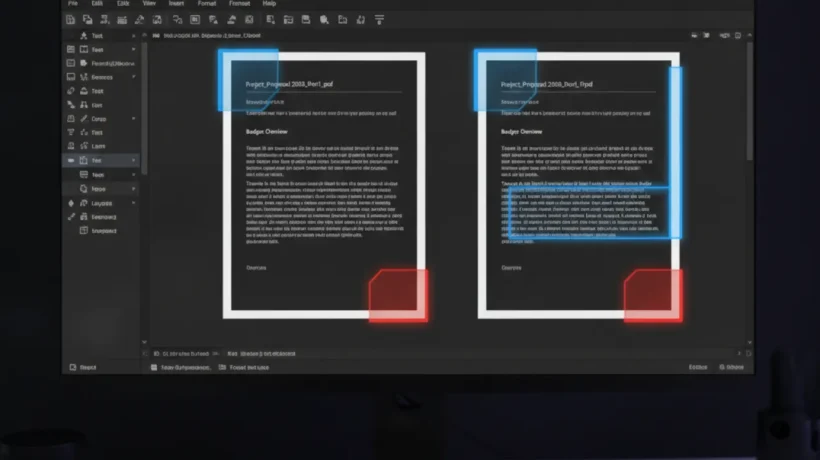

The best free PDF editors in 2026 handle annotation, form filling, merging, and basic content editing without requiring a subscription to Adobe Acrobat. Here’s what works for each use case on Windows and Mac.
What Free PDF Editors Can and Can’t Do
Before diving in, know the limits. “Editing” PDFs means very different things depending on what you need. Free tools handle these well: annotating with highlights and comments, filling in PDF forms, adding signatures, merging multiple PDFs, splitting PDFs into pages, compressing PDF file size. Free tools struggle with or can’t do: rewriting large blocks of existing text (PDF text isn’t stored like Word text — it’s positioned fixed elements), changing document layout, and extracting complex formatted tables.
For Browser Use: SmallPDF and PDF24
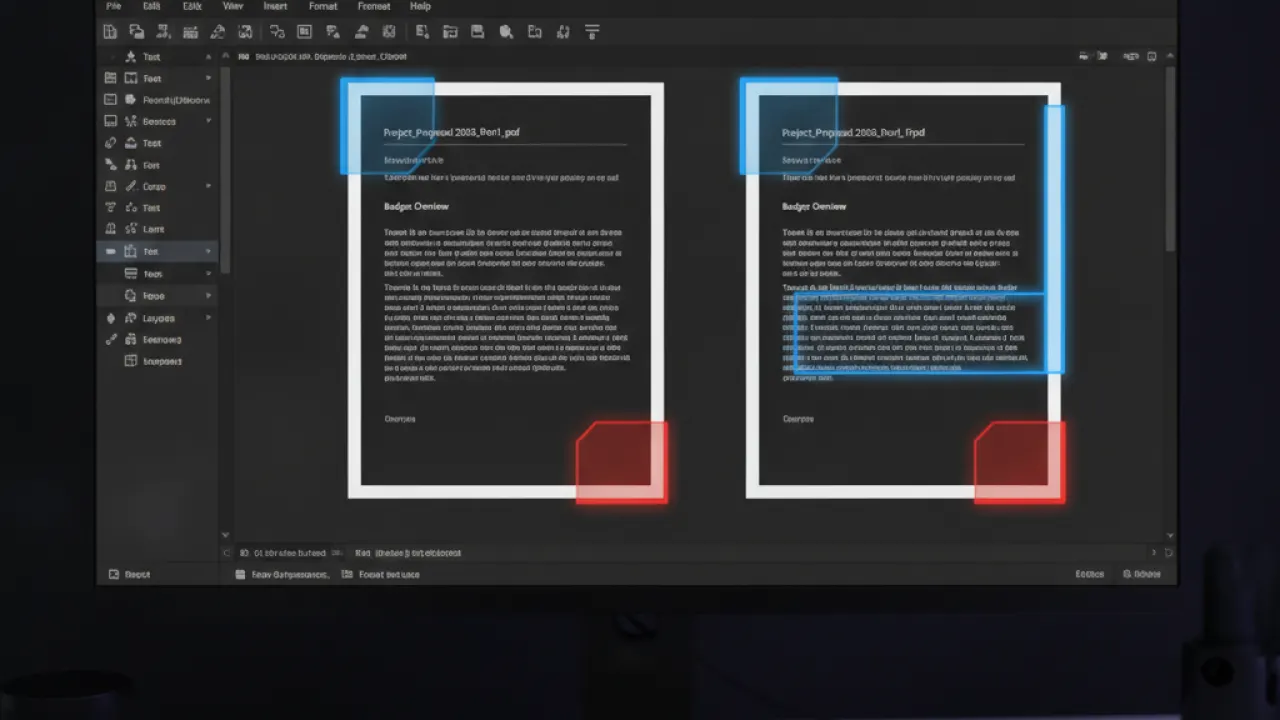
SmallPDF (smallpdf.com): Basic PDF editing, merging, splitting, and compression in any browser without installation. The free tier allows a limited number of operations per hour. For occasional use, the limit is rarely hit. Good for quick tasks when you don’t want to install software.
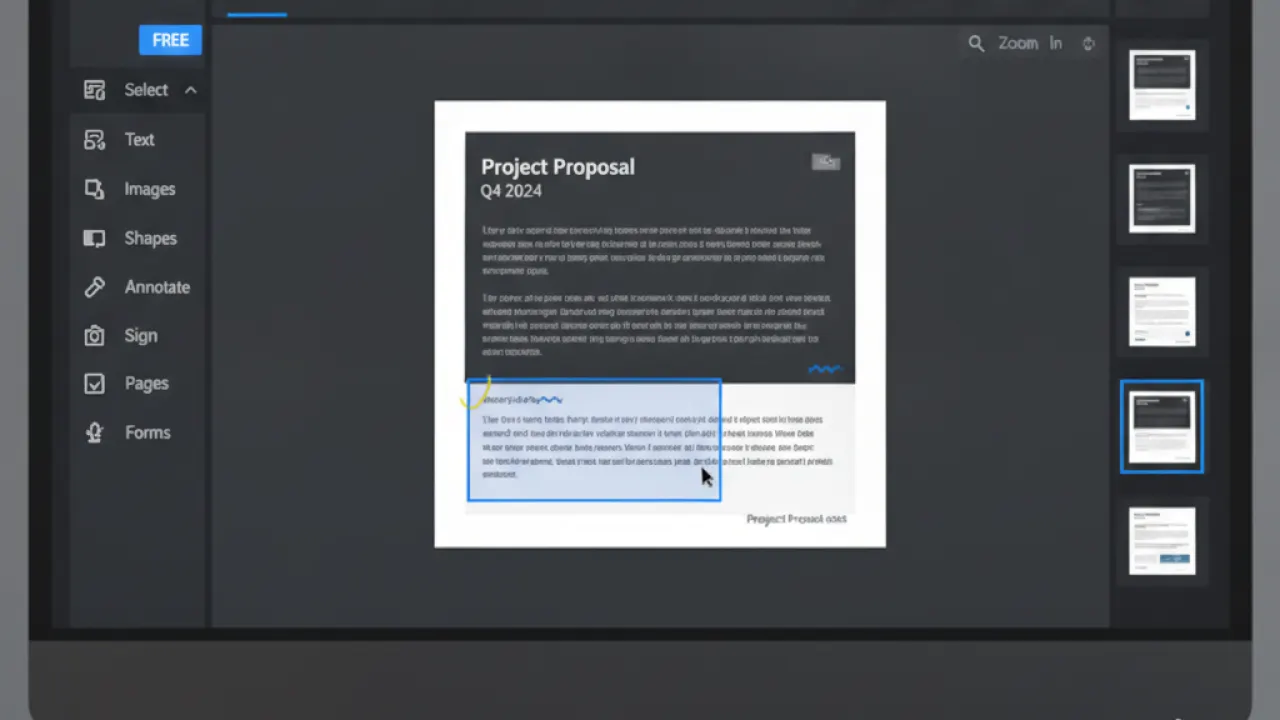
PDF24 (tools.pdf24.org): More comprehensive than SmallPDF with fewer restrictions. Handles editing, merging, splitting, compression, OCR, and format conversion. The free tier is generous and the tool runs entirely in your browser — files don’t need to be uploaded to a server in the basic editing modes.
For Windows: Foxit PDF Reader
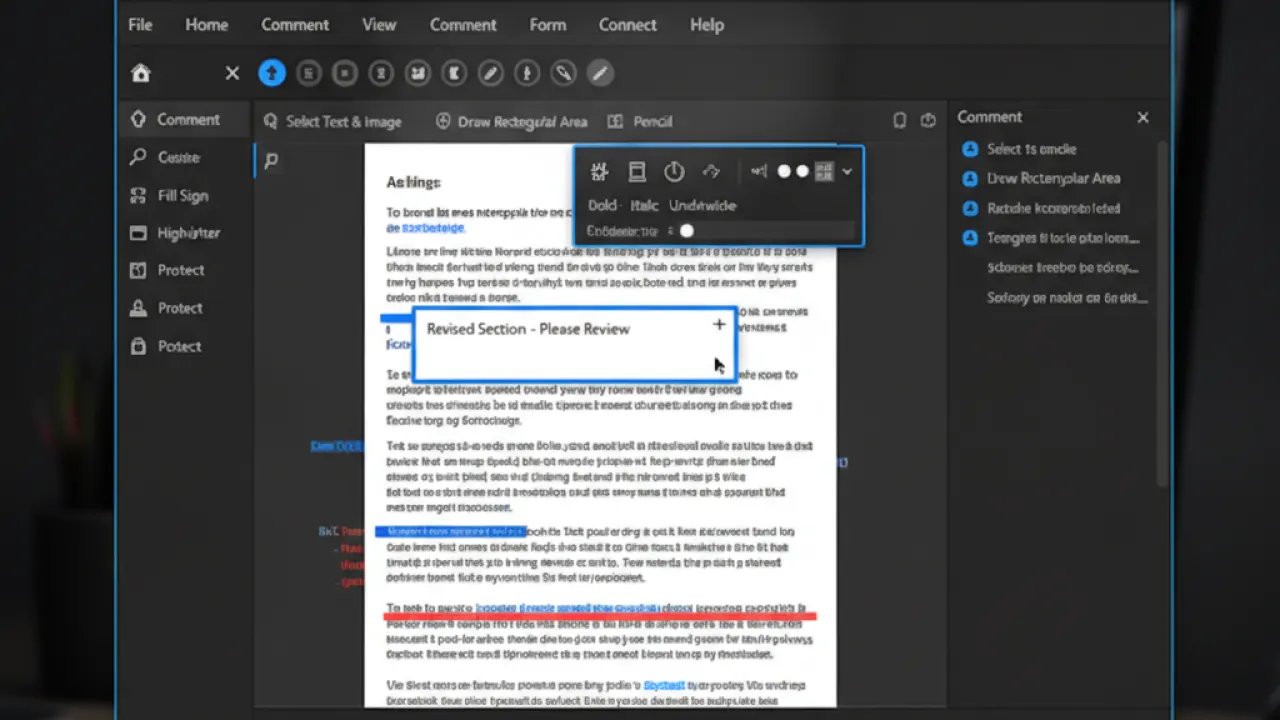
Foxit PDF Reader is a free desktop PDF application for Windows that includes annotation tools, form filling, digital signatures, and basic editing. It’s considerably lighter and faster than Adobe Reader for everyday PDF tasks. The free version covers most common use cases. Foxit’s paid Editor adds advanced editing capabilities, but for reading, annotating, and filling forms, the free Reader is complete.
For Mac: Preview (Built-In)
Mac users have a capable PDF editor already installed: Preview. It handles highlighting, annotation, text editing in form fields, digital signatures, and merging PDFs. For most everyday PDF tasks on Mac, Preview is sufficient and requires no additional software. Open a PDF in Preview, use the Markup tools from the toolbar, and save. The limitation is genuine text editing of the PDF body — Preview can’t reflow or significantly modify existing text.
For Advanced Free Editing: LibreOffice Draw
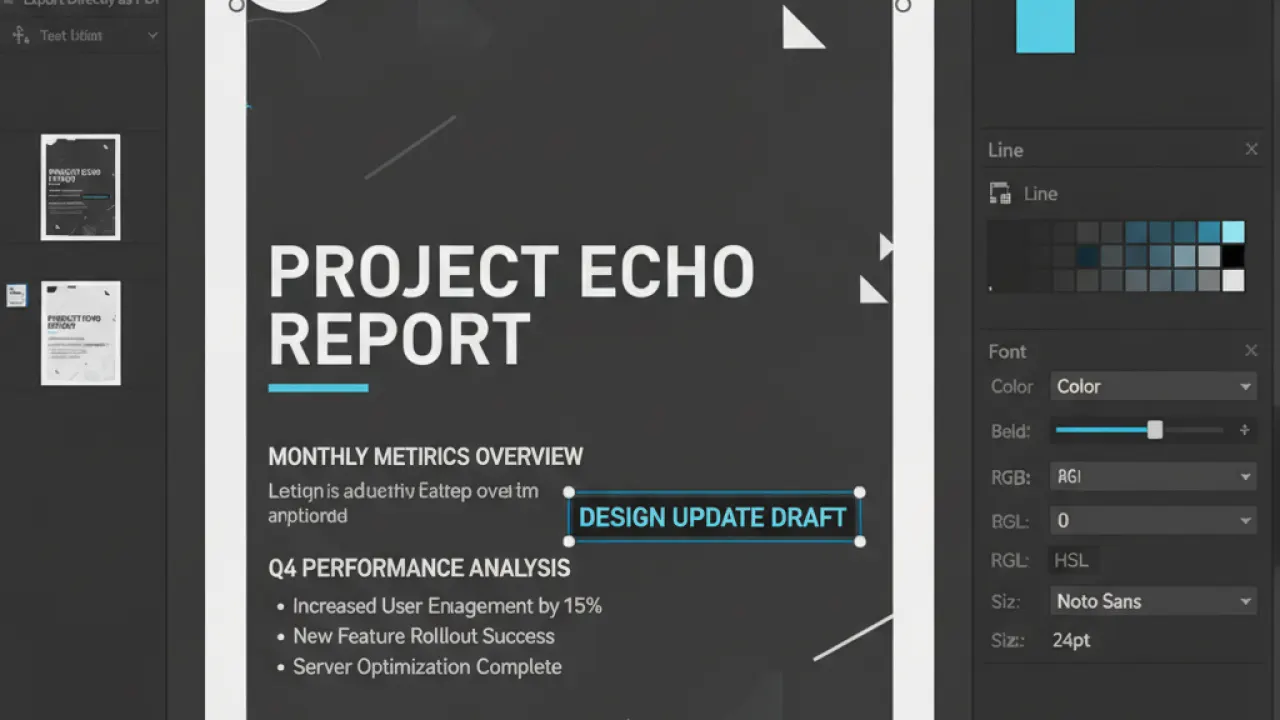
LibreOffice (free, open source) includes a Draw application that can import PDFs and allow editing of text and layout elements. It’s not perfect — the import occasionally changes formatting — but for PDFs that need genuine content editing rather than just annotation, LibreOffice Draw is the most capable free option on Windows, Mac, and Linux. File then Open in LibreOffice Draw, make your changes, then export back to PDF.
For Linux: Okular and Evince
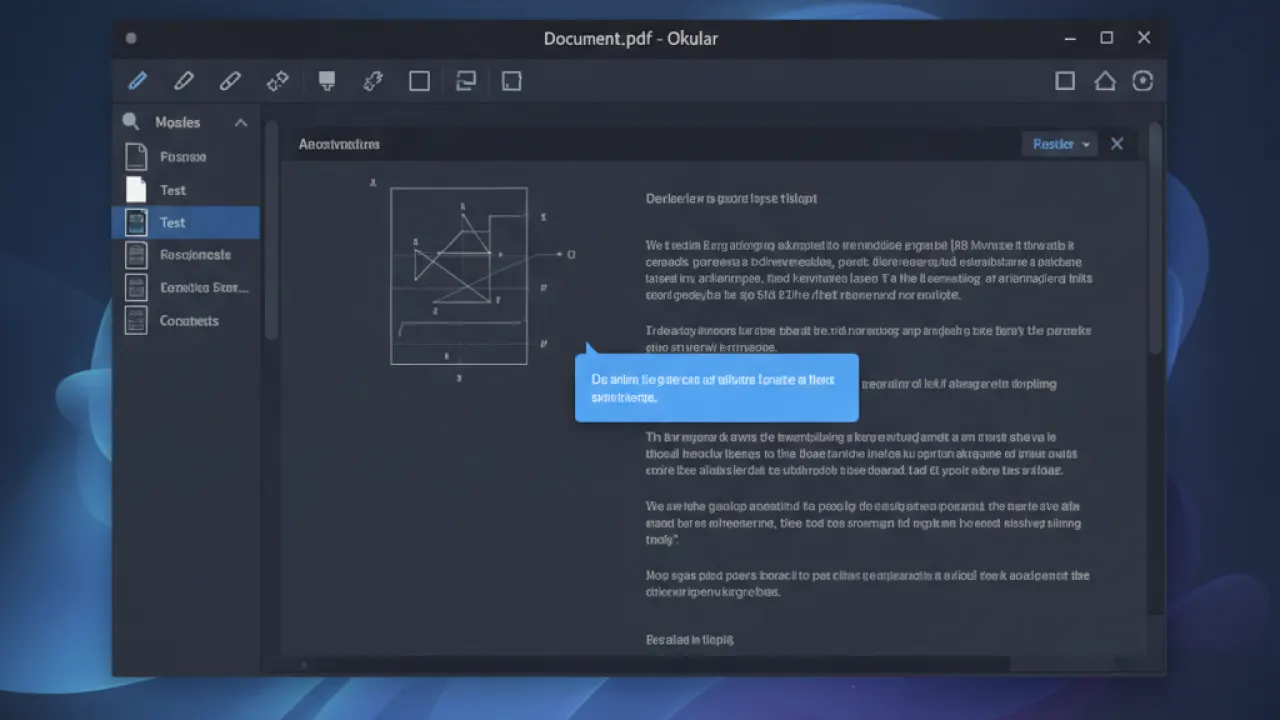
Okular (KDE-based, works on any Linux desktop) provides comprehensive PDF annotation, highlighting, and form filling. Evince (GNOME) handles basic annotation and form filling. Both are typically available through your Linux distribution’s package manager and handle everyday PDF tasks well.
For OCR (Converting Scanned PDFs to Editable Text): PDF24 or Adobe Scan Free
Scanned PDFs are images, not text — regular editing tools can’t modify their content. OCR (Optical Character Recognition) converts the image to editable text. PDF24 includes free OCR. Adobe Scan (mobile app, free) scans documents and applies OCR automatically. For occasional OCR needs, these free options handle most common cases adequately.
For business software beyond PDF editing, our review of the best AI tools covers AI tools that automate document processing and extraction tasks. And for keeping documents secure, our best free password manager guide covers secure storage for sensitive documents alongside passwords.
Which PDF tool are you using for everyday tasks? Leave a comment with your setup and the task you most often need a PDF editor for — use cases vary significantly and others’ workflows can reveal tools worth trying.

