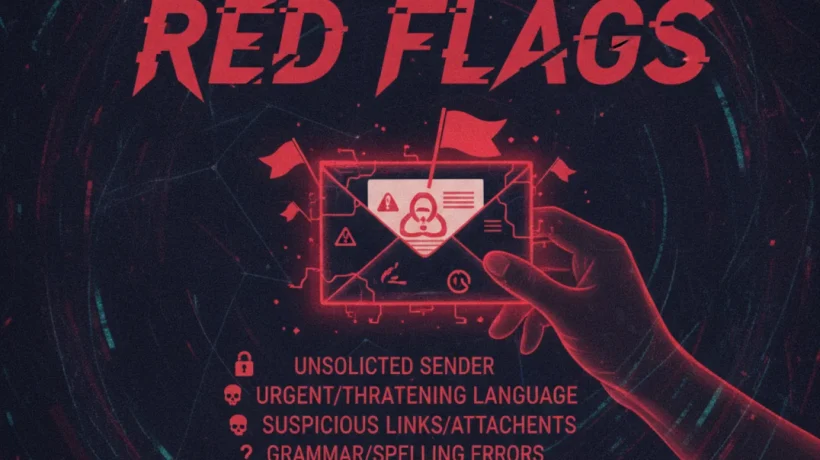

Phishing emails are the most common way attackers access accounts and install malware. Most successful attacks don’t exploit technical vulnerabilities. They exploit human behavior: clicking a link without looking, acting on urgency without pausing, trusting a familiar logo without checking the sender. Knowing what to look for stops the majority of attempts before they cause damage.
Check the Sender’s Email Address — Not Just the Name
The display name in an email can say anything. Your email client shows “Microsoft Account Team” in the from field, but the actual email address tells the real story. Click or tap on the display name to see the full address.
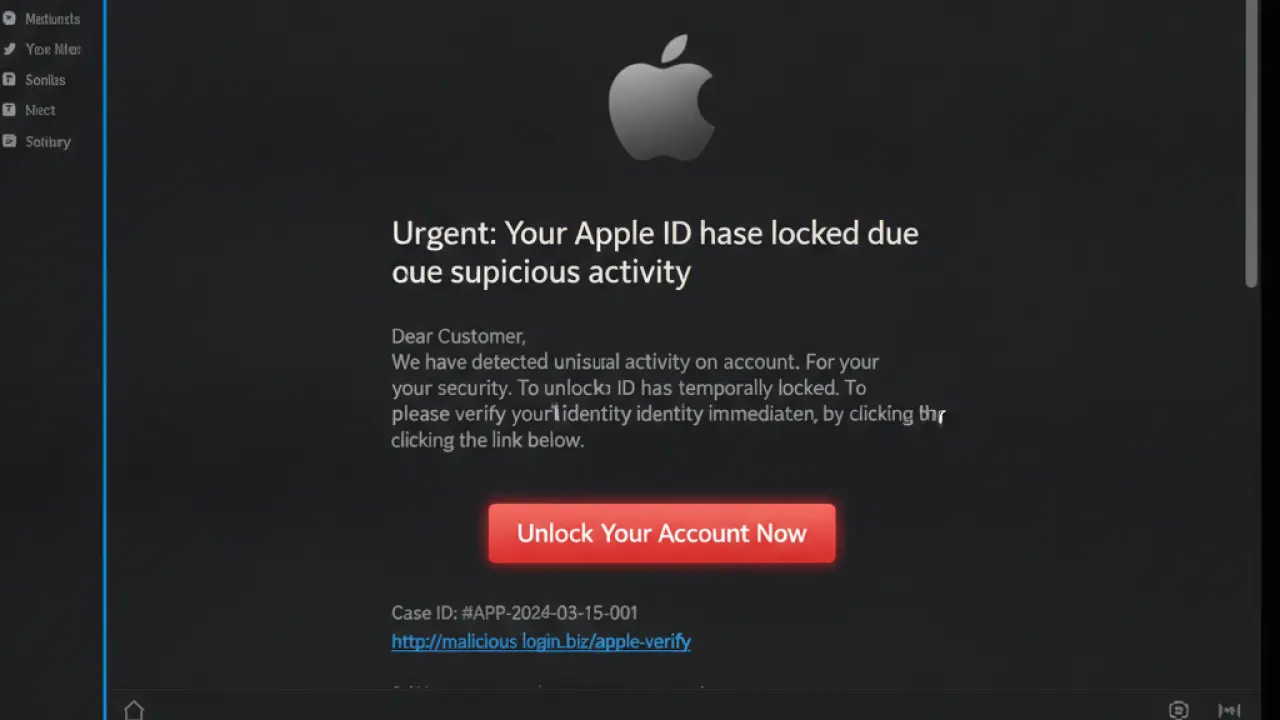
Legitimate organizations send from their own domains. If the email claims to be from Microsoft, it comes from an @microsoft.com address. If it comes from microsoft-security-alert@outlook.net or support-microsoft@gmail.com, it’s phishing regardless of how official it looks.
Watch for these common tricks: microsoft.com@security-alert.net (the legitimate domain appears before the @, but the actual domain is security-alert.net), micros0ft.com (zero substituted for the letter O), and microsofft.com (extra letter). These pass a quick glance but fail on close inspection.
Urgency Is a Red Flag, Not a Motivator
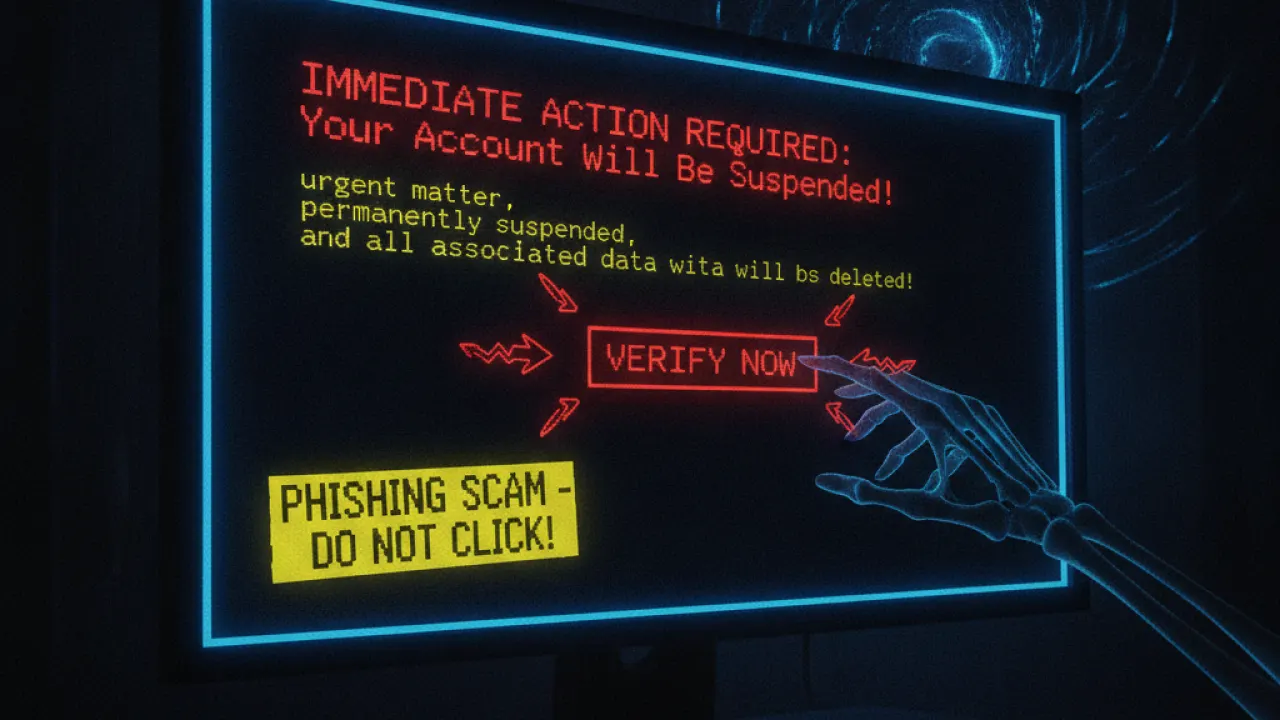
Phishing emails create urgency to prevent you from thinking carefully. “Your account will be suspended in 24 hours,” “Unusual sign-in activity detected — verify now,” “Final notice: your payment failed.” This language is designed to trigger a fear response that makes you click without scrutinizing.
Legitimate companies don’t operate this way. A real bank doesn’t suspend your account for not clicking an email within 24 hours. A real streaming service doesn’t cancel your subscription because you didn’t verify your information by tomorrow. When an email creates panic about immediate consequences, that’s the signal to slow down and verify through an independent channel (call the company, log in through their official website directly, not through the link).
Check Links Before Clicking
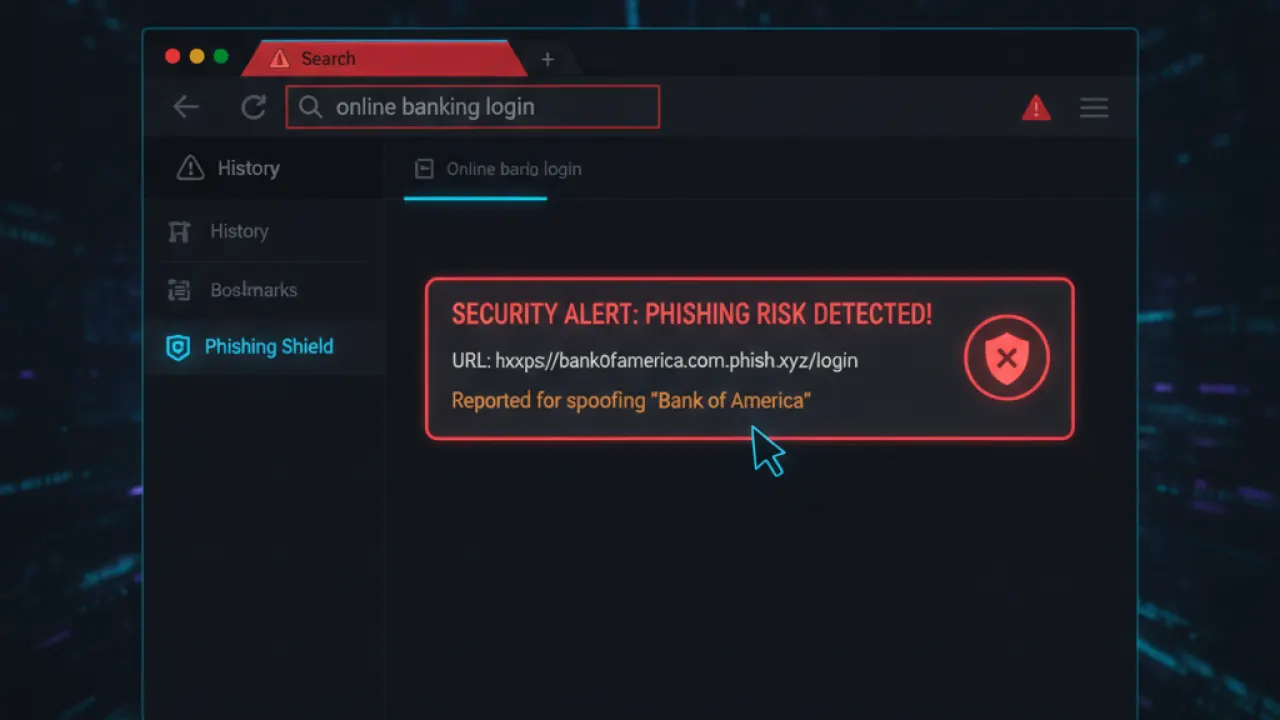
On a desktop browser or mail client: hover your mouse over any link in the email without clicking. The actual URL appears in the bottom status bar of the browser or mail client. If the link text says “Verify your account” but the URL shows “account-secure-update.xyz/login” instead of the company’s official domain, don’t click.
On mobile: press and hold on a link to see a preview of the URL before following it. The extra second this takes is worth it.
Legitimate emails from companies you use link to their own official domains: amazon.com, paypal.com, microsoft.com, bankofamerica.com. Phishing emails link to convincing lookalikes or completely unrelated domains that host fake login pages.
Look for Grammar and Quality Issues
Professional organizations have quality control. Legitimate emails from major companies are proofread. Phishing emails, particularly those translated from other languages or generated quickly, often contain unusual grammar, odd punctuation, or vocabulary that sounds slightly off.
However, this is becoming less reliable in 2026 because AI tools produce grammatically perfect phishing emails that are indistinguishable from legitimate ones based on writing quality alone. Never rely on grammar alone to decide an email is safe.
Attachments Are Dangerous
An unexpected attachment from any source is a risk. Common phishing attachment types: PDF files that prompt you to enable macros, ZIP files containing executables, Office documents that request “Enable Content” or “Enable Editing” when opened.
If you receive an attachment you weren’t expecting, contact the sender through a separate channel (phone call, different message) to verify they intentionally sent it before opening. This single habit prevents most successful malware installations.
Verify Through Independent Channels
If an email looks legitimate but something feels off, verify it directly. Go to the company’s website by typing the address in your browser (not clicking the email link). Log in to your account and check for any notifications about the issue the email mentions. Call the company’s official customer service number from their website.
If the issue the email described is real, you’ll see it in your account. If you see nothing, the email was phishing.
What to Do If You Clicked a Phishing Link
Clicking a phishing link doesn’t mean you’re automatically compromised. Close the tab immediately. If you didn’t enter any information, you may be fine. If the page loaded and you entered a username or password, change that password immediately from a different device. Enable two-factor authentication on that account. Check your account activity for any unauthorized actions.
For work email accounts, report the incident to your IT department. For personal accounts, report the phishing email to your email provider. Our guide on Pi-hole vs AdGuard Home also covers how DNS-level blocking can catch some phishing attempts before they reach your browser.
Summary: Phishing Red Flags
- Sender email address doesn’t match the claimed organization’s domain.
- Urgency language pressuring immediate action.
- Links that don’t go to the official company domain.
- Unexpected attachments, especially with requests to enable macros.
- Requests for passwords, payment details, or personal information.
- Generic greetings (“Dear Customer”) from services that should know your name.
Good basic cybersecurity tips includes knowing what to look for in phishing attempts. Combined with unique passwords from a best free password manager, you’re protected even if you click a phishing link and enter credentials — the attacker only gets the one unique password, not access to your other accounts.
Have you received a convincing phishing attempt recently? Share the details (safely — no personal info) in the comments. Real examples help other readers learn to recognize new techniques.

