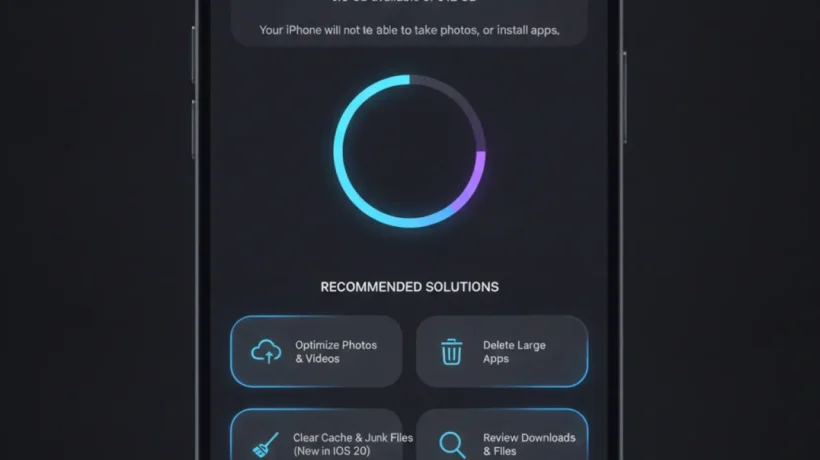

iPhone storage fills up faster than most people expect. Photos, downloaded podcasts, app caches, and message attachments accumulate over months. Most of these can be cleared without deleting apps you actually use. Here’s every method from quickest to most impactful.
Check What’s Using Your Storage
Before clearing anything, see what’s actually taking space. Go to Settings, then General, then iPhone Storage. The list shows each category and app sorted by size. The Recommendations section at the top suggests the quickest fixes for your specific situation. This screen is where to start.
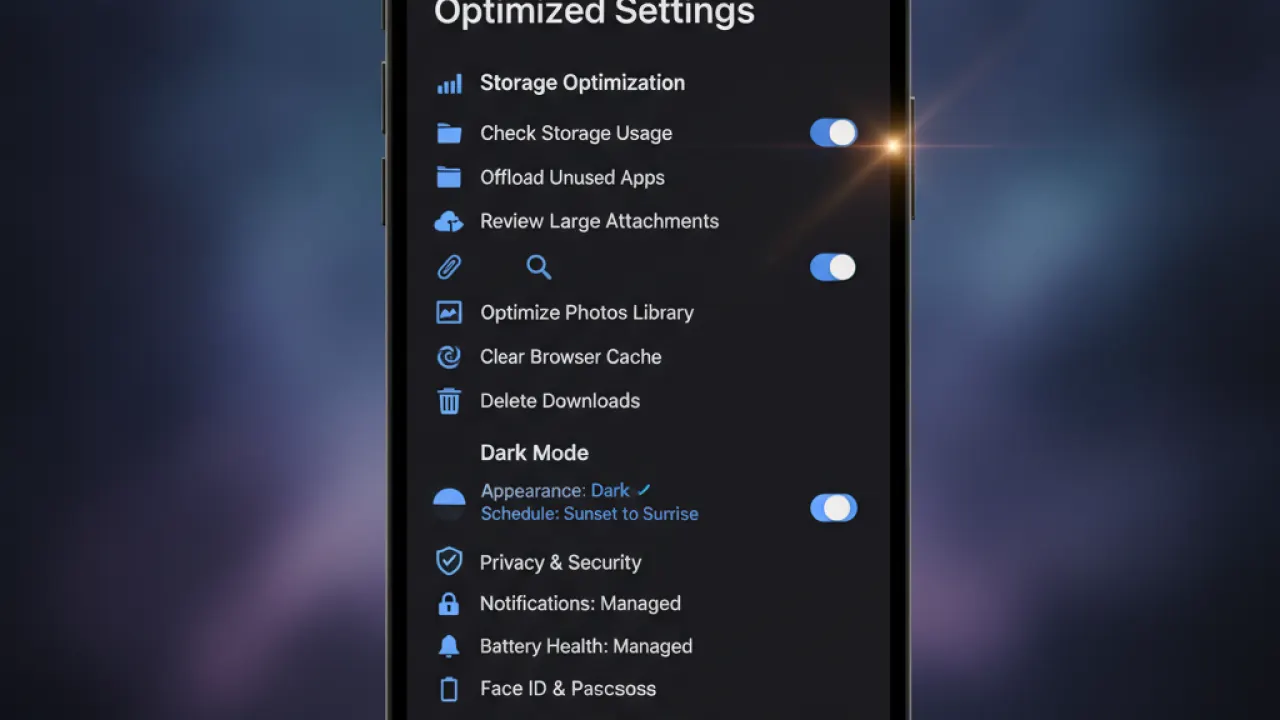
Enable iCloud Photos (Biggest Impact)
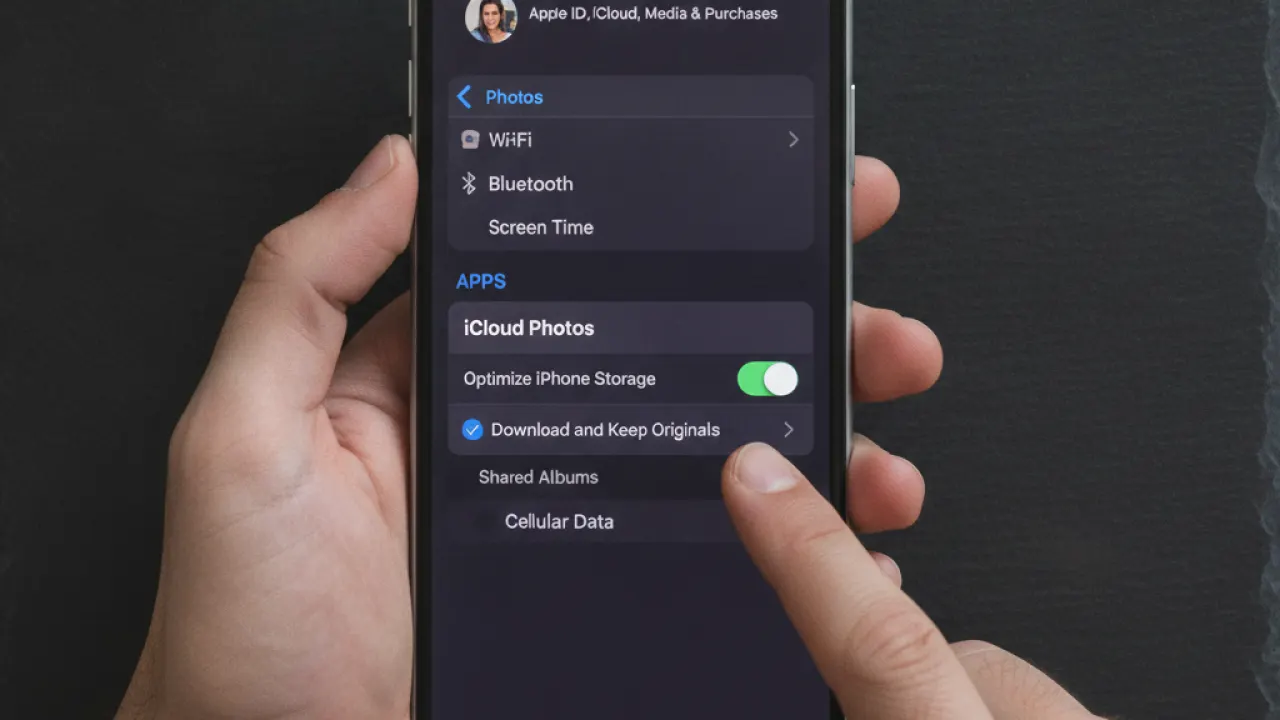
Photos and videos are almost always the largest storage consumers on an iPhone. iCloud Photos stores your full-resolution originals in iCloud and keeps smaller “optimized” versions on your device, downloading the full version only when you open a specific photo.
To enable: Settings, then your name, then iCloud, then Photos, then toggle on iCloud Photos and select Optimize iPhone Storage. The change applies gradually as iCloud uploads your photos. Potential space savings: 5-50+ GB depending on your photo library size.
This requires sufficient iCloud storage. Apple’s free tier is 5GB. A 50GB plan costs £0.99/month in the UK or $0.99/month in the USA. For most users, 50GB handles photos comfortably.
Offload Unused Apps
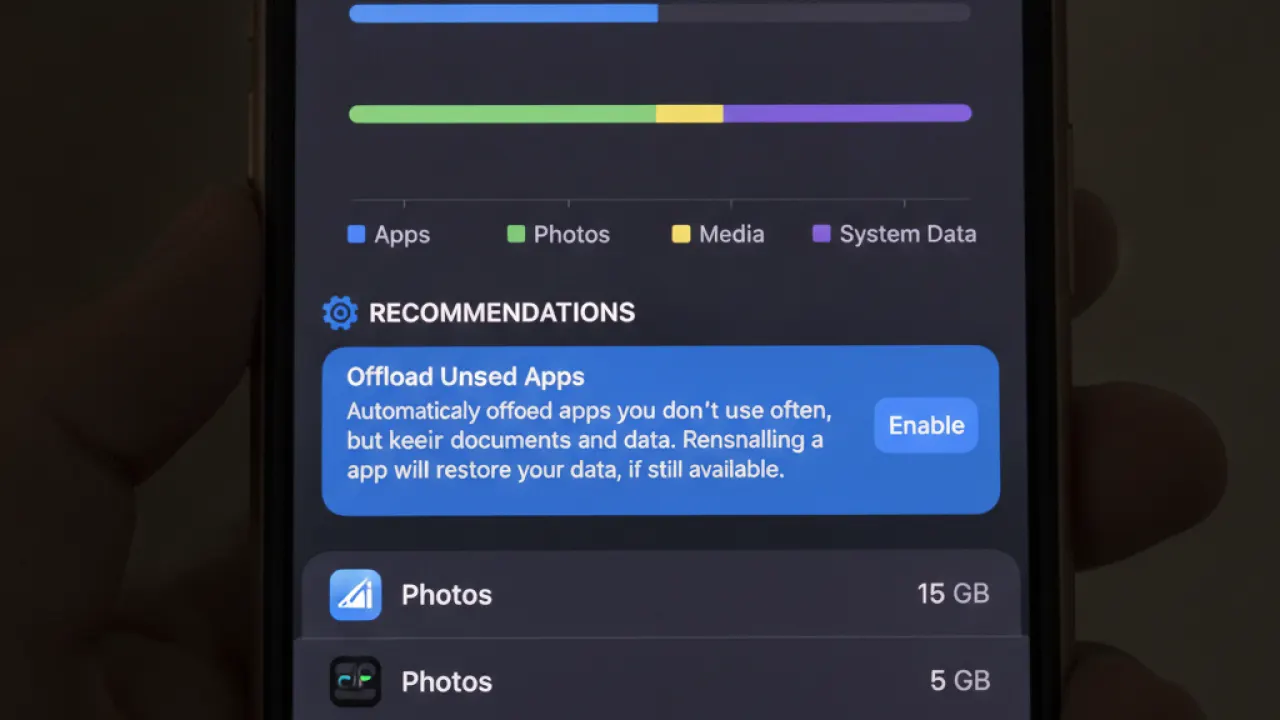
iOS can automatically offload apps you rarely use, keeping your data but removing the app itself. Re-downloading the app later restores all your data. Settings then General then iPhone Storage then enable Offload Unused Apps. Alternatively, you can manually offload specific large apps from the iPhone Storage list.
The difference between Offload and Delete: Offload removes the app but keeps documents and data. Delete removes both. Use Offload for apps you might want again. Use Delete for apps you’re certain you won’t need.
Clear Safari Cache and Website Data
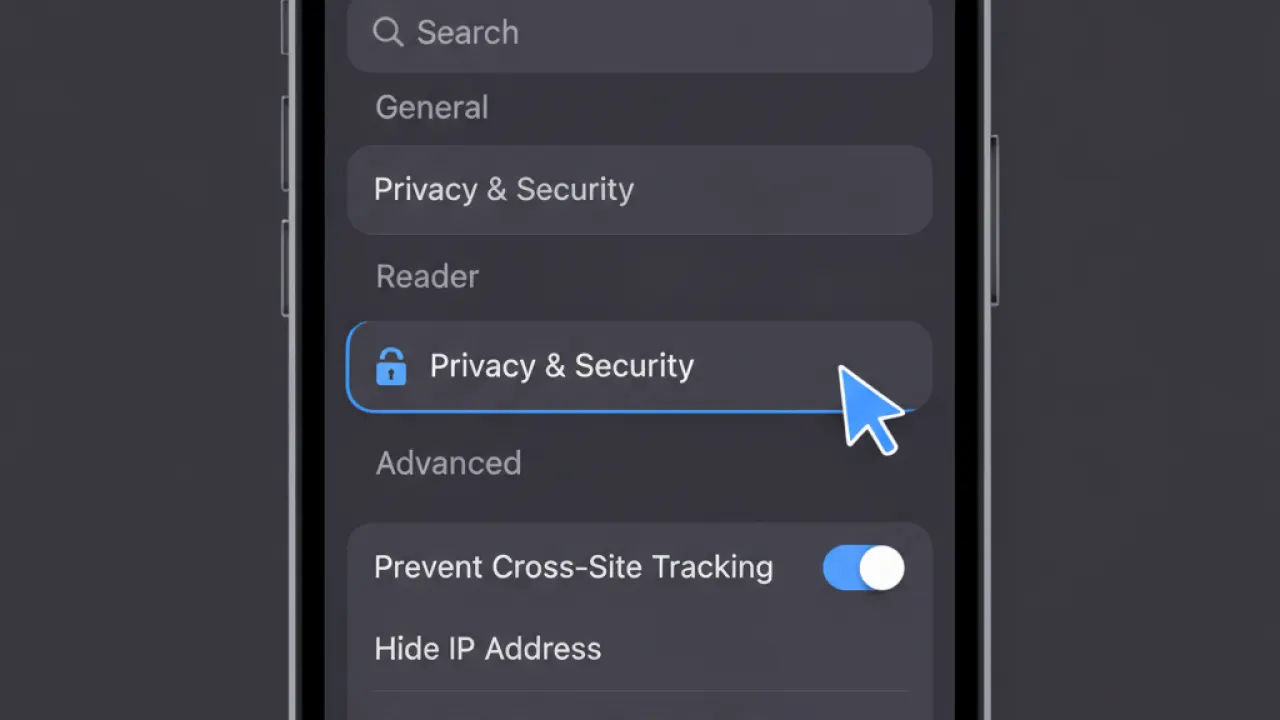
Safari stores cached website data that can accumulate to several hundred megabytes over time. Settings then Safari then Clear History and Website Data. This logs you out of websites and clears browsing history in addition to cached data. If you prefer to clear just the cached data without affecting your browsing history, go to Settings then Safari then Advanced then Website Data, then Remove All Website Data.
Delete Message Attachments
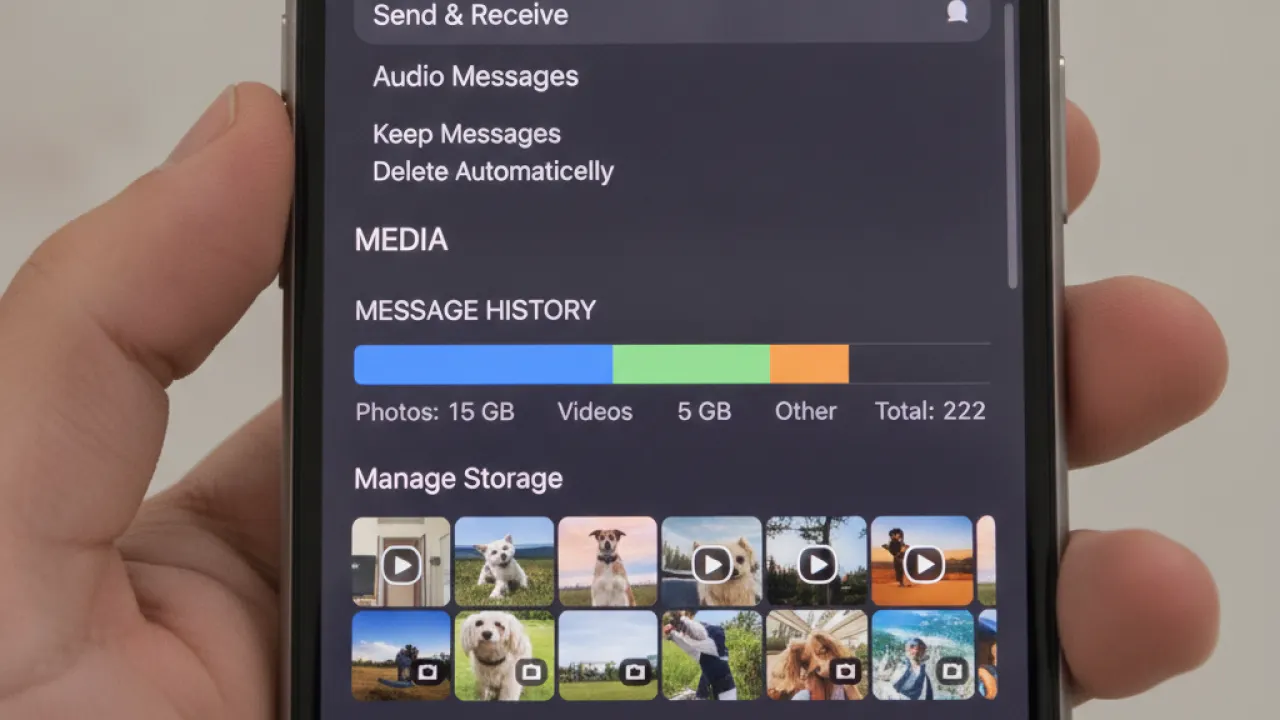
Photos and videos shared in Messages are stored on your device by default and can accumulate significant storage over time. From the iPhone Storage screen, tap Messages. Review the photo and video attachments and delete the large ones you no longer need. You can also configure Messages to automatically delete messages older than 30 days or one year (Settings, then Messages, then Keep Messages).
Other Storage Savings
- Podcasts: If you use Apple Podcasts, downloaded episodes take significant space. Delete listened episodes and set new ones to only download when you’re ready to listen.
- Music: If you’ve downloaded music for offline use, check which albums and playlists are taking space. Download only what you need for current travel or offline use.
- App data: Some apps like games store large amounts of cached data. Deleting and reinstalling a game clears its cache (you’ll need to re-download levels if they’re not cloud-saved).
- Reading List: Safari’s Reading List downloads articles for offline reading. Settings then General then iPhone Storage then Safari shows the stored articles size.
What Not to Do
Avoid third-party “storage cleaner” apps from the App Store. iOS restricts app access to the system in ways that make these apps unable to actually clean significant storage. They typically just analyze what’s taking space (which iOS already shows you for free) and charge for the privilege. Every meaningful storage optimization on iPhone is accessible through iOS settings directly.
For keeping your phone running fast alongside managing storage, our guide to speed up Android covers similar optimizations for Android devices. And our best smartphones guide covers the best iPhones when it’s finally time to upgrade to a model with more storage.
How much storage did you free up using these methods? Leave a comment with the biggest space saver for your iPhone — the answer varies a lot depending on how you use your device.

