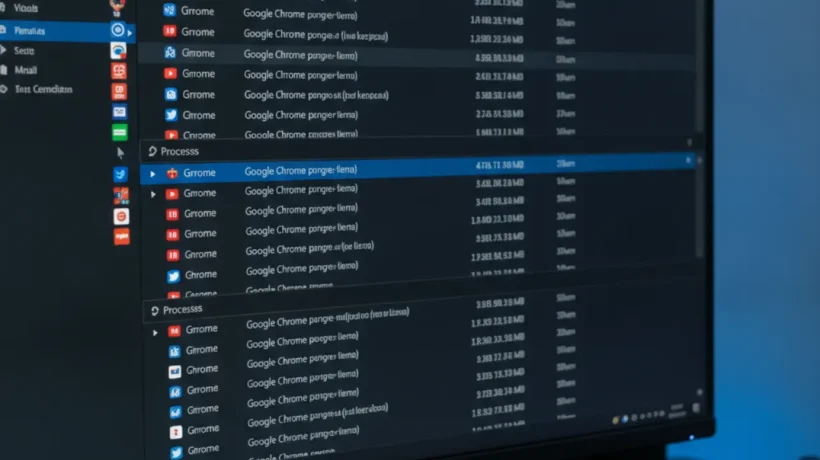

Chrome uses more RAM than any other browser by design. Each tab, extension, and Chrome process runs in isolation for stability — if one crashes, the others don’t. But this architecture consumes memory aggressively. These 7 fixes bring Chrome’s RAM usage down to manageable levels without switching browsers.
1. Enable Chrome’s Memory Saver
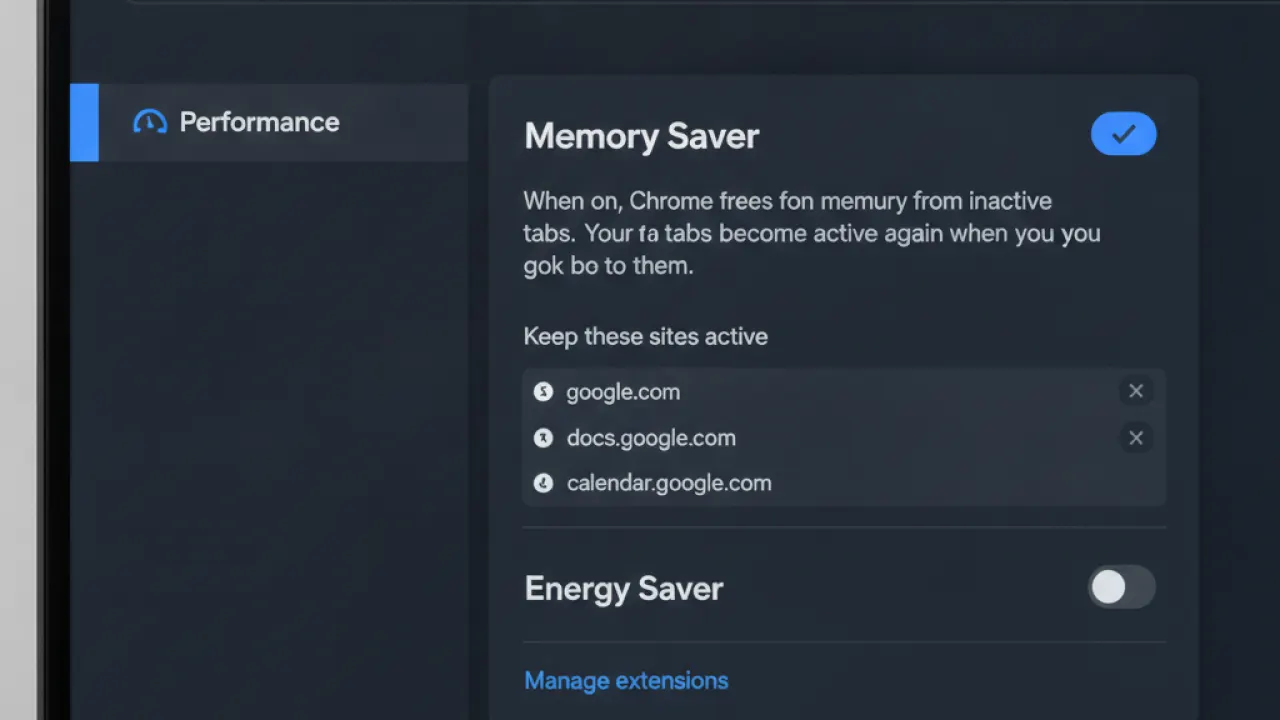
Chrome’s Memory Saver (Settings, then Performance, then Memory Saver: On) automatically reduces the memory used by inactive tabs. When you have 20 tabs open but are only reading one, Memory Saver suspends the idle tabs, freeing their RAM until you click back to them. The tab reloads when you return — usually in under a second on a fast connection.
For most users, enabling Memory Saver alone reduces Chrome’s RAM usage by 20-40%. The minor inconvenience of occasional tab reloads is worth the improvement for systems with 8GB or less RAM.
2. Audit and Remove Extensions
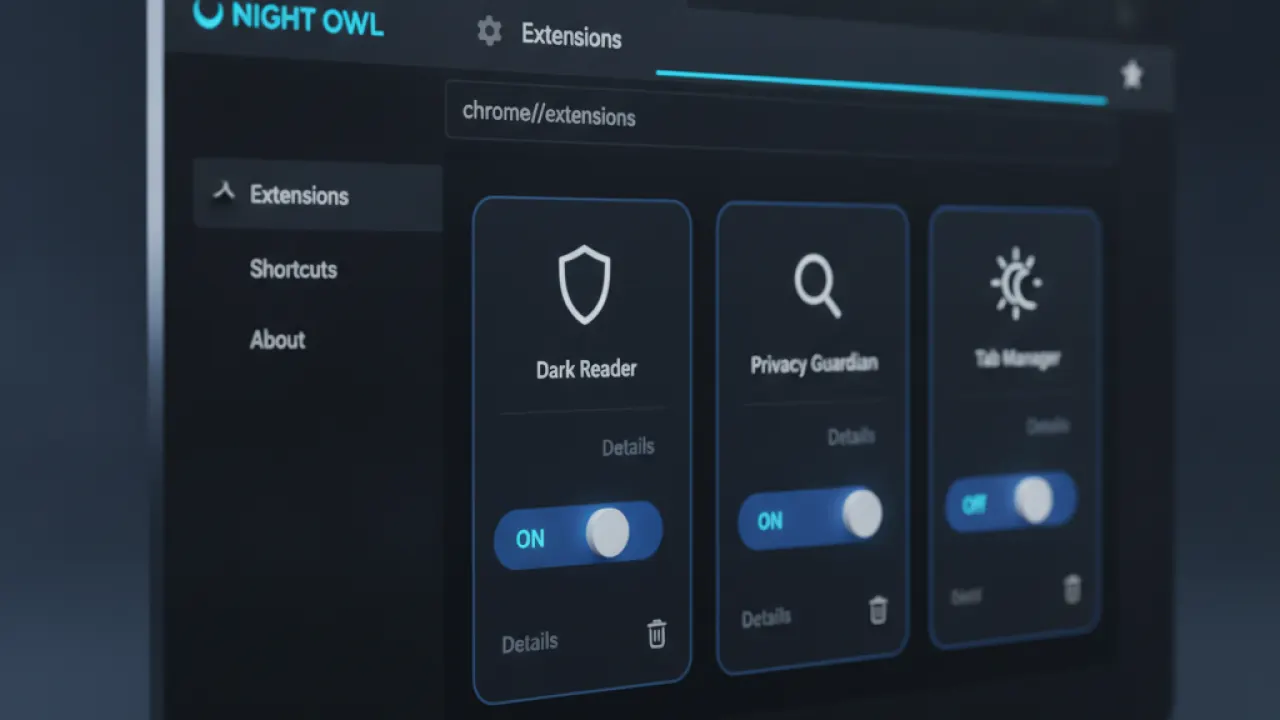
Every Chrome extension runs as a separate process and consumes RAM continuously. Go to chrome://extensions and honestly evaluate each one. How often do you actually use it? If the answer is “rarely” or “never,” disable or remove it. Even reputable extensions that you don’t actively use consume resources. A focused set of 5-6 essential extensions is better than 20 installed over years.
3. Use Chrome’s Built-in Task Manager
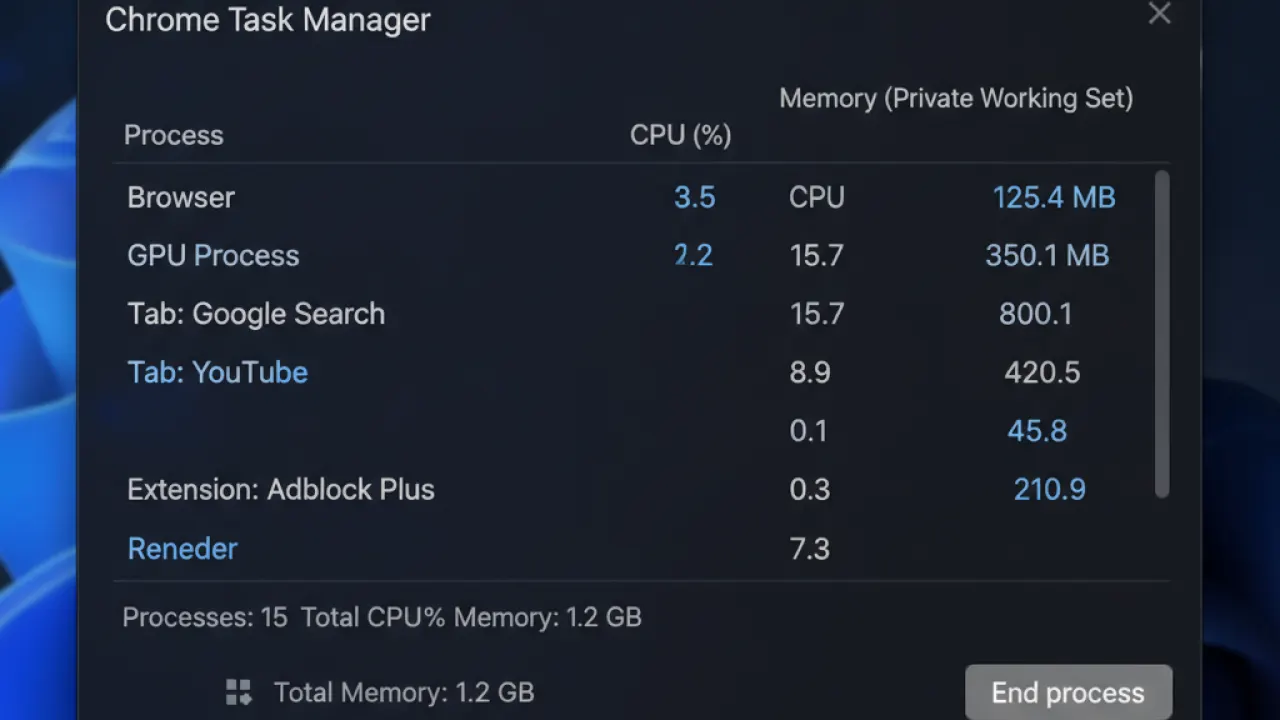
Chrome has its own task manager that shows memory usage per tab and per extension. Open it: three dots menu then More tools then Task Manager. Sort by memory to see which tabs are consuming the most RAM. Identify tabs with videos, social media feeds, or heavy web apps and close the ones you don’t need. This is the most targeted way to reduce Chrome’s RAM usage immediately.
4. Enable Hardware Acceleration
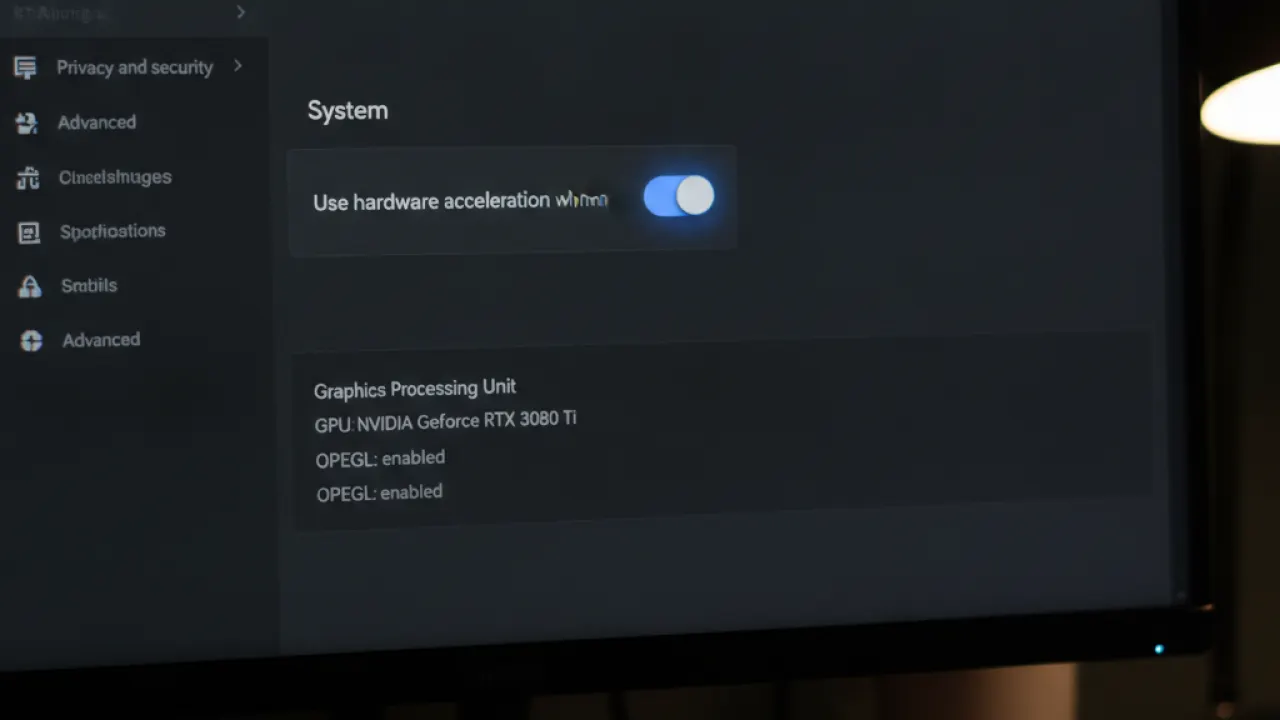
Hardware acceleration offloads some processing from your CPU to your GPU. Chrome Settings, then System, then Use hardware acceleration when available. If this is off, enable it and restart Chrome. This doesn’t reduce RAM directly but reduces CPU usage which indirectly helps overall system performance.
5. Close Tabs Regularly
The most effective RAM optimization is also the simplest: close tabs you’re not using. Browser extensions like “The Great Suspender” or Chrome’s Memory Saver handle this automatically, but manually closing unused tabs gives you the most control. If you’re afraid to lose tabs, bookmark them first or use a “Read Later” folder.
6. Use Chrome Profiles for Work and Personal
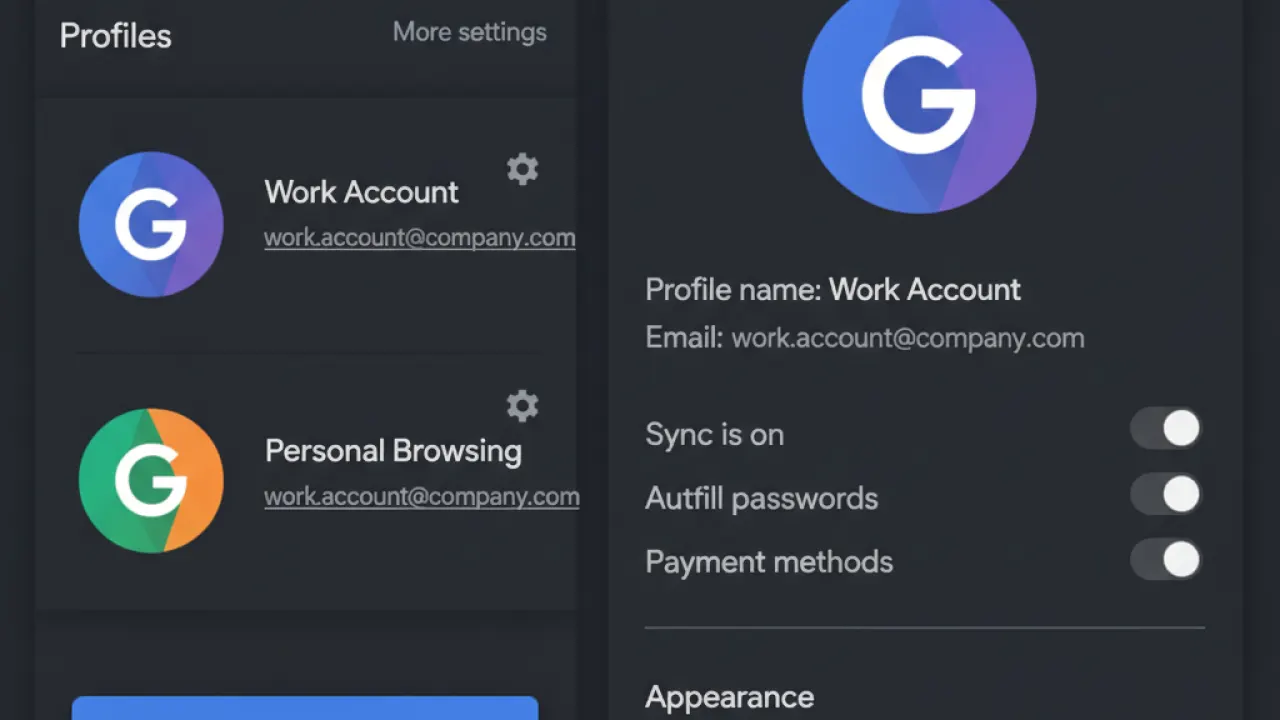
Keeping work tabs and personal tabs in the same Chrome window means all those extensions and tabs share one Chrome process pool. Using separate Chrome profiles (one for work, one for personal) lets you install only work-relevant extensions in the work profile and only personal extensions in the personal one. Each profile has its own set of extensions, reducing the total extension count in each session.
7. Consider Brave or Firefox for Lower RAM Use
If Chrome’s RAM usage consistently causes your computer to slow down, switching browsers may be the most effective long-term solution. Our Brave vs Firefox comparison shows that Brave uses significantly less RAM on ad-heavy pages because it blocks the resource-heavy scripts before they load. Firefox falls between Chrome and Brave on memory usage for typical tab counts.
For general Windows performance improvements beyond just Chrome, our guide on fix Wi-Fi on Windows 11 and general system optimization covers the broader approach. And if you’re reaching the limits of your current hardware, our best budget laptops guide covers the specs that matter most for browser-heavy work.
Which Chrome RAM fix made the biggest difference for your setup? Leave a comment with your tab count and which setting helped most — specific numbers help other readers calibrate their expectations.

