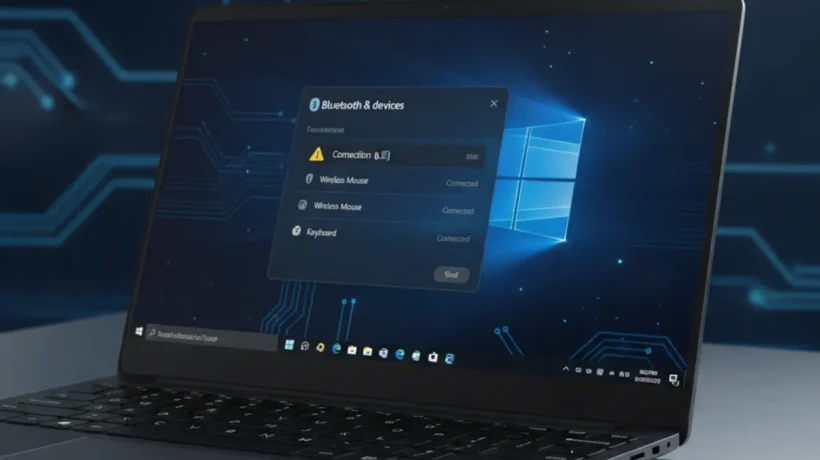

Bluetooth not connecting on Windows 11 is one of the most annoying problems you can run into. You turn on Bluetooth, click the device, and nothing happens. It just spins. Or it connects, then drops every few minutes. Either way, the fix exists, and you don’t need to reinstall Windows to find it.
This guide covers 8 real fixes, starting with the easiest ones. Work through them in order. Most people solve the problem by fix number 4.
1. Check If Bluetooth Is Actually On
This sounds obvious, but Windows 11 can turn Bluetooth off without telling you, especially after a system update or a sleep cycle.
Here’s how to check:
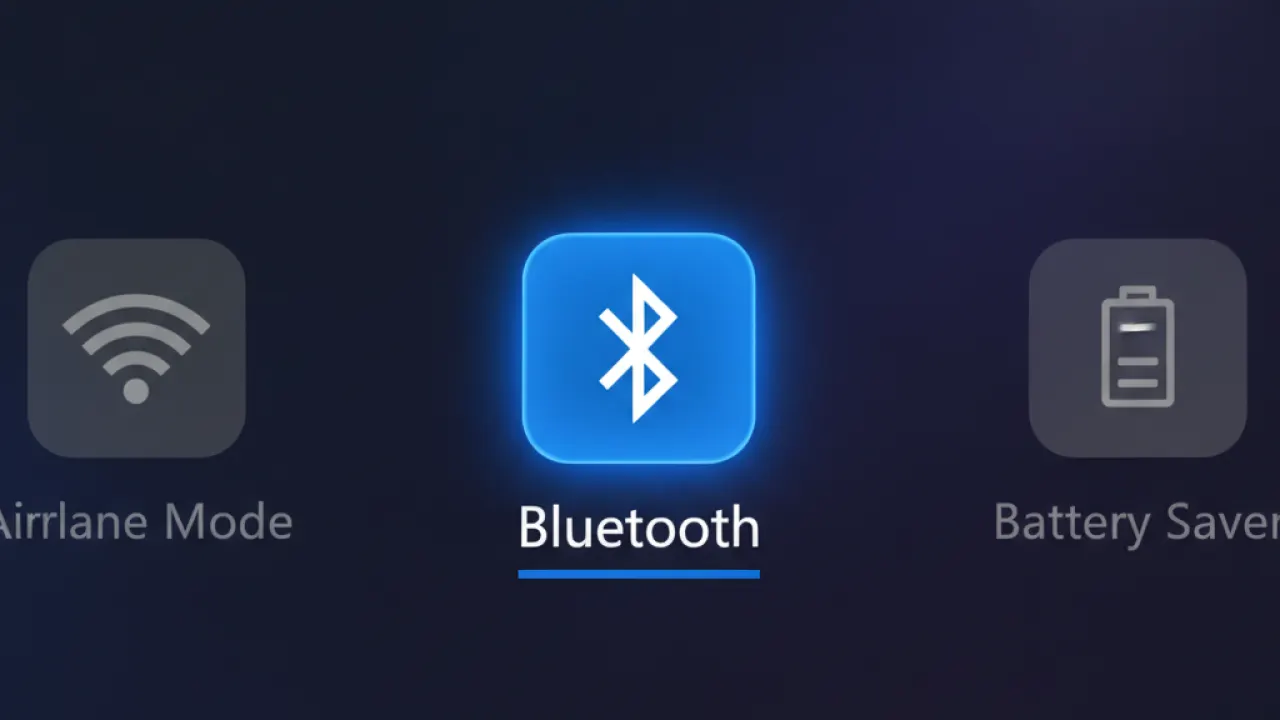
- Click the notification icon in the bottom-right corner of your taskbar (the one that shows Wi-Fi, volume, and battery).
- Look for the Bluetooth tile. If it’s grey, Bluetooth is off. Click it to turn it on.
- If you don’t see the Bluetooth tile, press Windows + I to open Settings, go to Bluetooth and devices, and toggle Bluetooth on from there.
If Bluetooth is already on but your device still won’t connect, move to fix number 2.
2. Restart the Bluetooth Support Service
Windows 11 runs Bluetooth through a background service. If that service crashes or gets stuck, Bluetooth stops working even though the toggle looks fine.
Here’s how to restart it:
- Press Windows + R, type
services.msc, and press Enter. - Scroll down and find Bluetooth Support Service.
- Right-click it and choose Restart.
- If it says “stopped,” right-click and choose Start.
- Right-click again, go to Properties, and set Startup type to Automatic. Click Apply and OK.
Try connecting your Bluetooth device again. If it still doesn’t work, move on.
3. Remove the Device and Pair It Again
A corrupted pairing record can stop Bluetooth from connecting, even to a device that used to work perfectly. Removing it and starting fresh often clears the problem in under a minute.
- Press Windows + I and go to Bluetooth and devices.
- Find the device that won’t connect.
- Click the three dots next to it and choose Remove device.
- Put your device into pairing mode (check its manual for how).
- Click Add device in Windows 11 and follow the steps to pair it again.
This fix works well for headphones, keyboards, and mice that suddenly stop connecting.
4. Run the Windows 11 Bluetooth Troubleshooter
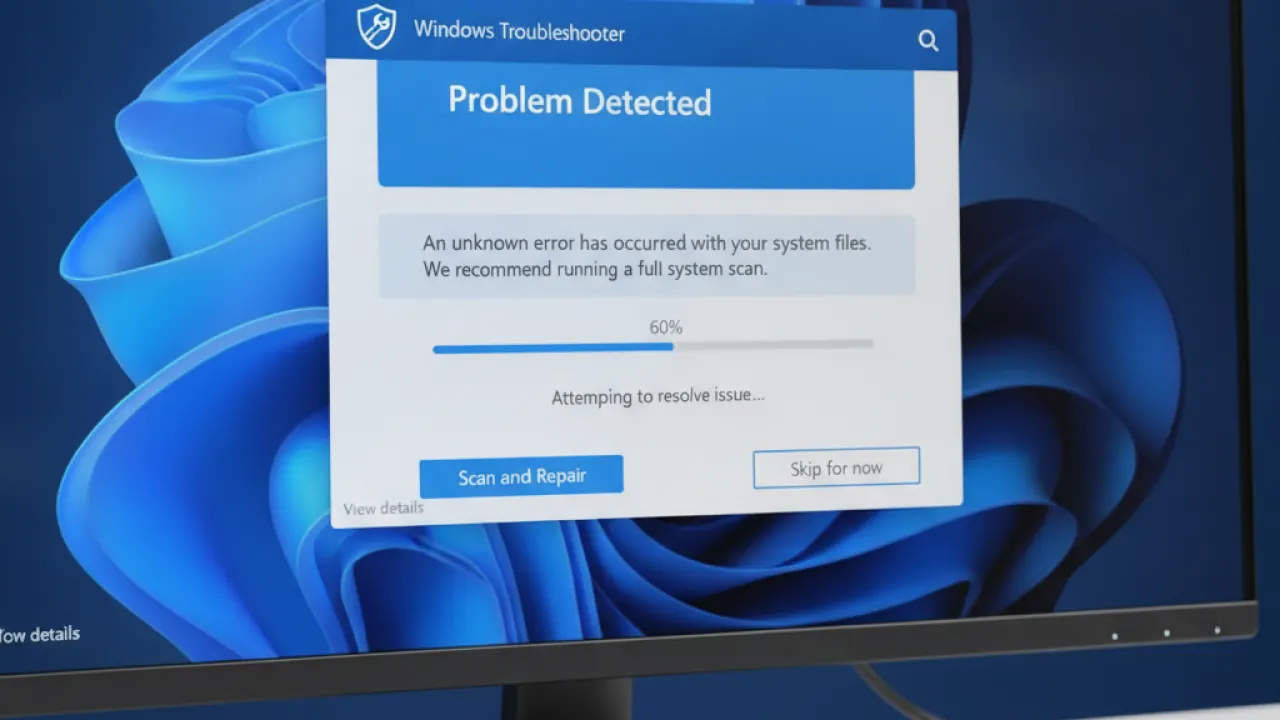
Windows 11 has a built-in tool that scans for common Bluetooth problems and tries to fix them automatically. It’s not perfect, but it finds driver issues and service misconfigurations that are hard to spot manually.
- Press Windows + I and go to System.
- Click Troubleshoot, then Other troubleshooters.
- Find Bluetooth in the list and click Run.
- Wait for it to finish and follow any steps it suggests.
Even if it says “no problems found,” the process sometimes resets Bluetooth services in the background, which fixes the issue anyway.
5. Update Your Bluetooth Driver
An outdated or corrupted Bluetooth driver is the most common cause of Bluetooth not connecting on Windows 11, especially after a major update. Here’s how to update it properly.
Option A: Through Device Manager
- Right-click the Start button and choose Device Manager.
- Expand the Bluetooth section.
- Right-click your Bluetooth adapter (it usually has your PC brand name, like “Intel Wireless Bluetooth”).
- Click Update driver, then Search automatically for drivers.
- Restart your PC after the update finishes.
Option B: From the Manufacturer’s Website
If Windows can’t find a newer driver, go directly to your PC maker’s support page (Dell, HP, Lenovo, ASUS, etc.) and search for the latest Bluetooth driver for your exact model.
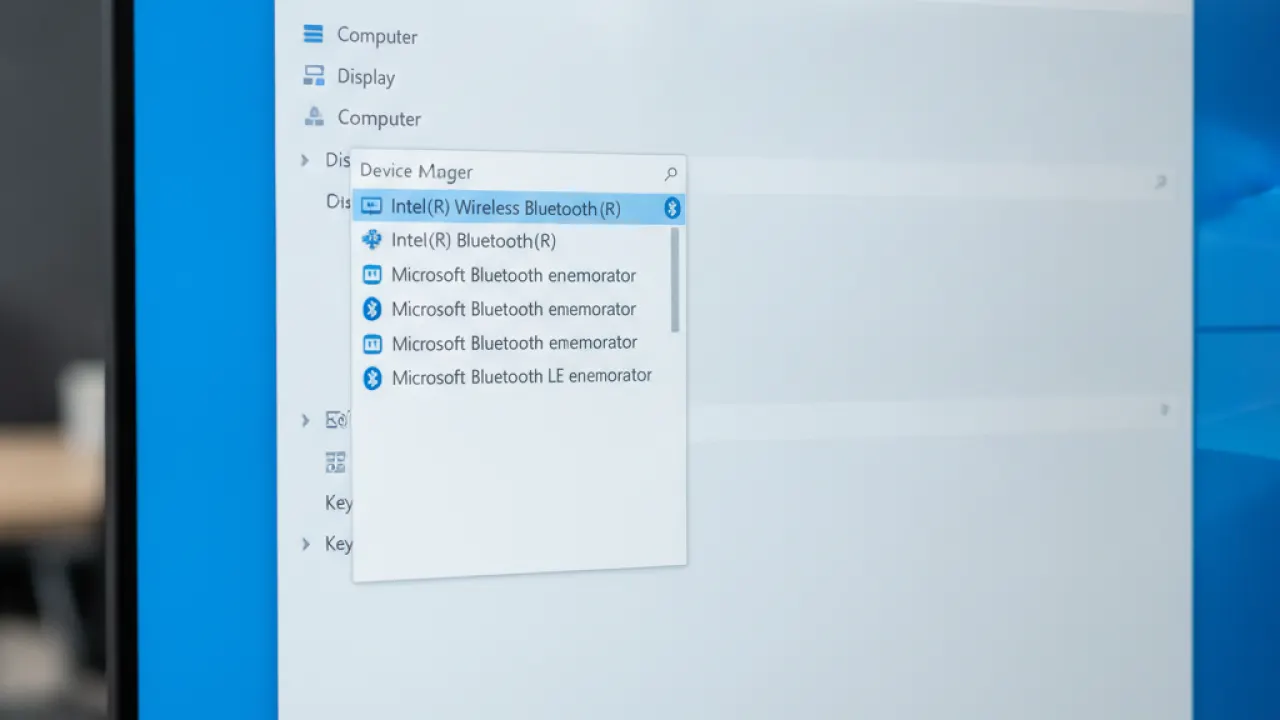
If updating doesn’t help, try uninstalling the driver entirely and rebooting. Windows will reinstall a fresh copy automatically.
6. Turn Off Bluetooth Power Saving
Windows 11 sometimes turns off Bluetooth to save battery power, which cuts the connection. This is a common problem on laptops. Here’s how to stop it:
- Open Device Manager (right-click Start, then Device Manager).
- Expand Bluetooth and right-click your Bluetooth adapter.
- Click Properties, then go to the Power Management tab.
- Uncheck “Allow the computer to turn off this device to save power.”
- Click OK.
This is especially useful if your Bluetooth works at first but drops after a few minutes of inactivity.
7. Check for Windows 11 Updates
Microsoft regularly pushes driver and firmware patches through Windows Update. If you’ve skipped a few updates, your Bluetooth problem might already be fixed in a patch that hasn’t installed yet.
- Press Windows + I and go to Windows Update.
- Click Check for updates.
- Install everything that comes up, including optional driver updates.
- Restart your PC and test Bluetooth again.
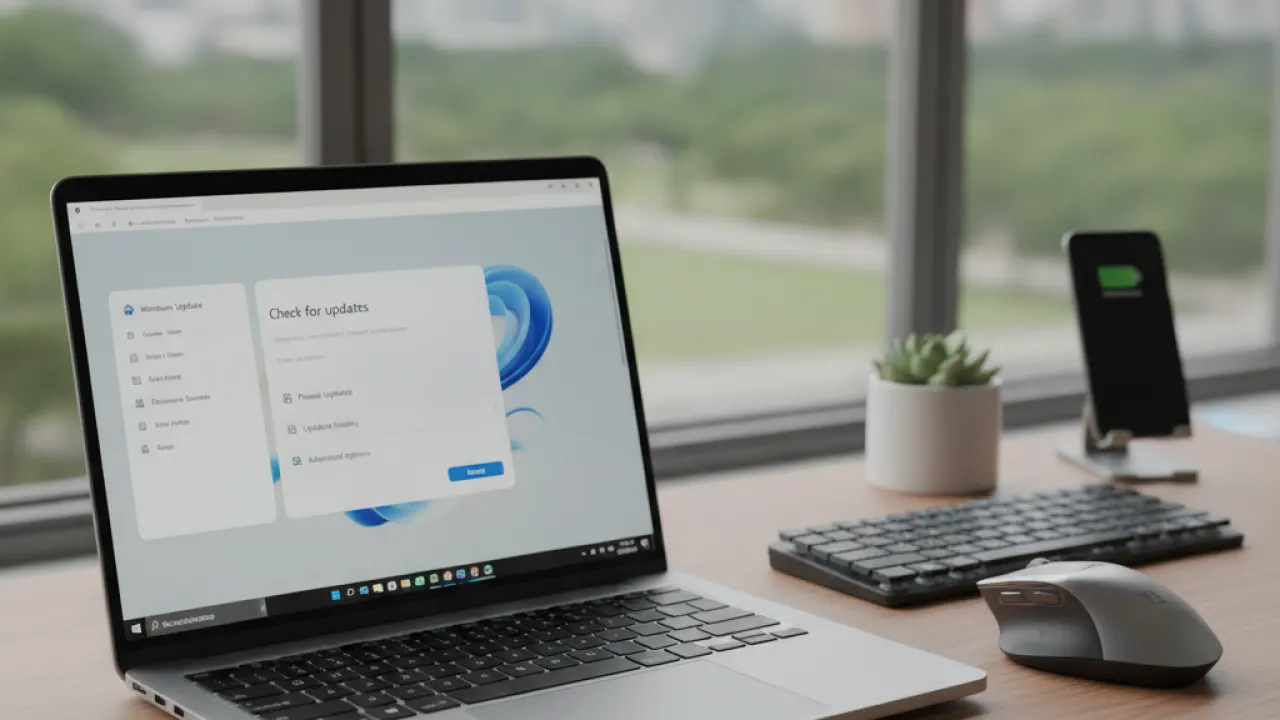
To see optional driver updates, click Advanced options then Optional updates in the Windows Update screen.
8. Reset Your Network Settings
If none of the above works, resetting your network settings can clear deeper configuration errors that affect Bluetooth. This won’t erase your files or apps, but you’ll need to reconnect to your Wi-Fi networks after.
- Press Windows + I and go to System.
- Scroll down and click Recovery.
- Find Network reset under Reset this PC and click it.
- Click Reset now and confirm.
- Your PC will restart and clear all network adapters, including Bluetooth.
After the reset, test Bluetooth again. If it still won’t connect, the problem is likely a hardware fault in the Bluetooth chip itself, not software.
What to Do If Nothing Works
At this point, you’ve tried every software fix. If Bluetooth still doesn’t connect, consider these steps:
- Use a USB Bluetooth adapter. You can buy one for $10 to $20 on Amazon. Plug it in and Windows will install a driver automatically. Many users find these more reliable than built-in adapters.
- Check Device Manager for errors. If your Bluetooth adapter shows a yellow warning icon, the hardware itself has an issue. Try a full uninstall and reinstall of the driver.
- Run the SFC scan. Open Command Prompt as administrator and type
sfc /scannow. This checks for corrupted Windows system files that might be breaking Bluetooth. - Contact your PC manufacturer. If your PC is under warranty, a Bluetooth chip that fails is usually covered.
Quick Bluetooth Fixes You Should Also Try
Here are a few extra steps that work for some users:
- Toggle Airplane Mode on and off (this resets all wireless radios).
- Restart your Bluetooth device, not just Windows.
- Move your device closer to the PC (interference from walls, microwaves, or other Bluetooth devices can block the signal).
- Check if the Bluetooth device pairs on a different PC. If it doesn’t, the device itself is the problem.
While you’re fixing things on your PC, it’s worth spending a few minutes to speed up Windows 11 as well. A slow PC often has related driver and service issues that these same steps can help fix.
And if you’re connecting a phone to your PC via Bluetooth for file sharing, make sure you’re using a phone with decent specs. Our guide to the best smartphones for every budget can help if you’re in the market.
Why Does Bluetooth Keep Disconnecting on Windows 11?
The three main reasons Bluetooth keeps dropping on Windows 11 are:
- Power management settings that turn off the adapter to save battery (fix 6 above).
- Driver conflicts after a Windows Update (fix 5).
- Interference from other devices using the 2.4 GHz band, including Wi-Fi routers, baby monitors, and other Bluetooth devices.
If your Bluetooth connects but drops every few minutes, start with fix 6 (power saving) before anything else. That’s the cause more than half the time.
Does Windows 11 Have More Bluetooth Problems Than Windows 10?
Yes, in the early versions of Windows 11, Bluetooth was noticeably buggier than Windows 10. Microsoft has shipped dozens of patches since the 2021 launch. If you’re on an old version of Windows 11 (before version 22H2), a Windows Update alone might be all you need.
You can check your version by pressing Windows + R, typing winver, and pressing Enter. If you’re on Windows 11 version 22H2 or 23H2, you have the most stable Bluetooth implementation Microsoft has shipped.
Security matters too when you use Bluetooth to connect to devices in public places. Take a few minutes to read our guide on basic cybersecurity tips that cover Bluetooth security risks and how to minimize them.
Summary: 8 Fixes for Bluetooth Not Connecting on Windows 11
- Check that Bluetooth is actually turned on in Settings or Action Center.
- Restart the Bluetooth Support Service in services.msc.
- Remove the device and pair it again from scratch.
- Run the built-in Windows 11 Bluetooth Troubleshooter.
- Update or reinstall your Bluetooth driver in Device Manager.
- Turn off the power-saving setting on your Bluetooth adapter.
- Install all pending Windows 11 updates, including optional driver updates.
- Reset network settings as a last resort.
Most people fix the problem in the first four steps. If you’ve been through all eight and Bluetooth still won’t connect, a USB Bluetooth adapter is a cheap and reliable workaround while you wait for a driver fix from the manufacturer.
Did one of these fixes work for you, or did your Bluetooth problem have a different cause? Drop a comment below and tell us which fix did it, or what you found. That helps other readers skip straight to what works.

