
Cleaning your PC properly in 2027 means doing it without losing files, corrupting software, or damaging hardware. Knowing how to clean your PC safely in 2027 covers two separate jobs: cleaning the physical dust out of the machine and removing digital junk that slows it down. Both matter and both are straightforward when you follow the right steps.
This guide walks through both, in the right order, with the tools you actually need.
How to Clean Your PC Safely in 2027: Back Up First
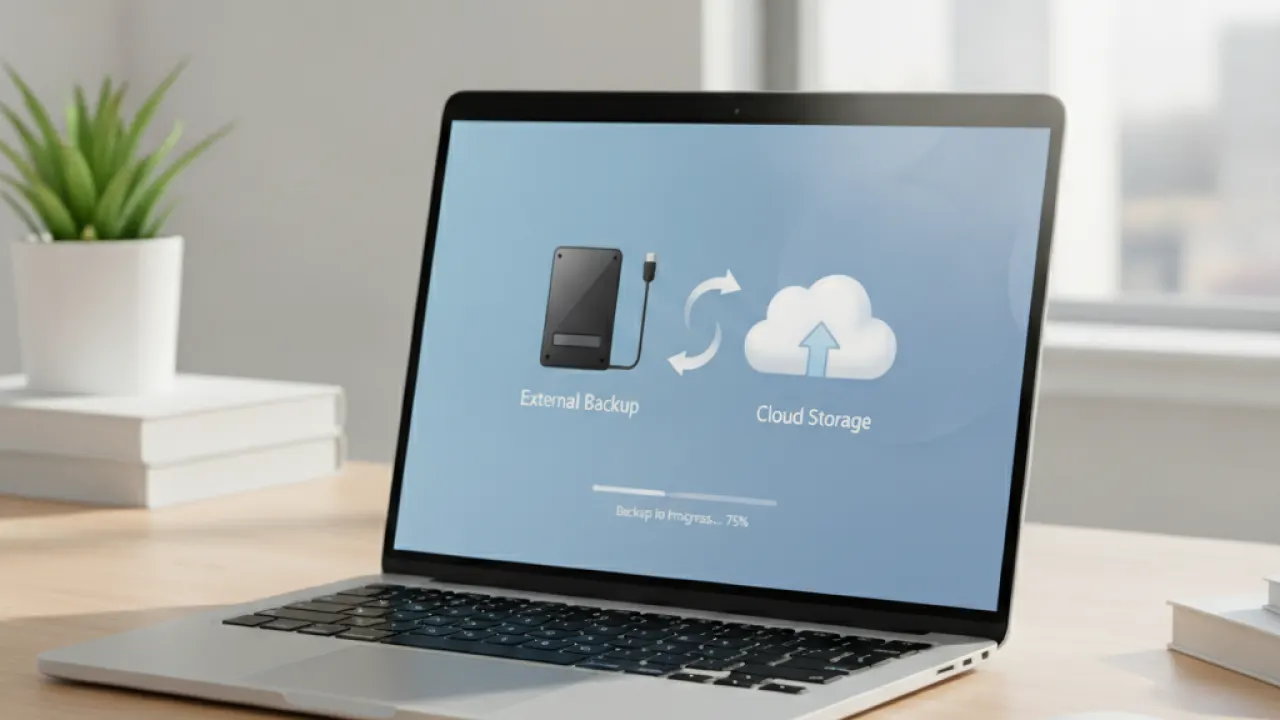
Before cleaning anything on your PC in 2027, back up your important files. Physical cleaning is generally safe, but when you start cleaning software and removing programs, it’s possible to delete something you need. A backup takes ten minutes and eliminates that risk entirely.
What to Back Up
The files that matter are the ones you created: documents, photos, videos, downloads, and any files you keep on the Desktop. Windows stores most of these in the Users folder under your username. Copy that folder to an external drive or upload it to cloud storage before you start.
If you use OneDrive, Google Drive, or iCloud to sync your Desktop and Documents, those files are already backed up. Check that sync is current before continuing.
System Restore Point
Create a System Restore Point before making software changes. Search “Create a restore point” in the Windows Start menu, click Create, and give it a name. If something goes wrong during software cleanup, you can roll back to this point. It takes under two minutes.
Physical Cleaning: Remove Dust Without Damaging Anything
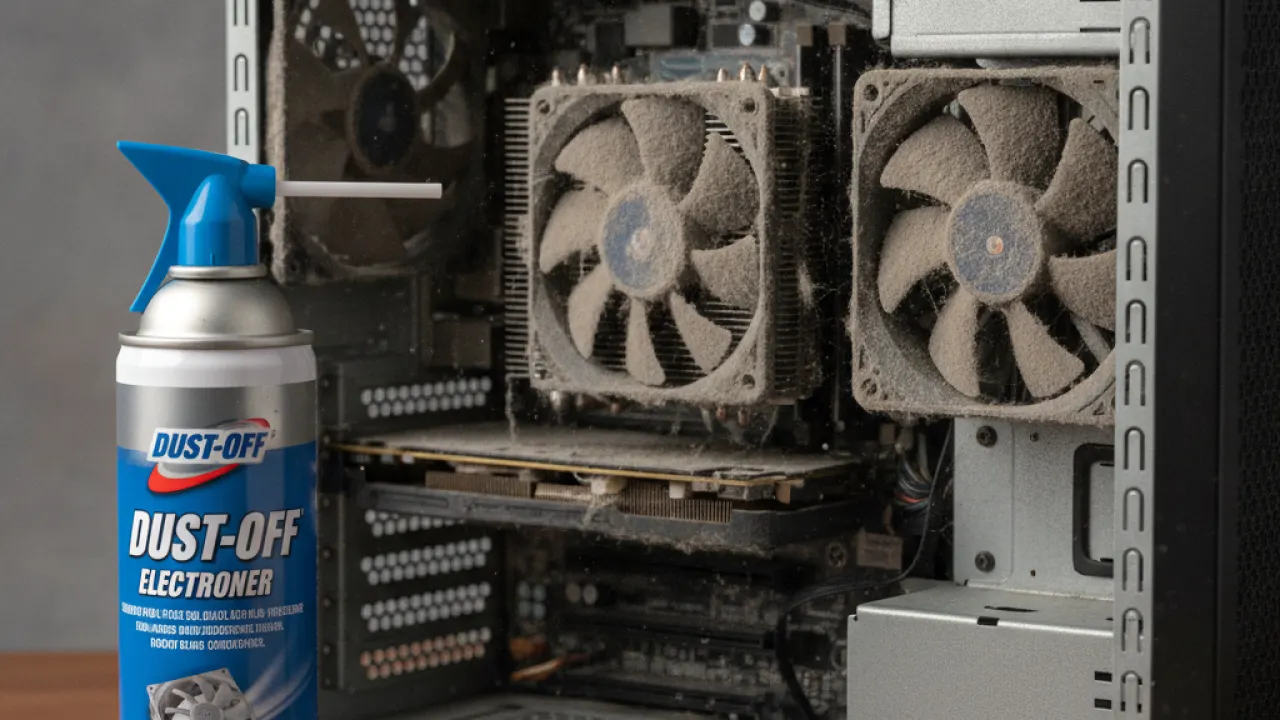
Learning how to clean your PC safely in 2027 means understanding that dust is the main enemy of hardware longevity. Dust builds up on fans, heatsinks, and air vents, causing components to overheat. Most PCs benefit from physical cleaning every 6 to 12 months.
What You Need
- Compressed air can — The main tool for cleaning PC internals. Available at any electronics or office supply store.
- Soft brush — A clean paintbrush or electronics cleaning brush for stubborn dust.
- Isopropyl alcohol (90%+) — For cleaning thermal paste off the CPU and heatsink if you’re reapplying thermal compound.
- Screwdriver — Phillips head to open the case panels.
- Anti-static wrist strap (optional) — Worth having if you’re touching components. Static discharge can damage sensitive parts.
Cleaning a Desktop PC
- Shut down the PC completely and unplug the power cable from the wall. Don’t just turn it off with the power button — unplug it.
- Remove the side panel. Most modern cases use thumb screws.
- Take the PC outside or to a well-ventilated area before using compressed air. The dust will go somewhere, and you don’t want it in your house.
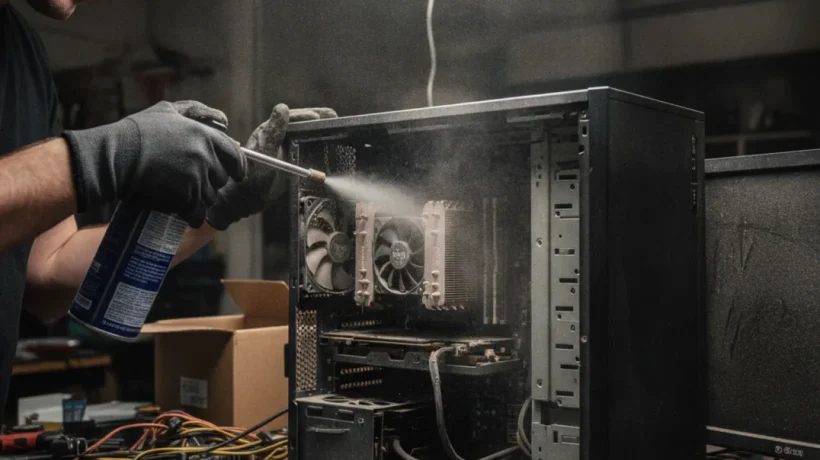
- Spray compressed air in short bursts. Hold the can upright to avoid spraying liquid propellant. Use a finger to hold fans still while spraying them — spinning a fan with compressed air can damage the bearings.
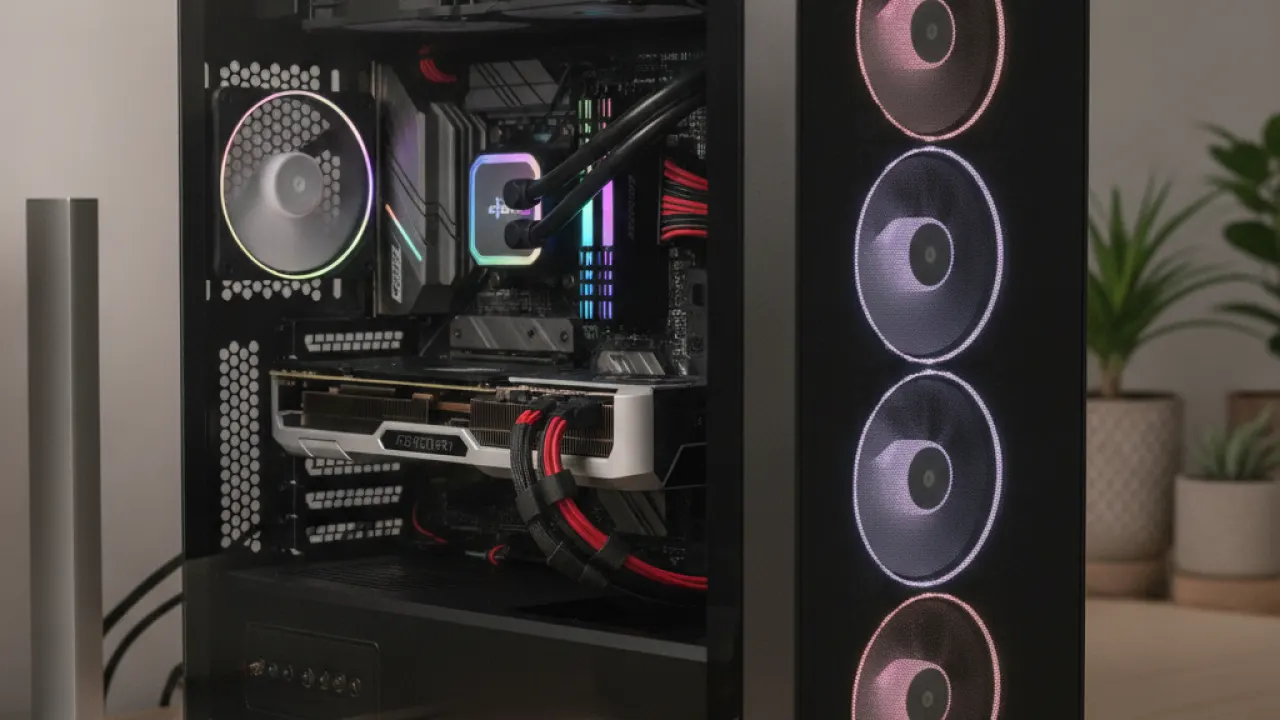
- Focus on the CPU cooler, GPU fans, case fans, and any vents or filters. These collect the most dust.
- Use the brush for stubborn clumps that compressed air doesn’t shift.
- Wipe down the case exterior with a dry or slightly damp cloth.
Cleaning a Laptop
Laptops are trickier because most aren’t designed to be opened easily. For most users, the right approach is to use compressed air to blow into the exhaust vents with the laptop running to help dislodge dust. Turn the laptop upside down and blow air into the vents from outside. This won’t do as thorough a job as opening the laptop, but it helps.
If your laptop runs noticeably hot or the fans are loud, it may be worth having a tech clean it properly by opening the chassis. Some laptop models allow this easily, others don’t without risk of damage.
Software Cleaning: Remove What’s Slowing Your PC Down
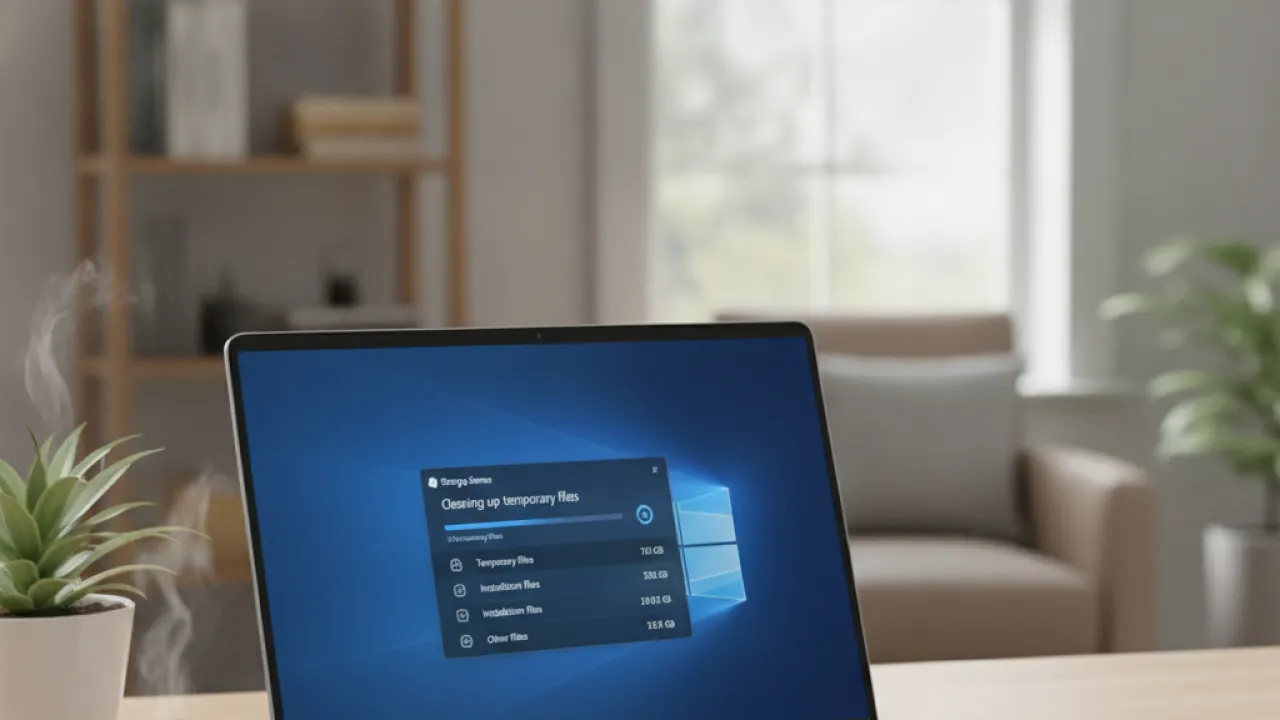
The software side of how to clean your PC safely in 2027 covers junk files, unused programs, startup entries, and browser clutter. Done carefully, this noticeably speeds up a PC that’s been running for a year or more.
Run Windows Storage Sense
Open Settings, then System, then Storage. Click Storage Sense and run it now. This removes temporary files, old Windows Update files, Recycle Bin contents, and downloaded program files no longer in use. On most machines that haven’t been cleaned recently, this frees up several gigabytes.
After Storage Sense runs, scroll down to see where your storage is going. Windows breaks it down by category. The “Other” and “Apps and games” categories are usually where the biggest opportunities are.
Uninstall Programs You Don’t Use
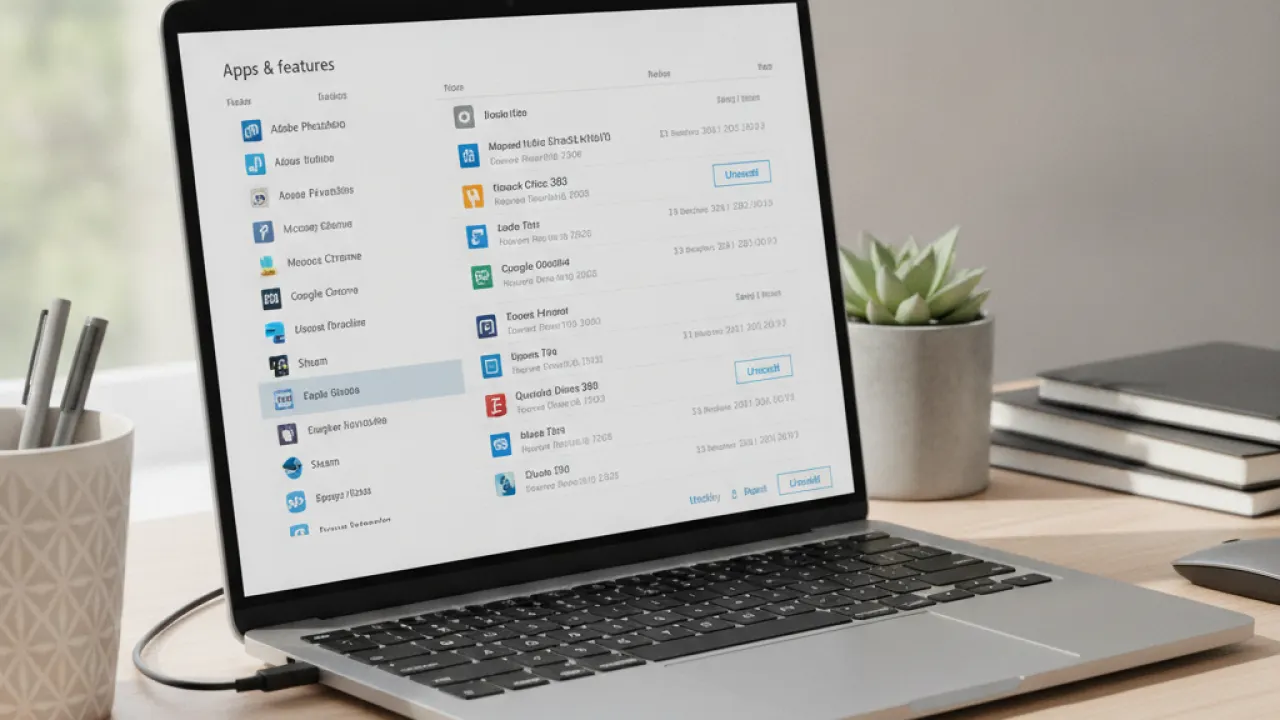
Open Settings, then Apps, then Installed apps. Sort by size. Look at the biggest programs and ask honestly whether you use them. Uninstall anything you haven’t opened in six months. Pay particular attention to:
- Games you’ve finished or stopped playing
- Old software from previous jobs or projects
- Trial software that came pre-installed when you bought the PC
- Older versions of software you’ve since updated
- Toolbars, browser helpers, and “optimizer” tools
Clear Browser Data
Browsers accumulate cache, cookies, and browsing history that can add up to several gigabytes over time. Open your browser settings and clear cached images and files. You can be selective: cached images and files are safe to clear without logging out of sites. Clearing cookies logs you out of sites, which may or may not be what you want.
In Chrome: Settings, then Privacy and security, then Clear browsing data. Choose “Cached images and files” and set the time range to All time.
In Firefox: Settings, then Privacy and Security, then Clear Data. Check Cached Web Content.
Check What’s Starting With Windows
Open Task Manager with Ctrl + Shift + Esc, then click the Startup apps tab. Sort by “Startup impact” and look at the High-impact programs. Disable any you don’t need at startup. Common candidates: Spotify, Discord, Steam, Adobe Creative Cloud, and manufacturer apps that came with your PC. Don’t disable your antivirus or security tools.
What Not to Do When Cleaning Your PC
A guide on how to clean your PC safely in 2027 should also cover the common mistakes that cause problems. These are the things people do thinking they’ll help, which end up causing more trouble than they fix.
Don’t Use PC Optimizer Software
Programs marketed as “PC optimizers,” “registry cleaners,” or “system boosters” do more harm than good in most cases. They often delete files that programs need, make changes that cause software to stop working, and sometimes include bundled malware. Windows already has built-in tools that do the legitimate cleaning tasks. You don’t need third-party optimizer software.
Don’t Use a Vacuum Inside the PC
Vacuums create static electricity that can damage components. Use compressed air inside the case, not a vacuum. You can use a vacuum to clean the outside of the case and the area around it, but keep it away from the inside of the machine.
Don’t Delete System Files You Don’t Recognize
If you’re not sure what a file or folder is, don’t delete it. System files and program data often have obscure names. Deleting the wrong thing stops programs from working or prevents Windows from booting. If Storage Sense doesn’t remove something, assume it’s there for a reason.
Don’t Clean the Registry
Registry cleaning tools are unnecessary in 2027. Windows manages the registry efficiently enough that cleaning it provides no meaningful performance benefit and risks breaking things. Leave the registry alone unless a specific program’s support instructions tell you to remove a specific key.
How Often to Clean Your PC and What to Expect
Physical cleaning is recommended every 6 to 12 months for desktop PCs and laptops kept in clean environments. Every 3 to 6 months for PCs in dusty rooms, homes with pets, or workshop settings where more dust circulates.
After a physical clean, expect lower CPU and GPU temperatures. Depending on how clogged things were, this can be a significant drop — sometimes 10 to 20 degrees Celsius on a heatsink that was thoroughly blocked.
Software cleaning gives you back storage space and speeds up startup times. A PC that boots noticeably faster after clearing startup apps and junk files is a common result. Don’t expect miracles from software cleanup alone if the hardware is underpowered for what you’re doing.
The combination of both physical and software cleaning, done correctly and regularly, keeps a PC running well for years longer than one that’s never cleaned. Most hardware failures and performance drops are preventable with basic maintenance.
For more guides on maintaining and getting the most from your PC, visit TechDeft where we cover Windows tips, hardware guides, and software reviews regularly.
When did you last clean your PC, and did you notice a difference in performance or temperatures after doing it? Share your experience in the comments below.
Microsoft’s support documentation at Microsoft Support has step-by-step instructions for creating and using restore points on Windows 11.