
You can block a website in Firefox in several ways depending on how permanent you want the block and whether you want it to affect just Firefox or your entire network. Here are four methods from quickest to most permanent.
Method 1: uBlock Origin Custom Filter (Recommended)
uBlock Origin is the best browser extension for Firefox and it doubles as a website blocker. If you’re already using it for ad blocking, adding a site block takes 10 seconds.
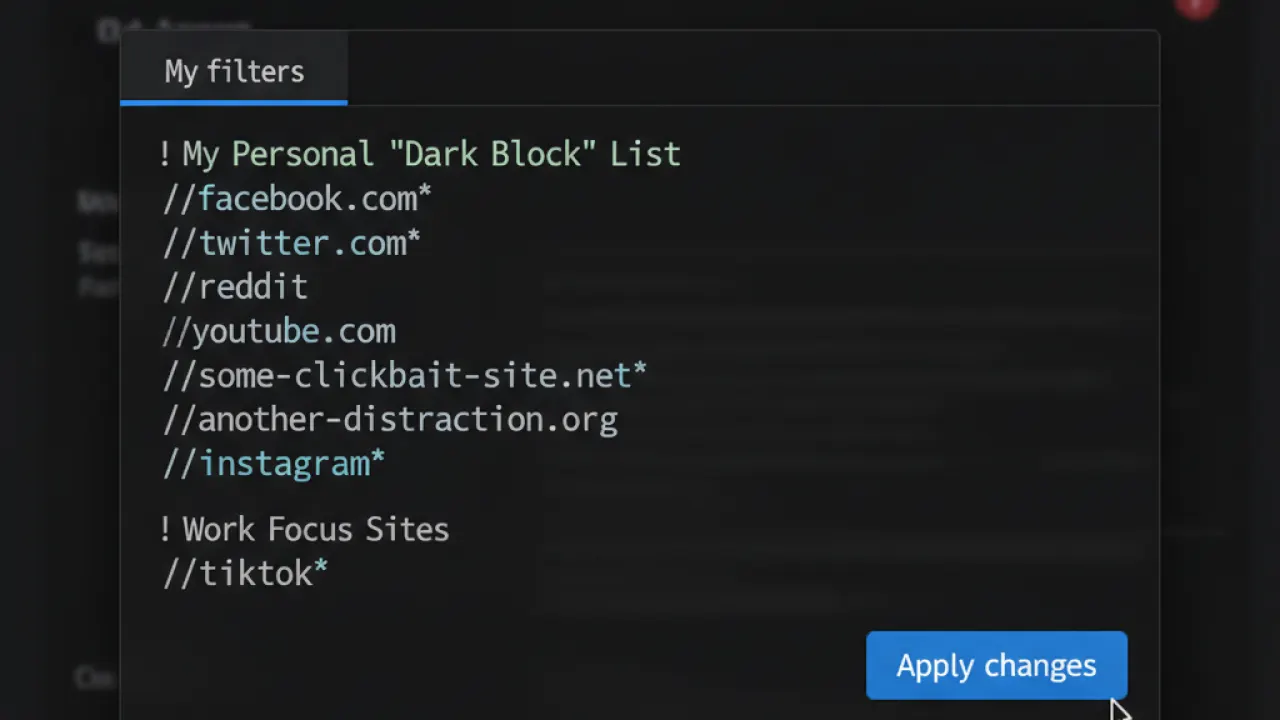
- Click the uBlock Origin shield icon in the Firefox toolbar.
- Click the settings icon (dashboard).
- Go to the My filters tab.
- Add a new line:
||example.com^replacing example.com with the site you want to block. - Click Apply changes.
The site now loads a blank page or shows an error in Firefox. The block only affects Firefox on that device, not other browsers or other devices on your network.
Method 2: BlockSite Extension (With Schedule Control)
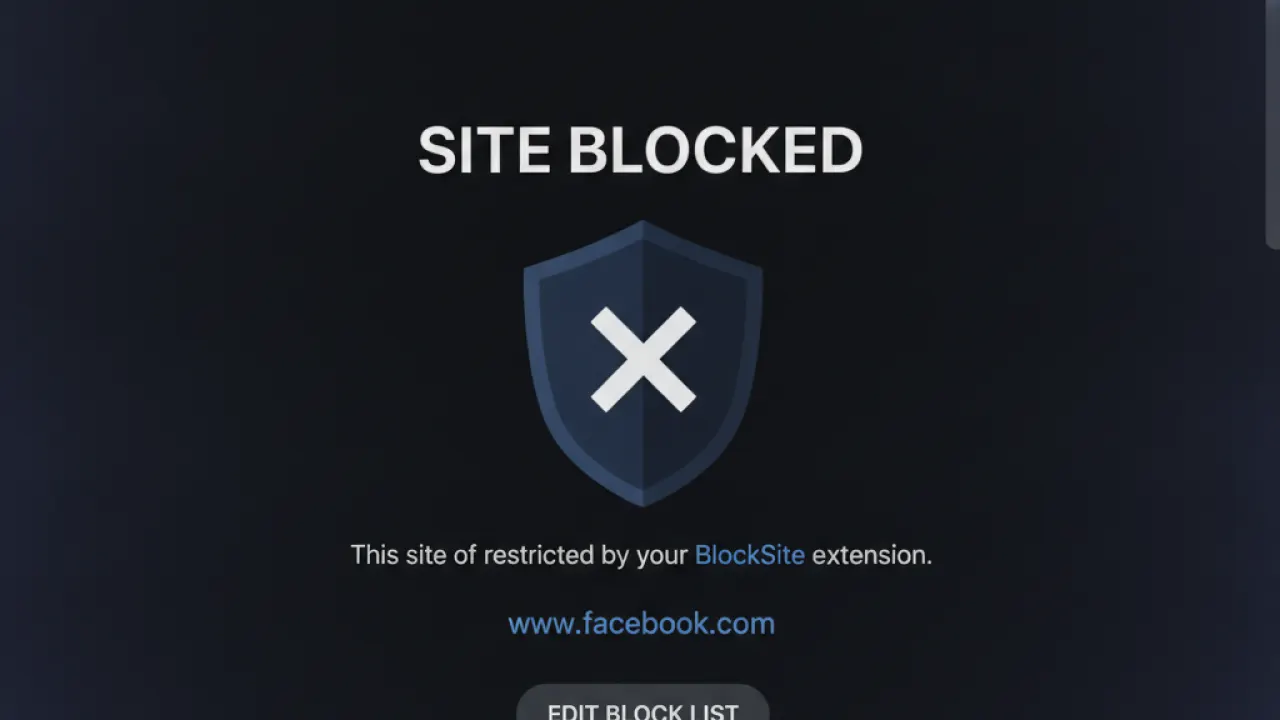
BlockSite is a Firefox extension designed specifically for website blocking with additional features useful for productivity. It shows a blocked page message instead of an error, supports password protection so others can’t unblock the site, and lets you set time-based schedules (block a site during work hours but allow it in evenings).
- Search for “BlockSite” in the Firefox Add-ons store (addons.mozilla.org).
- Install and open the BlockSite settings.
- Add the website you want to block.
- Optionally set a schedule or add a password.
BlockSite is the best choice if you’re blocking a site for focus or productivity reasons and want a friendlier interface than raw filter rules.
Method 3: Windows Hosts File (All Browsers, All Users)
Editing the Windows hosts file blocks a website at the operating system level. The block affects all browsers (Chrome, Edge, Firefox, and everything else) and all users on that Windows account.
- Press Windows + S and search for Notepad.
- Right-click Notepad and choose Run as administrator.
- Open the file:
C:WindowsSystem32driversetchosts(choose “All Files” in the file type dropdown). - At the bottom of the file, add a new line:
127.0.0.1 example.com - Also add:
127.0.0.1 www.example.com - Save the file.

The website now fails to load in every browser on this Windows machine. To unblock it, remove the lines you added. This method also works on macOS and Linux with the same hosts file at /etc/hosts, edited with sudo.
Method 4: Router-Level Blocking (Entire Network)
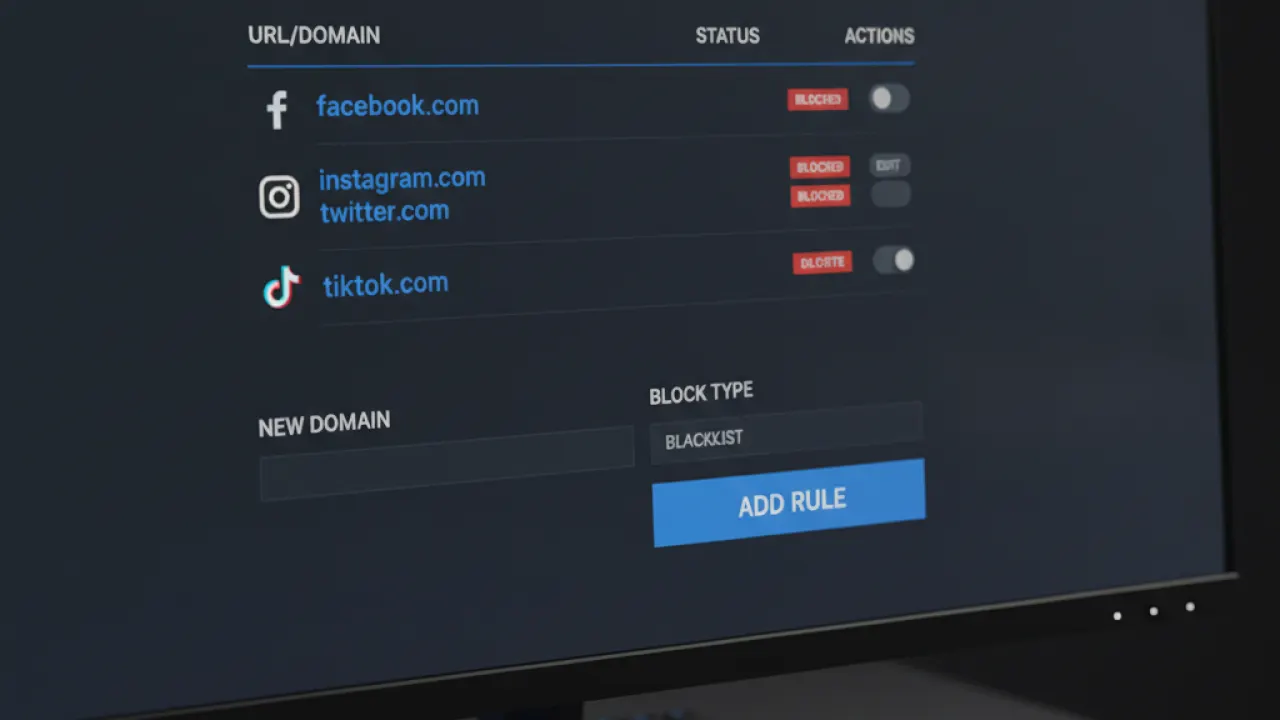
If you want to block a website for every device on your home network (all phones, tablets, computers, and smart TVs), block it at the router level. Log into your router’s admin panel (usually 192.168.1.1 or 192.168.0.1), find the content filtering or parental controls section, and add the domain to the block list. The exact steps vary by router manufacturer but the feature is standard on most modern home routers.
Router-level blocking is the most comprehensive option. It also works for blocking distracting sites for children’s devices without needing to configure each device separately.
Which Method Should You Use?
- Block one site quickly in Firefox only: uBlock Origin custom filter.
- Block a site for productivity with schedule control: BlockSite extension.
- Block a site in all browsers on your PC: hosts file edit.
- Block a site for all devices in your home: router admin panel.
For a complete browser privacy setup beyond just blocking individual sites, our guide comparing Brave vs Firefox covers the browsers with the strongest built-in protection. And our Pi-hole vs AdGuard Home guide shows how DNS-level blocking works across the entire network without touching individual browsers.
Which method are you using to block websites in Firefox, and what site prompted you to do it? Leave a comment with your approach — productivity blocking is one of the most common reader use cases.

