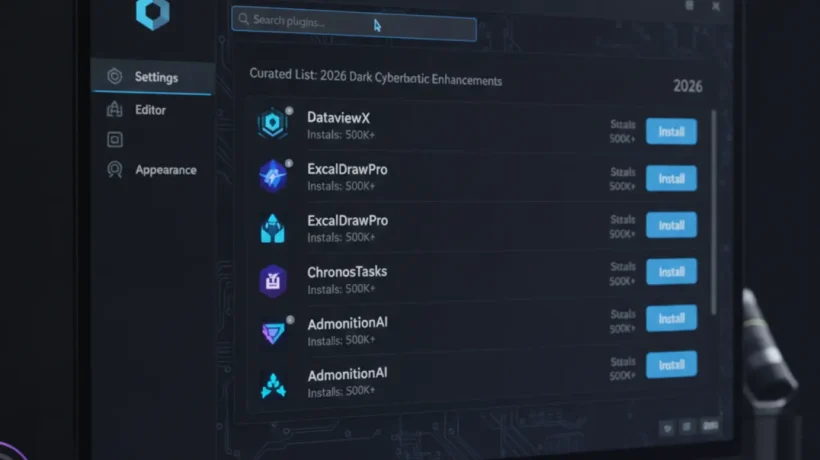

Obsidian has over 1,500 community plugins in 2026. Installing too many too early is the most common mistake new users make. These are the plugins experienced Obsidian users recommend after months of actual use, and the right time to add each one.
The Rule: Use Obsidian First, Plugins Second
Use Obsidian’s core features for at least a month before adding any plugins. Write notes, link them with double brackets, explore the graph view. After a month, you’ll know exactly what’s missing. Add plugins only for specific problems you’ve actually encountered, not features that sound useful in theory. Over-plugging is the most common way to make Obsidian confusing and slow.
1. Dataview — The Most Powerful Plugin
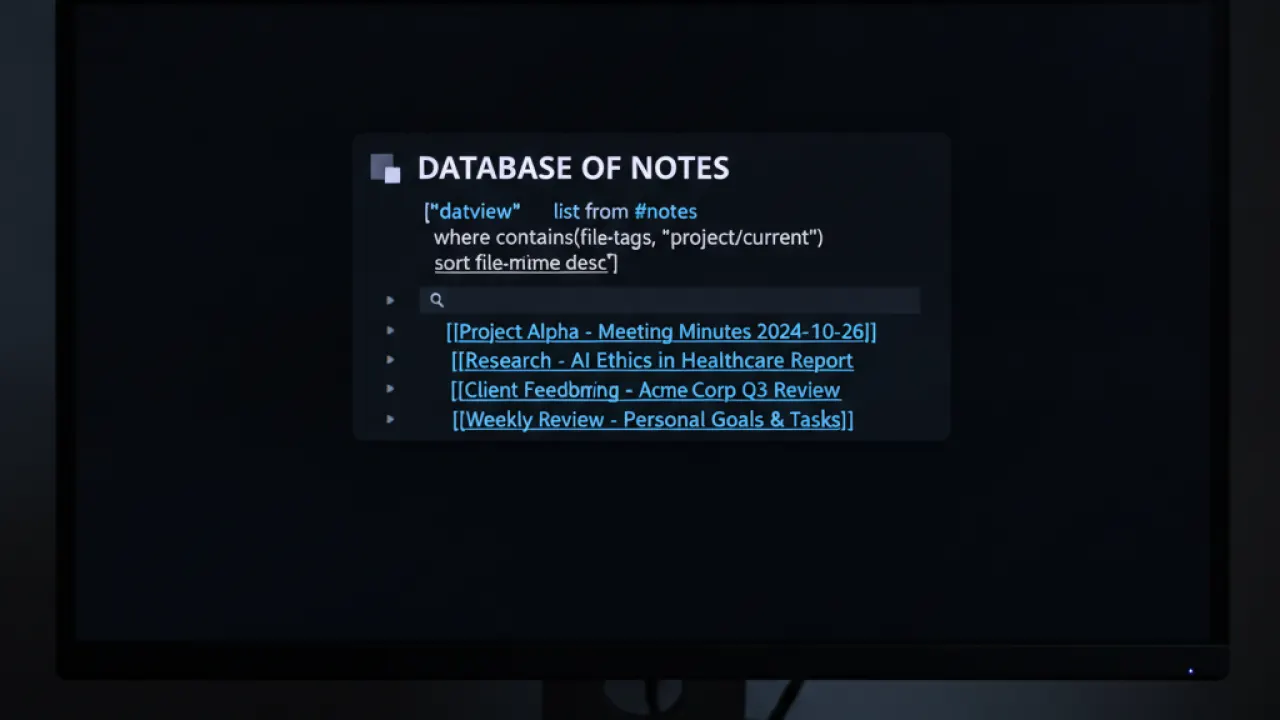
Dataview turns your notes into a queryable database. You can create dynamic lists that pull information from across your entire vault: all notes tagged “unread”, all tasks created this week that aren’t complete, all notes in a specific folder sorted by date. The query language is simple but powerful enough for complex dashboards. Add Dataview once you’ve been using Obsidian for several months and find yourself wanting cross-vault summaries and lists.
2. Calendar — Visual Daily Notes
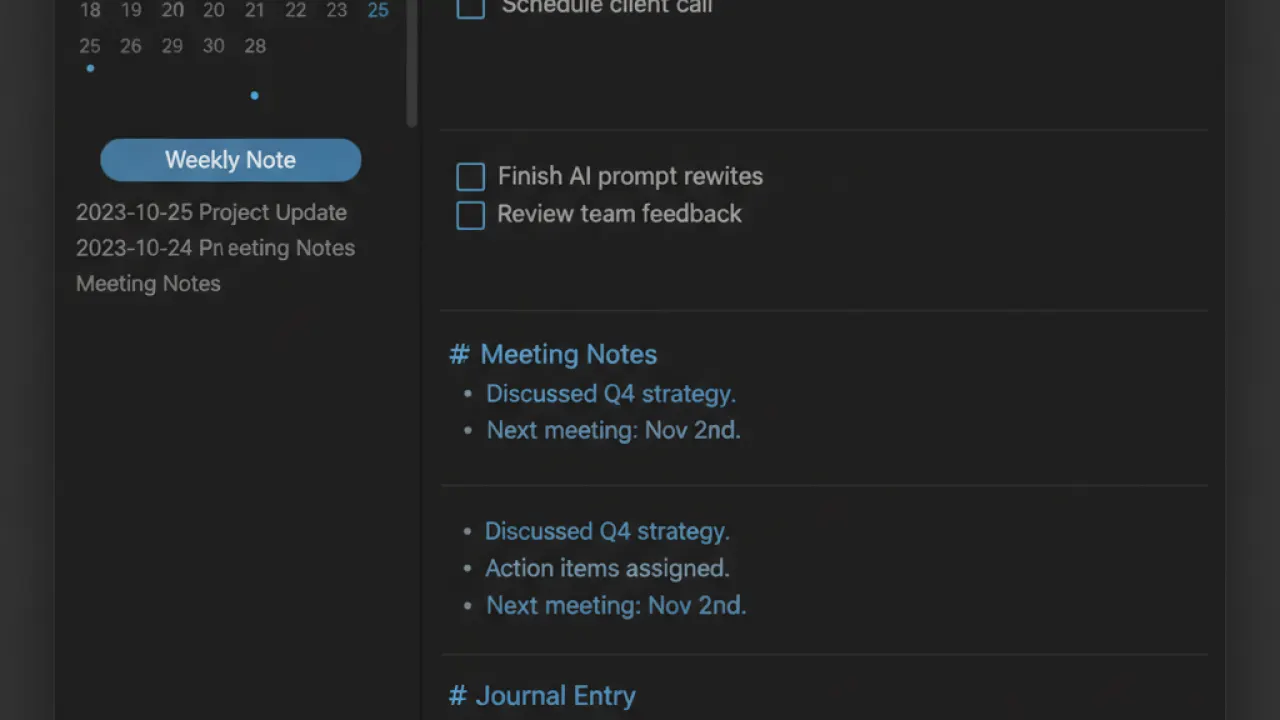
The Calendar plugin adds a monthly calendar view to Obsidian’s sidebar. Days with daily notes show a dot. Click any day to open or create that day’s note. If you use Obsidian’s Daily Notes feature for journaling or planning, Calendar is essentially required. It transforms navigating your daily note archive from keyboard-driven to visual.
3. Templater — Better Templates
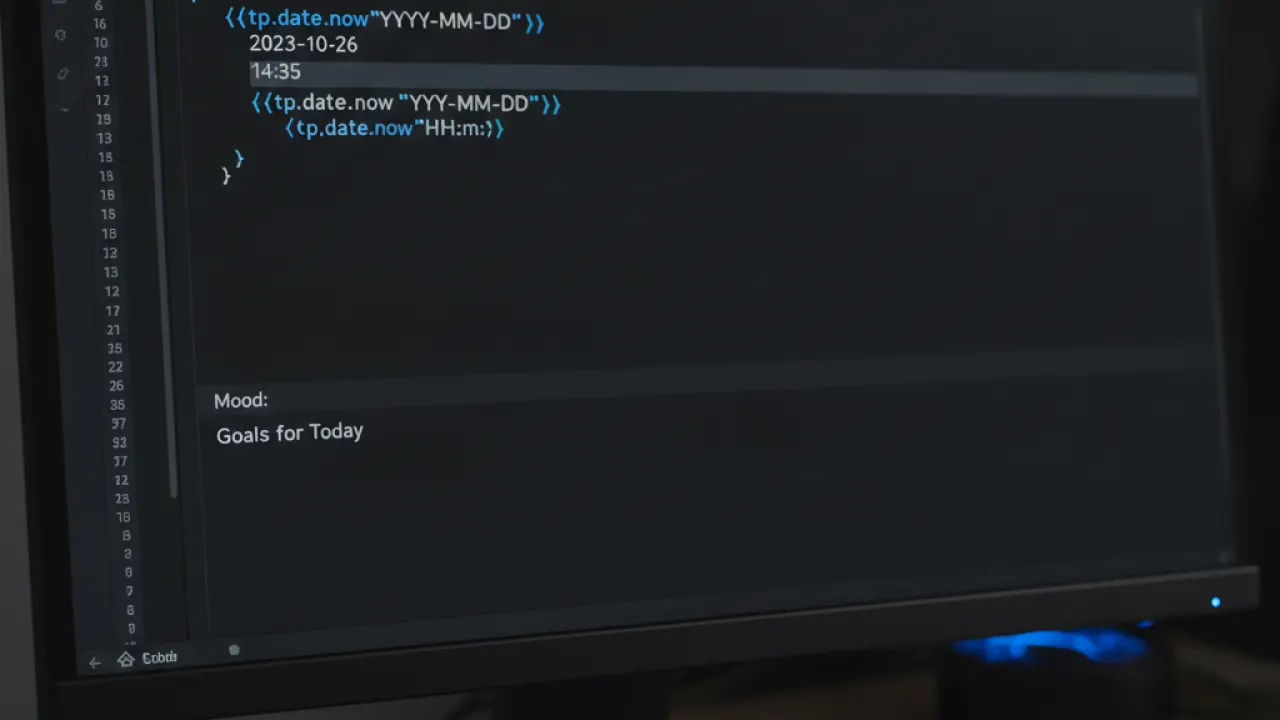
Obsidian’s built-in templates insert static text. Templater inserts dynamic content: today’s date in your preferred format, the current file name, a prompt asking for input, or JavaScript logic for complex templates. A Templater meeting note template automatically fills in the date, asks for the meeting title, and creates a structured outline ready for notes. Essential for anyone who creates similar-structured notes repeatedly.
4. Tasks — Cross-Vault Task Management
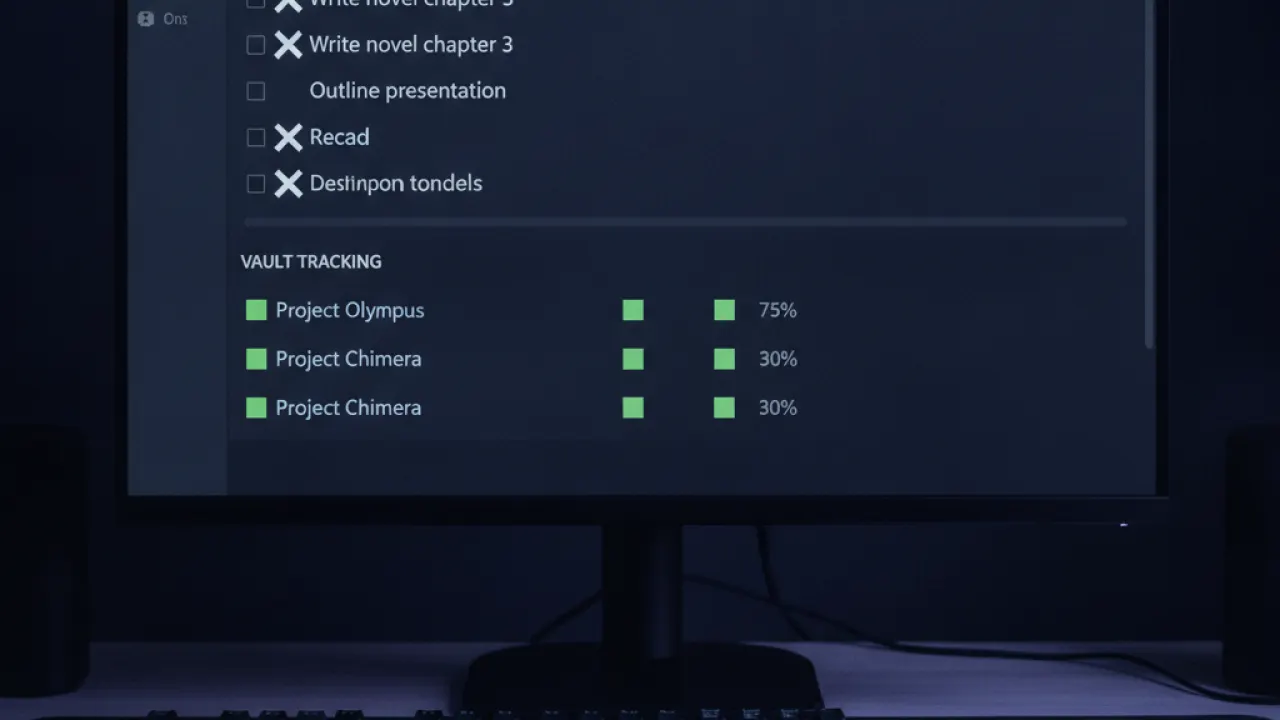
The Tasks plugin extends Obsidian’s checkbox format into a full task system. Tasks can have due dates, priorities, and recurrence. Create a dashboard note with a Tasks query showing all incomplete tasks due this week from anywhere in your vault. For people using Obsidian as their primary productivity system, Tasks provides the missing piece for to-do management.
5. Excalidraw — Diagrams Inside Notes
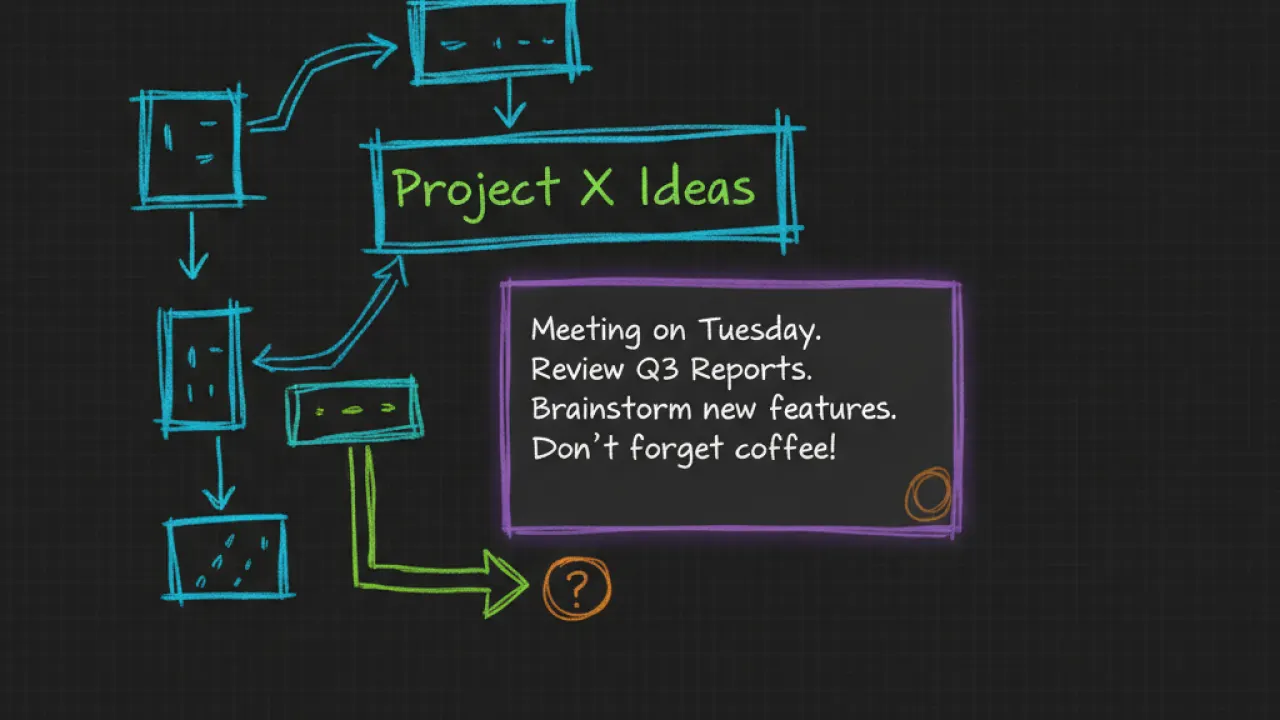
Excalidraw is an open-source whiteboard tool embedded directly into Obsidian notes. Draw system diagrams, flowcharts, and concept sketches that live alongside your text notes in your vault. The drawings are stored as files, linkable to other notes. For visual thinkers who draw to understand, having a drawing tool in the same environment as written notes removes significant friction.
6. Advanced Tables — Better Markdown Tables
Markdown tables are tedious to write and edit manually. Advanced Tables makes them manageable with tab-key navigation between cells, automatic column alignment, and spreadsheet-style formula support. If you use tables regularly in your notes, this plugin saves significant frustration.
7. Spaced Repetition — For Studying
The Spaced Repetition plugin turns flashcard-formatted notes into a built-in review system. Write question-answer pairs using a specific syntax, and the plugin schedules reviews based on how well you recalled each answer. For students and people learning new fields, this integrates studying directly into where you take your notes. For more on Obsidian’s broader capabilities, our Obsidian notes app review covers the core app features that make it worth using before plugins.
Plugins to Avoid Early
- Don’t install theme-heavy plugins before you’re comfortable with the base interface.
- Avoid plugins not updated in over a year — they may break with new Obsidian versions.
- Don’t install more than 5-6 plugins until you understand how each changes your workflow.
Which Obsidian plugins have you found most useful, and which did you try and remove? Leave a comment with your current plugin list and what prompted each addition.

