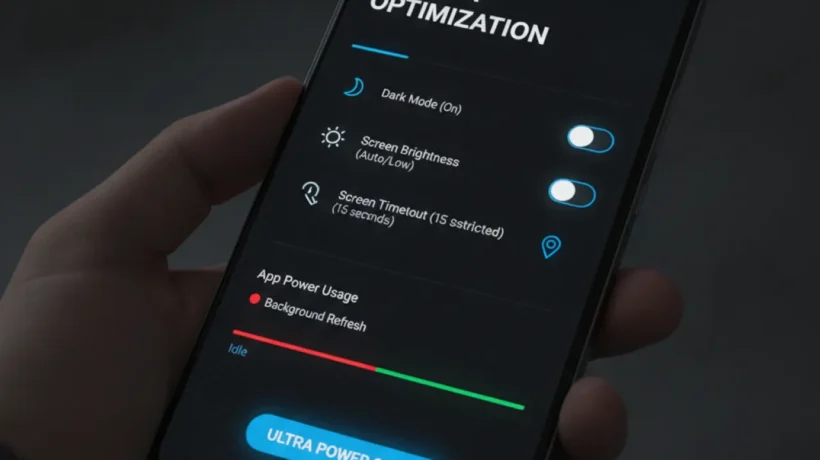

Android battery draining faster than it used to is one of the most searched phone problems. The cause is almost always one of a small number of issues, and most are fixable in a few settings changes. Here are 10 fixes from quickest to most involved.
1. Check Battery Usage Stats First
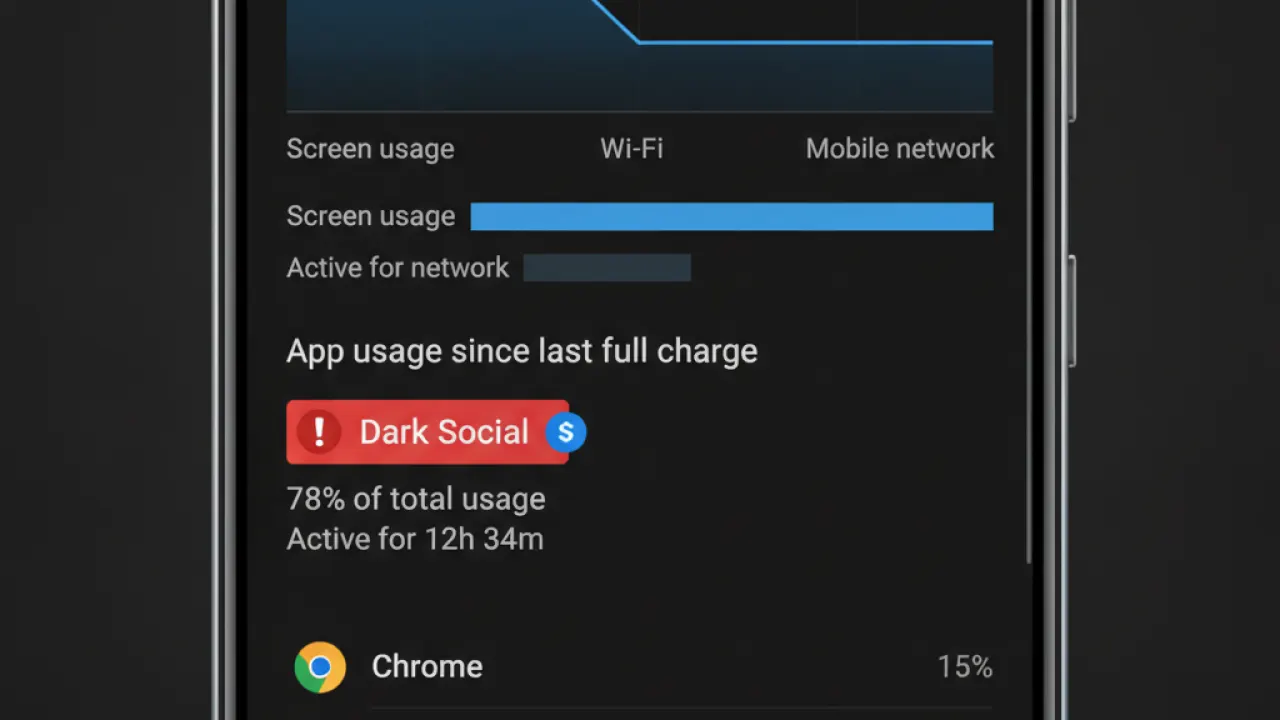
Before changing anything, identify what’s actually draining your battery. Go to Settings, then Battery, then Battery Usage. This shows which apps have used the most battery in the past 24 hours. If one app stands out, that’s where to start. Background apps that are consuming 20%+ of battery when you haven’t used them indicate a misbehaving app that needs attention.
2. Reduce Screen Brightness
The screen is the single largest battery consumer on most Android phones. Reducing brightness from 100% to 50% can extend battery life by 30-40% depending on your usage pattern. Turn on adaptive brightness (Settings, then Display, then Adaptive Brightness) so the screen automatically adjusts to ambient light. Indoors, adaptive brightness will typically be much lower than what you’ve manually set.
3. Restrict Background App Activity
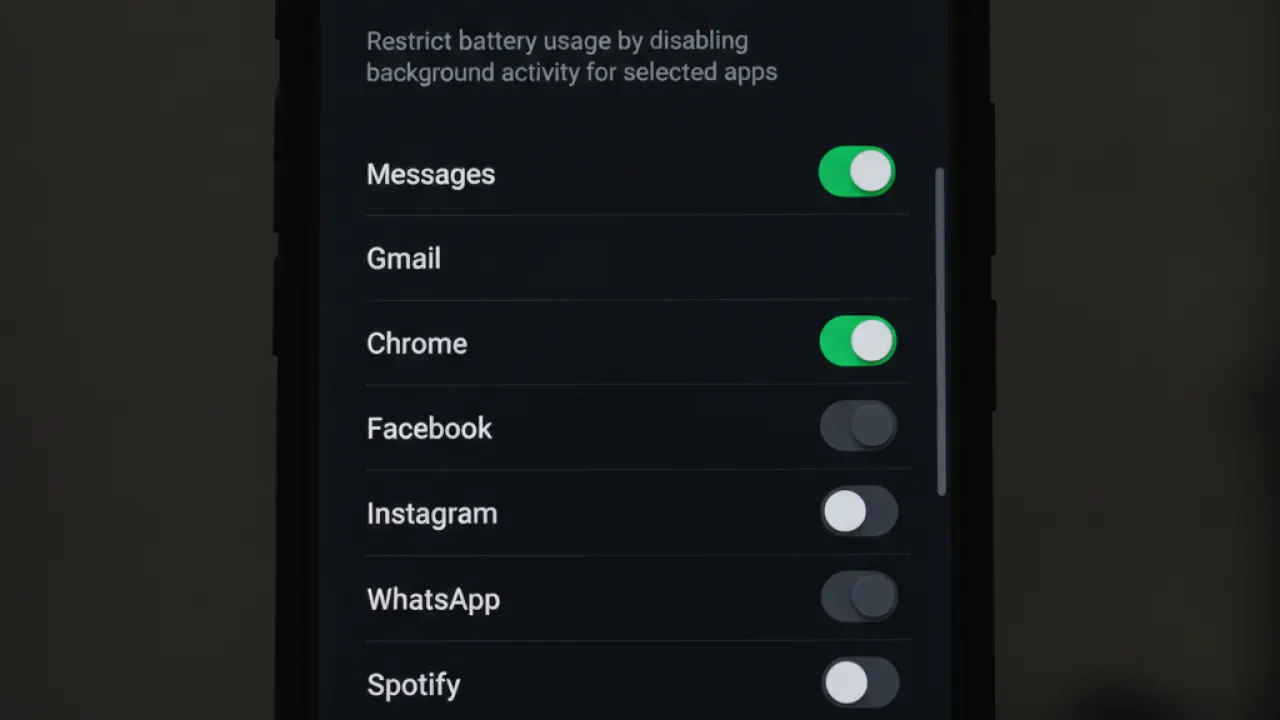
Apps running in the background to check for updates, sync data, or show notifications use battery constantly. For apps you don’t need background activity from: Settings, then Apps, tap the app, then Battery, then Restrict. This stops the app from running in the background. It may delay notifications but significantly improves battery life for apps like social media, email, and news.
4. Turn Off Always-On Display
The Always-On Display (AOD) feature that shows time and notifications when the screen is off uses 3-8% extra battery per day. If battery life matters more to you than glanceable information, turn it off in Settings, then Display, then Always On Display.
5. Disable Unnecessary Location Access
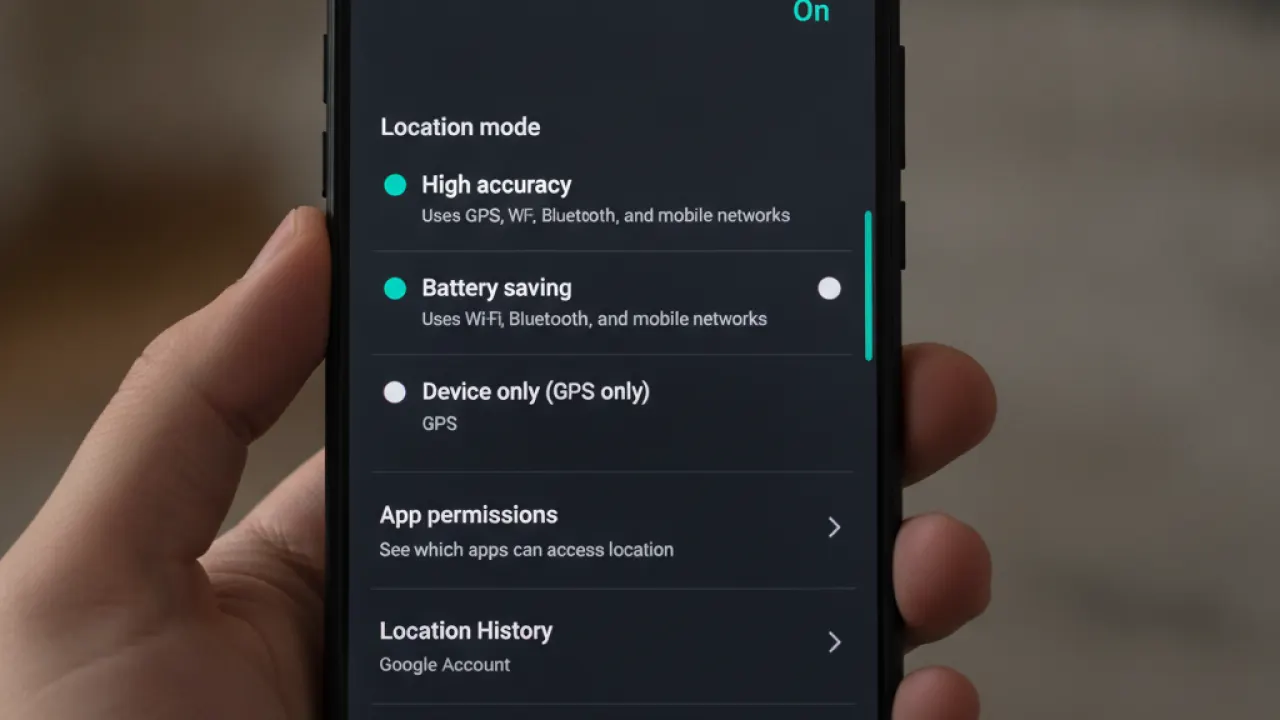
GPS and location services are significant battery consumers. Go to Settings, then Location, then App Permissions, and review which apps have “Allow all the time” location access. Change to “Allow only while using the app” for any app that doesn’t genuinely need constant location access. Common culprits: social media apps, weather apps, and games that have location access from an old permission grant.
6. Enable Battery Saver Mode
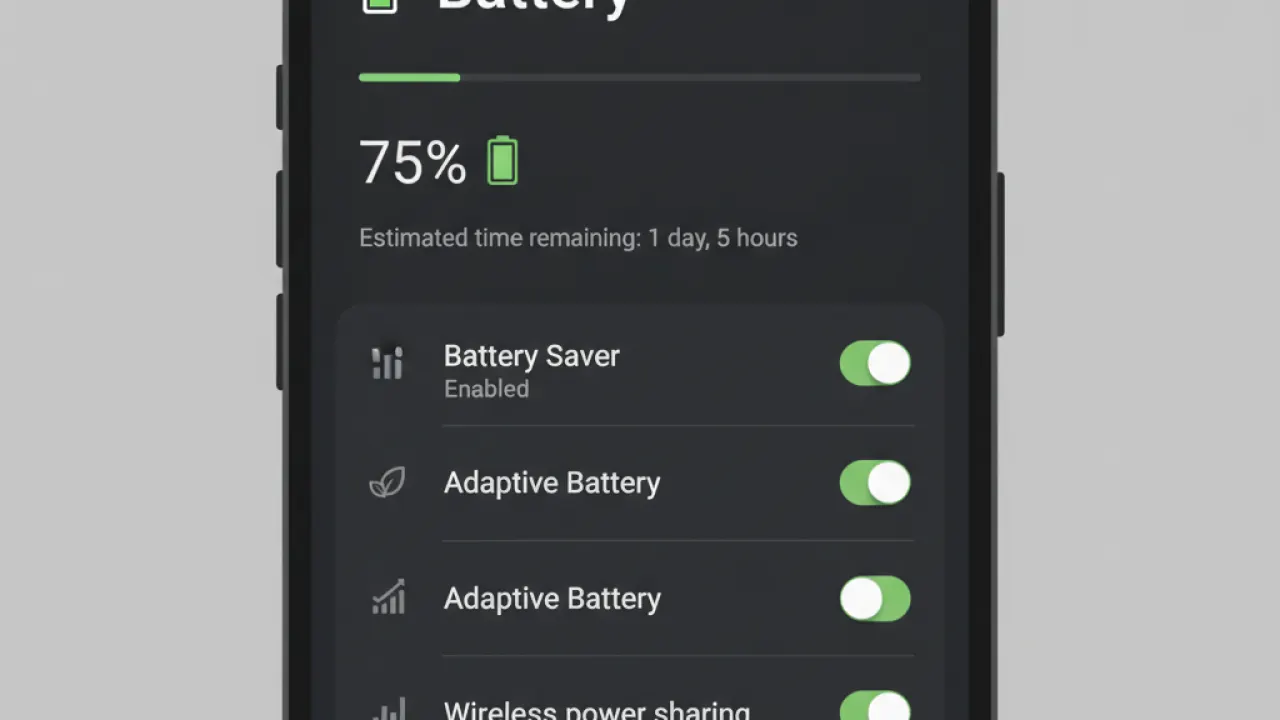
Android’s Battery Saver mode (Settings, then Battery, then Battery Saver) reduces background activity, limits performance, and turns off some features to extend remaining battery life. Enable it automatically below a certain battery percentage (15-20% is common) or use it proactively when you know you’ll be away from a charger for an extended period.
7. Disable 5G When Not Needed
5G radio consumes significantly more battery than 4G LTE, especially in areas with weak 5G coverage where the phone constantly searches for a strong signal. If you’re in an area with inconsistent 5G, switching to LTE-only mode (Settings, then Connections, then Mobile Networks, then Network Mode, then LTE/4G Only) can noticeably extend battery life.
8. Audit Notification Settings
Each notification wakes the screen, which uses battery. Apps that send dozens of notifications per day (news apps, social media) are draining your battery partly through notifications alone. Go to Settings, then Notifications, and disable notifications from apps where you don’t need real-time updates.
9. Update Apps and Android
Outdated apps sometimes have battery bugs that drain power faster than intended. Update all apps through the Google Play Store. Update Android itself through Settings, then System, then System Update. Battery-draining bugs in specific apps or Android versions are often fixed in updates.
10. Check Battery Health
Old batteries lose capacity. An original battery at 80% health provides 20% less runtime than a new one. If your phone is 2-3 years old and battery life has declined significantly, battery degradation might be the root cause that software fixes can’t fully address. Third-party apps like AccuBattery (Android) estimate remaining battery health. Replacement at a repair shop typically costs £20-40 and restores original battery life.
For a comprehensive look at keeping your Android running well overall, our guide to speed up Android covers speed improvements alongside battery fixes. And for choosing a new phone with genuinely better battery life, our best smartphones guide includes battery life as a key comparison point.
Which fix made the biggest difference for your Android battery? Leave a comment with your phone model and the culprit app or setting that was draining it — specific examples help other readers with the same model troubleshoot faster.

